Video to notes, with pictures of the screen
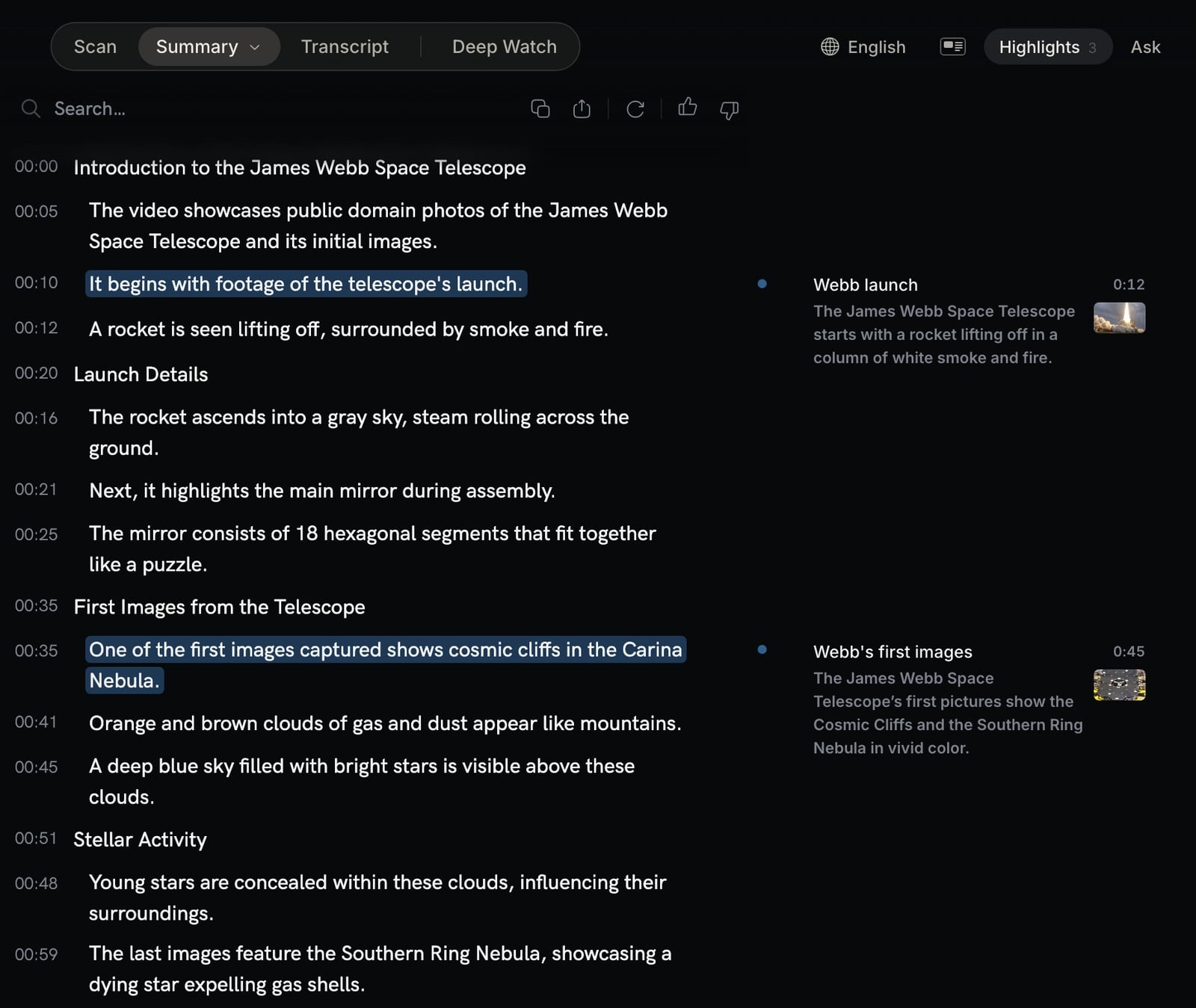
Paste a YouTube link, upload a video file, or record a video in a Chrome tab, and turn the video to notes. Video Highlight is a video note taker: it watches the video for you and keeps the key points, each at its time, with pictures of the screen where the screen matters.
What is free: Summary, Transcript, Highlights and Ask on YouTube, Vimeo and Dailymotion links. Notes with pictures of the screen are Deep Watch, included in Plus, Pro and Business. See plans
Notes you can read instead of watching
Deep Watch watches the whole video for you. It looks at what is on screen and reads what is said, and keeps the key points with pictures of the screen.
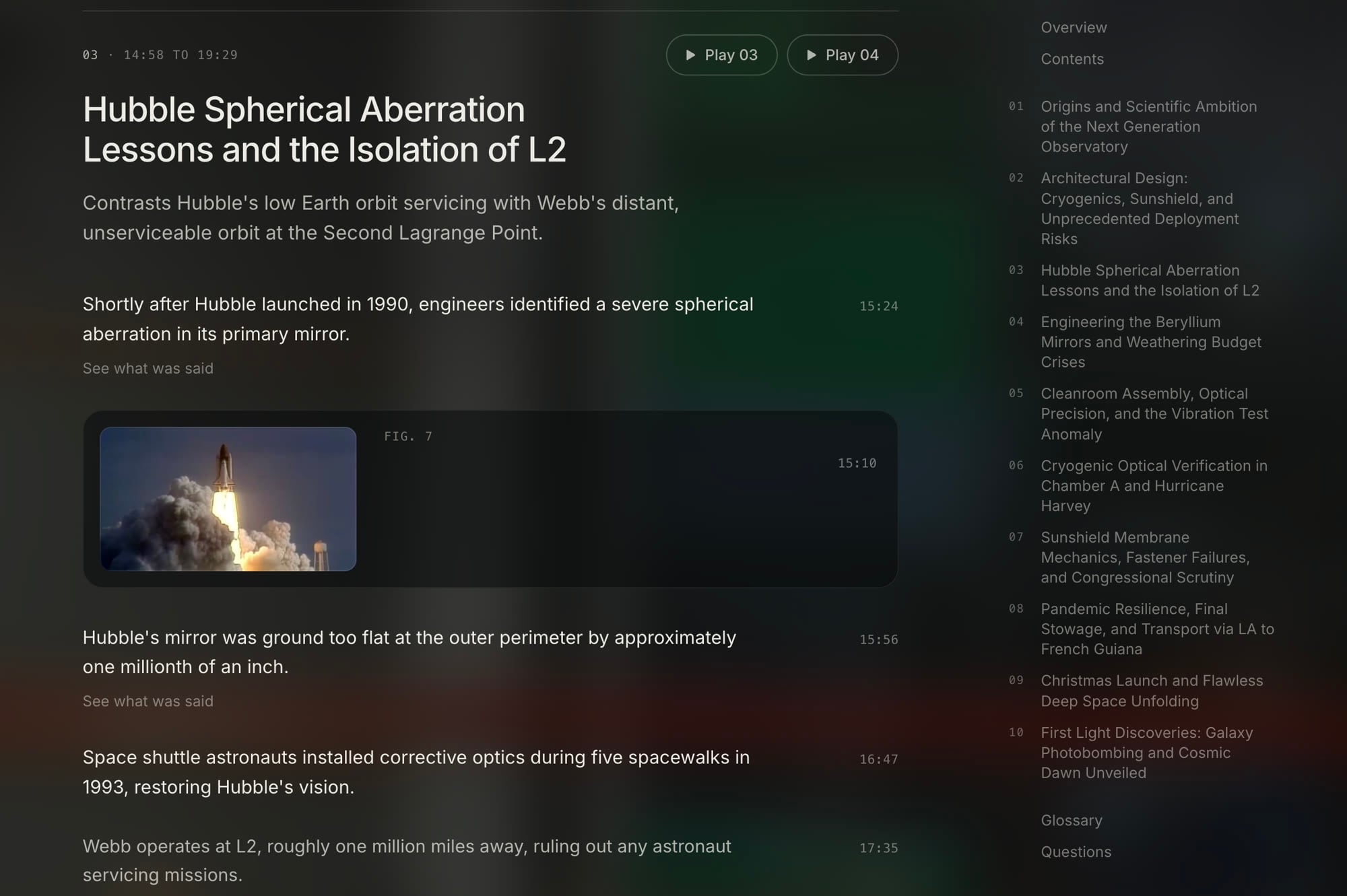
Key points
What matters most in the video, in plain sentences, in the order it happens.
Each at its time
Every point has its time. Press it and the video opens at that second.
Pictures of the screen
Deep Watch keeps pictures of the screen where the screen matters. A video that shows only the speaker gets notes without pictures.
Notes from a link, a file or a tab
A YouTube link
Paste the link above. The Summary with times and the Transcript are free. Deep Watch notes with pictures are on paid plans, and you can share them by link.
A video file you upload
MP4, MOV, MKV, AVI or FLV, on paid plans. Video Highlight makes the transcript, the summary and Deep Watch notes. Notes from your own files stay private.
A video you record in a Chrome tab
Record a video playing in a Chrome tab, with its sound. When you stop, the recording goes to your library as a private video and Video Highlight makes your notes. The extension never uses your microphone or camera.
How it works
Add the video
Paste a YouTube link, upload a video file, or record a video that plays in a Chrome tab.
Video Highlight watches it
It looks at what is on screen and reads what is said, from start to end.
Read the notes
Key points, each at its time, with pictures of the screen. Press a time to open the video there.
Keep them
Download a PDF with the pictures, or share notes from a YouTube video by link.
What a transcript summary leaves out
A summary of the transcript only has the words. In a course, a webinar or a talk, much of the lesson is on the screen. Deep Watch keeps pictures of the screen where the screen matters.
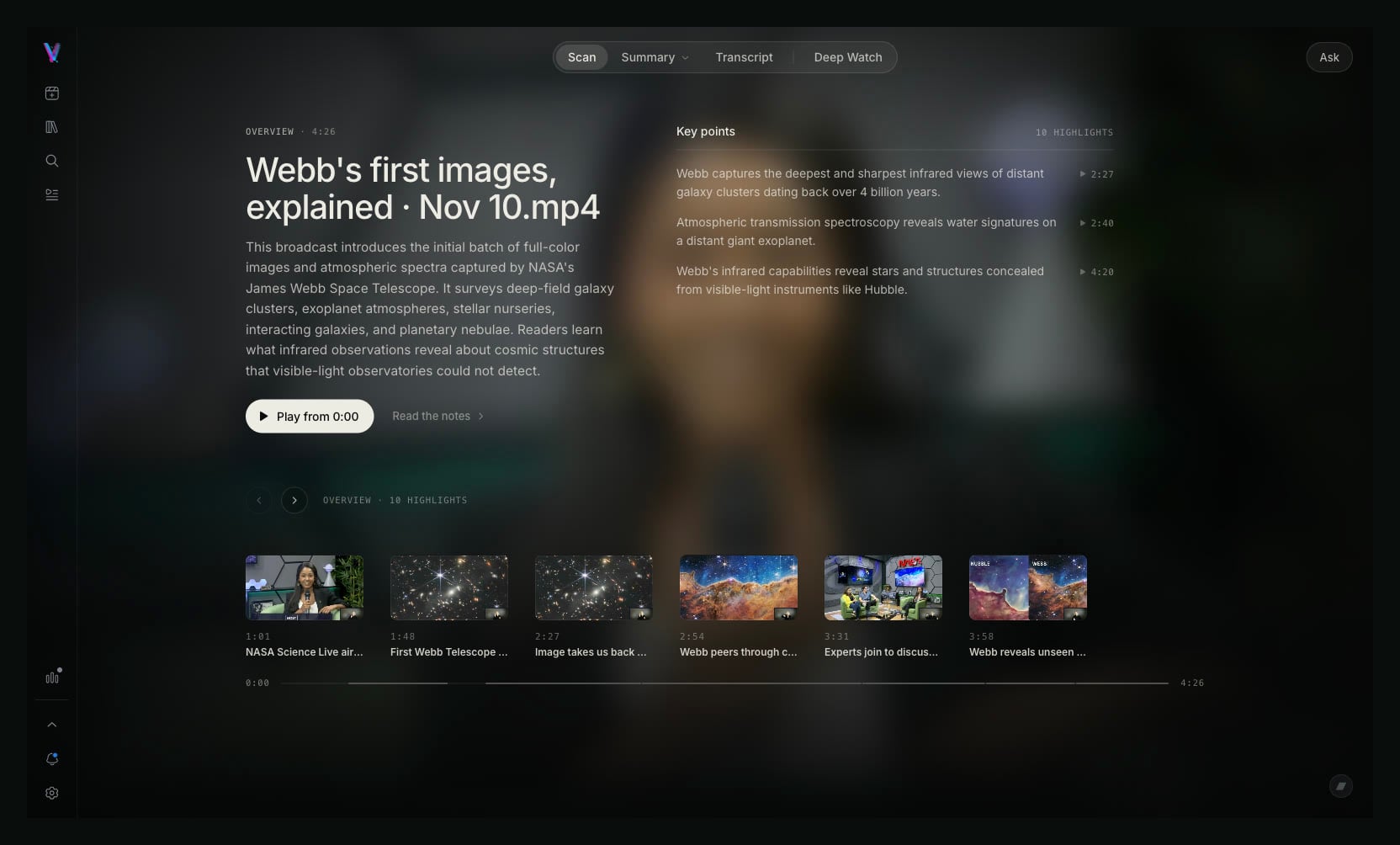
Slides
A slide holds the list, the numbers and the title the speaker only points at. The notes keep the slide as a picture.
Code
On a screen of code, the speaker says "now change this line". The picture shows which line.
Diagrams
"This box sends to that one" means nothing as text. With the picture of the diagram, it does.
Charts
The trend, the axis and the outlier are on the screen, not in the words. The picture keeps them.
Start with the free Summary
Not sure the video is worth an hour? Read the Summary first. Each point has its time, and the Transcript sits beside the video, so you can press a line to play from there.
For people who learn from long videos
Online courses
Turn each lesson into notes you can read again before the next one.
Recorded lessons
A lesson you watch in a browser tab, or a recording you upload, becomes notes with pictures of the screen where the screen matters.
Webinars
Keep the key points and pictures of the slides, and skip the parts you already know.
Talks and conference videos
Read the argument first, then watch the part that matters at its time.
Take your notes with you
PDF with pictures
Deep Watch notes have a Download PDF button. In a PDF from a YouTube video the times are links.
Word and Markdown
Export the Summary to Word, Markdown or PDF. Export the Transcript to Word, Markdown, PDF, TXT, SRT or VTT.
A share link
Share notes from a YouTube video by link: a read-only page with the pictures, which anyone can save to their own account. Notes from your own files stay private.
Other ways to turn a video into notes
Each tool does a different job. Here is when another one is the better choice.
HoverNotes
Takes notes beside the video while you watch, with one-click screenshots, and saves them as Markdown in your Obsidian vault. A good choice if your notes live in Obsidian.
NoteGPT
Takes many kinds of sources, such as YouTube, PDFs, audio and web pages, and adds study tools like flashcards. A good choice if you want one tool for many document types.
NotebookLM
Imports only the text transcript of a YouTube video, and the video needs captions. A good choice if you mix videos with PDFs and documents in one notebook, and it is free.
Video Highlight is built around the video itself: the transcript beside the player, every point at its time, and with Deep Watch, pictures of the screen in the notes. All comparisons
Frequently asked questions
Is this video to notes tool free?
Partly. The free plan gives you Summary, Transcript, Highlights and Ask on YouTube, Vimeo and Dailymotion links, for videos up to 150 minutes. Notes with pictures of the screen are Deep Watch, which is included in Plus, Pro and Business. There is no free Deep Watch allowance.
Does it work on YouTube videos without captions?
Deep Watch reads what is said. For a YouTube video it uses the video's captions, or our own transcription when there are none.
Can it make notes from long videos?
Yes. On the free plan, summaries work on YouTube, Vimeo and Dailymotion links up to 150 minutes. Long videos get a summary in sections, and every point has its time, so you can go straight to the part you need.
Can I turn my own recordings into notes?
Yes, on a paid plan. Video to notes works on your own videos too. Upload a video file (MP4, MOV, MKV, AVI or FLV), or record a video that plays in a Chrome tab with the extension. Audio files get a transcript and a summary, not notes with pictures. Notes from your own files stay private.
Which languages does it support?
Transcription works in 37 languages.
Can I get my notes as a PDF?
Yes. Deep Watch notes have a Download PDF button, and the PDF keeps the pictures. In a PDF from a YouTube video the times are links. The Summary also exports to PDF, Word and Markdown.
Does it take screenshots automatically?
Yes, with Deep Watch. Deep Watch keeps pictures of the screen where the screen matters. A video that shows only the speaker gets notes without pictures. To save a picture yourself, install the Chrome extension and press H. It saves a highlight with the picture on screen.
How are notes with pictures different from a transcript summary?
A transcript summary only has the words. Slides, code, diagrams and charts are on the screen, so a summary of the words cannot hold them. Deep Watch looks at the screen too. Deep Watch keeps pictures of the screen where the screen matters. A video that shows only the speaker gets notes without pictures.
Hours of video. Minutes of reading.
Researchers, professionals, and creators use it on YouTube videos and on their own recordings