PowerInspect 2018 Essential Skills – Tutorial 2 – Importing CAD Files
How to Work with CAD Models in Power Inspector
Overview of the Interface
- The Power Inspector features a ribbon-style interface that groups controls and features intuitively, enhancing user experience and reducing the learning curve.
Importing CAD Files
- Users can import CAD files by dragging and dropping them into the CAD View display area, which also creates a new inspection document.
- Alternatively, CAD files can be added using the CAD tab for more structured management.
Configuring the CAD Display Area
- The View tab allows users to configure how the CAD display appears, including options for shading modes (shaded wireframe vs. unshaded).
- Users can change view direction, label displays, and mouse control settings to facilitate meaningful measurements.
Aligning Coordinate Systems
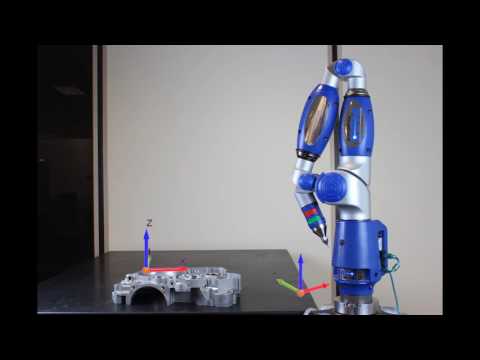
- It is crucial to align the coordinate system of the inspection device with that of the CAD file to ensure accurate reporting relative to a known datum rather than just the measuring device's coordinates.
Measuring Geometrical Features
- The Geometry tab provides tools for measuring various geometrical features such as holes, slots, spheres, rectangles, and lines.
Turn any video into a summary like this
YouTube links, meetings, lectures — with transcripts, search, and chat.