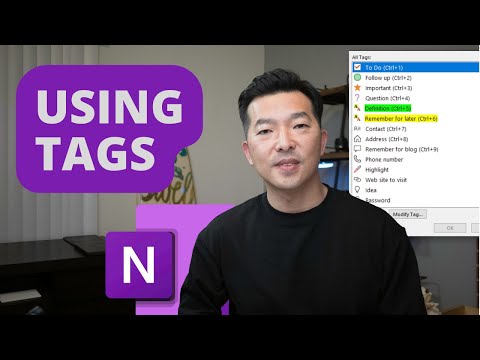
How to use TAGs in Microsoft OneNote
Introduction and Overview
In this video, the presenter demonstrates how to use tags in OneNote. They explain the benefits of using tags, how to create custom tags, search for notes using tags, and provide a bonus tip on tagging a note to show up in Outlook tasks.
Why Use Tags?
- Tags are useful for categorizing and organizing notes.
- They help group related items and make searching for them easier.
Creating Custom Tags
- To create a custom tag, go to the "Tags" group in OneNote.
- Select "More" to view the full list of existing tags.
- Choose "Customize Tags" to create or modify a tag.
- Name the tag, choose a symbol, font color, and highlight color.
Searching for Notes Using Tags
- Go to the home tab in OneNote.
- Click on "Find Tags" in the tag group.
- The tag summary panel appears, showing all the tags used in the notebook.
- Group by tag name, note section, note title, note date, or note text.
- Collapse groups not of interest and narrow down the list by searching within specific notebooks or dates.
Commonly Used Tags
The presenter shares their most frequently used tags and explains how they utilize them during meetings.
Action Items with To-do and Follow-up Tags
- Tag action items with a "To-do" tag during meetings.
- Add a "Follow-up" tag for action items others are responsible for.
- Summarize next steps easily at the end of meetings.
Important Notes with Important Tag
- Tag important notes with an "Important" tag.
Questions with Question Mark Tag
- Tag questions that arise during meetings with a question mark so they can be followed up later.
Definitions with Definition Tag
- Use the "Definition" tag to keep track of acronyms and their meanings.
Creating Custom Tags
The presenter demonstrates how to create a custom tag in OneNote.
- Go to the "Tags" group and select "More."
- Choose "Customize Tags" and then "New Tag."
- Name the tag, choose a symbol, font color, and highlight color.
- Modify existing tags by clicking on the button next to them.
- Delete tags by selecting them and clicking on the X button.
Searching for Tags
The presenter explains how to search for tags in OneNote.
- Instead of using the search field, go to the home tab and click on "Find Tags" in the tag group.
- The tag summary panel appears, showing all tags used in the notebook.
- Group by different criteria such as note section, note title, note date, or note text.
- Collapse groups not of interest and narrow down the list by searching within specific notebooks or dates.
New Section
In this section, the speaker discusses how tasks are integrated between Outlook, Microsoft To-Do, and OneNote.
Integration of Flagged Items
- When opening Outlook and going to the "My Tasks" tab, flagged items can be seen there.
- Switching over to Microsoft To-Do also shows the flagged item.
- If a task is checked off as complete in Microsoft To-Do, the flag symbol in OneNote is replaced by a check mark indicating completion.
- Returning to Outlook Task after completing the task in Microsoft To-Do shows that the task status is updated as complete with a link back to the OneNote note page.
Benefits of Task Tagging
- While OneNote's tagging system may not be as sophisticated as other note-taking systems like Evernote, creating a deliberate tagging system and using it properly can help organize notes and workflow effectively.
That concludes today's video on task integration between Outlook, Microsoft To-Do, and OneNote. If you found this helpful, please like and subscribe to the channel. Thank you!