How to use Custom Variables in Message Templates? | WhatChimp Basics
How to Use Custom Variables in Message Templates
Introduction to Custom Variables
- Anand introduces the topic of using custom variables within message templates, emphasizing the importance of personalization in messaging.
- He mentions that he is on a subscriber's live chat page, where various subscriber details (like company size and email) can be utilized for personalized messages.
Creating Custom Fields
- To personalize messages effectively, users need to create custom fields. Anand refers viewers to a previous video for detailed instructions on this process.
- The creation of custom variables involves accessing the subscriber manager and managing custom fields, where users can add attributes like gender and company size.
Personalizing Messages with Variables
- Anand explains how to send personalized messages based on subscribers' information such as country and industry by utilizing the created custom fields.
- He navigates back to the bot manager to access message templates, highlighting that he has already created several templates.
Implementing Personalization Techniques
- The simplest form of personalization is using the subscriber's name from WhatsApp; however, it can also be overridden with imported data if necessary.
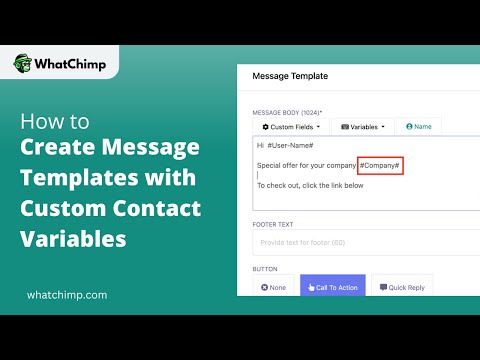
- Anand demonstrates how to incorporate more complex personalization by including specific offers tailored for each company using previously defined variables.
Finalizing Message Templates
- He illustrates adding a call-to-action button labeled "view offer" linked to a URL (watch.com), showcasing practical application in message design.
- Finally, Anand discusses syncing the template with Meta for approval, indicating that feedback will be received within 30 seconds to 1 minute.