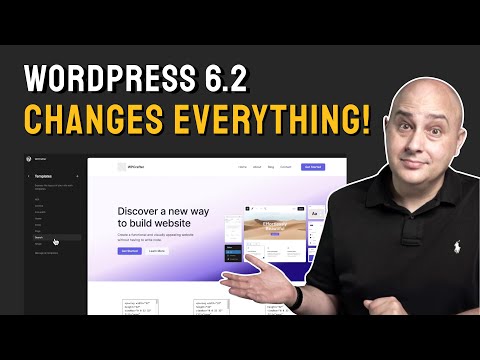
The Future Of WordPress Is Here In WordPress 6.2 - End Of Page Builders?
Introduction to WordPress 6.2
This video introduces the new version of WordPress, version 6.2, which offers a complete theme building experience along with the Page Builder.
New Theme Building Experience
- WordPress now offers a complete theme building experience along with the Page Builder.
- The new theme building experience is free and easy to use for anyone who has used WordPress in the last four years.
- To access this new feature, you need to use a block-based theme that supports it.
- You can find block themes in the WordPress theme directory or by selecting "Block Themes" from the Appearance > Themes menu.
- When using a block-based theme, you will see an "Editor" option instead of "Customizer."
- The new theme building experience allows you to create page templates, blog post templates, archive templates, and more using the block editor.
Customizing Your Theme
- To customize your theme, click on "Editor" and resize the screen to see what your website will look like in different screen widths.
- Click on the icon on the top right corner of your screen to choose from available styles for your website. You can also customize them according to your preference.
Introduction to the Style Book
In this section, the speaker introduces a new feature called the Style Book and explains how it can be accessed. The different tabs in the Style Book are also discussed.
Accessing the Style Book
- To access the Style Book, click on the "I" icon.
- This reveals a different interface with different tabs.
- The first tab is for text where you can see what your text will look like on your website and tweak it.
- There are also tabs for media, design, and theme elements.
Customizing Styles
- You can customize styles visually by clicking into each element and customizing typography and colors.
- When done with the Style Book, simply click on the "I" icon again to make it disappear.
Editing Headers and Footers
In this section, we learn how to edit headers and footers using drag-and-drop ordering systems.
Editing Headers
- Click into the header to reveal its parts.
- Click on three dots to replace header layout with an alternative one from a pop-up menu.
- Use drag-and-drop ordering system to reorder items in navigation block.
Editing Footers
- Click into footer to reveal its parts.
- Click on three dots to replace footer layout with an alternative one from a pop-up menu.
Adding Menu Items
In this section, we learn how to add menu items using drag-and-drop ordering systems.
Adding Menu Items
- Click on navigation block and then click on plus sign (+) to add new menu item.
- Link new item to any page or search for a page by name.
- Use drag-and-drop ordering system or arrow buttons to reorder items in navigation block.
Customizing Styles and Fluid Typography
In this section, the speaker discusses how to customize styles using buttons and CSS in block-based themes. They also introduce the concept of fluid typography, which automatically resizes text on a website.
Customizing Styles
- Block-based themes allow for customization of global styles using buttons.
- Additional CSS can be added to a site by clicking on the "Additional CSS" option in the Styles panel.
- Individual blocks can have custom CSS applied to them by clicking on the "Additional block CSS" option.
Fluid Typography
- Fluid typography is a new feature that allows text on a website to resize dynamically as the window gets narrower.
- This feature makes it easier to create responsive sites with less effort.
Theme Builder Features
In this section, the speaker discusses additional features that come with block-based themes, such as sticky headers and font loading.
Sticky Headers and Font Loading
- Block-based themes may include features like sticky or transparent headers.
- These options can be found under "Header" in the theme settings.
- Font loading is different in block-based themes due to performance issues.
- Only fonts specifically declared by the theme will be available for use.
- A font loader is being developed for future versions of Spectre 1 theme.
Page Editor Features
In this section, the speaker discusses features specific to page editing in block-based themes, such as hiding page titles and headers/footers.
Hiding Page Titles
- The page title can be hidden by clicking on the "I" icon and toggling it off.
Hiding Headers/Footers
- Headers and footers can be hidden on a per-page basis by clicking on the toggle in the top right corner.
New Features in WordPress Theme Builder
In this section, the speaker discusses new features in the WordPress theme builder.
Copy and Paste Styles
- Users can now copy and paste styles by clicking on a button.
- The option is located in a drop-down menu.
Changes to Settings Panel
- The Spectra plugin has been added to the toolbar.
- The icon for accessing the settings panel has changed.
- Settings for core blocks are now broken up into a new tab system.
- A document overview feature is available that counts words and breaks down headings.
Easier Media Library Access
- Users can now access their media library more easily by clicking on the plus sign and selecting "media."
- Openverse, an online catalog of open-sourced images, is also available through this feature.
Patterns Tab
- A new patterns tab has been added that allows users to add pre-designed patterns to their layouts.
Distraction-Free Mode
- A distraction-free mode has been added for writing blog posts within WordPress.
Overall, these changes make it easier for users to customize their websites using block-based themes.
The Future of WordPress is Block-Based Themes
In this section, the speaker discusses the shift towards block-based themes in WordPress and the benefits of making this transition.
Benefits of Block-Based Themes
- Block-based themes offer performance benefits and simplicity.
- The speaker has already started making the switch to block-based themes.
Conclusion
- The future of WordPress is in block-based themes.
- It's important to consider both the pros and cons before making the switch.