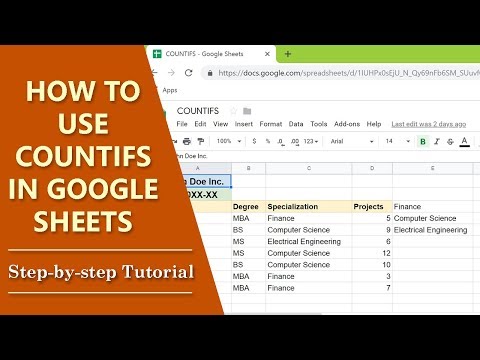
How to use COUNTIFS in Google Sheets | COUNTIF Multiple Criteria | Step-by-Step Tutorial

How to use COUNTIFS in Google Sheets | COUNTIF Multiple Criteria | Step-by-Step Tutorial

How to Use the COUNTIFS Function in Google Sheets

Introduction to COUNTIFS

  • The video introduces the COUNTIFS function in Google Sheets, focusing on its application within a human resources dataset of a fictitious company.
  • The COUNTIFS function is used to count cells that meet two or more criteria.

Format of the COUNTIFS Function

  • The format includes:
  • An equal sign (=)
  • The function name COUNTIFS
  • Opening parenthesis
  • Criteria ranges and corresponding criteria.

Objective of Using COUNTIFS

  • The objective is to determine how many employees have an MBA specialization in finance and have completed at least five projects.
  • Naming ranges makes it easier to understand functions and ensures results update automatically when data changes.

Naming Ranges for Clarity

  • Steps to name ranges:
  • Select the entire column (e.g., Degree).
  • Access "Define Name Range" from the menu.
  • Repeat for other columns like Specialization and Projects.

Implementing the COUNTIFS Formula

  • To display results, start typing the formula in a designated cell using:
  • = followed by COUNTIFS.
  • Inputting criteria involves:
  • Specifying range names (e.g., Degree, Specialization).
  • Using wildcards (e.g., fi* for Finance).

Finalizing Results with COUNTIFS

  • Complete the formula by specifying conditions such as "greater than or equal to five" for project counts.
  • Upon pressing Enter, Google Sheets displays the count of employees meeting all specified criteria.
Video description

Use the COUNTIFS Google Sheets to count cells, which meet multiple criteria, in the specified range(s). Does the COUNTIFS Google Sheets count cells with only numbers? No, this function counts cells with either text or numbers. The COUNTIFS function is COUNTIF multiple criteria. In the COUNTIFS function, you have to give at least two parameters. The first is the range and the second is the first criterion or condition. You can specify, if required, additional ranges and criteria. You should enclose text between quotes. Numbers can be typed as is. However, if you are using a conditional operator, say the equal-to symbol with a number, you should enclose such an entire criterion between quotes. For example, 500 and "=500" are correct, but =500 is not. Let's take a look at the format of the COUNTIFS Google Sheets: =COUNTIFS(criteria_range1, criterion1, [criteria_range2,...], [criterion2...]) Say there is a spreadsheet pertaining to the human resources of a company. The spreadsheet has columns labelled as Name, Degree, Specialization, and Projects. Assume that the range of each column is given a name, which is same as the label. Say you want to find out, for example, the number of employees with an MBA, specialization in finance, and who have completed five projects. This task has multiple conditions. So, rather than use COUNTIF, which only takes one criterion as a parameter, you have to use COUNTIFS, which takes multiple criteria. Alright, let's go ahead and plug in the data in the COUNTIFS Google Sheets. Remember, we have to use columns, which are named as degree, specialization, and projects, in the function: =COUNTIFS(degree, "mba", specialization, "finance", projects, "=5") In the above COUNTIFS function, degree is the first criteria range, MBA is the first criterion, and so on. Note that you should not enclose a range name between quotes. ------------------- TIP: For a text criterion, where feasible, you can use the wild card character "*". For instance, in the above function, you can replace "finance" with "fi*". ------------------- Go ahead and take a look at this video on COUNTIFS Google Sheets, which gives you step-by-step instructions on how to use theCOUNTIFS function to count cells that fulfill two or more conditions.