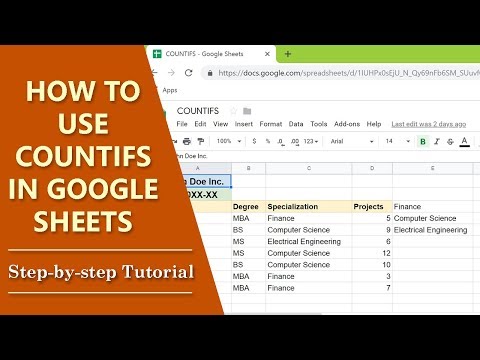
How to use COUNTIFS in Google Sheets | COUNTIF Multiple Criteria | Step-by-Step Tutorial
How to Use the COUNTIFS Function in Google Sheets
Introduction to COUNTIFS
- The video introduces the COUNTIFS function in Google Sheets, focusing on its application within a human resources dataset of a fictitious company.
- The COUNTIFS function is used to count cells that meet two or more criteria.
Format of the COUNTIFS Function
- The format includes:
- An equal sign (
=)
- The function name
COUNTIFS
- Opening parenthesis
- Criteria ranges and corresponding criteria.
Objective of Using COUNTIFS
- The objective is to determine how many employees have an MBA specialization in finance and have completed at least five projects.
- Naming ranges makes it easier to understand functions and ensures results update automatically when data changes.
Naming Ranges for Clarity
- Steps to name ranges:
- Select the entire column (e.g., Degree).
- Access "Define Name Range" from the menu.
- Repeat for other columns like Specialization and Projects.
Implementing the COUNTIFS Formula
- To display results, start typing the formula in a designated cell using:
=followed byCOUNTIFS.
- Inputting criteria involves:
- Specifying range names (e.g., Degree, Specialization).
- Using wildcards (e.g.,
fi*for Finance).
Finalizing Results with COUNTIFS
- Complete the formula by specifying conditions such as "greater than or equal to five" for project counts.
- Upon pressing Enter, Google Sheets displays the count of employees meeting all specified criteria.