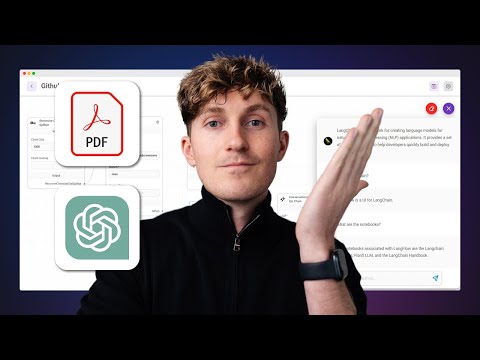
How to Build an AI Document Chatbot in 10 Minutes
Integrating Chat GPT with Company Data
In this section, the speaker introduces Flowwise, a visual UI Builder that allows for the integration of chat GPT with company data. The speaker explains that they will demonstrate how to set it up and build a conversational AI that can answer questions about your own data.
Introduction to Flowwise
- Flowwise is an open-source visual UI Builder that enables the building of large language model apps.
- It can be downloaded from the GitHub repository and easily set up locally.
- The visual Builder allows for connecting building blocks together to create simple apps.
Benefits of Flowwise
- Under the hood, Flowwise utilizes Lang Chain, which is powerful in spinning up large language model apps.
- With Flowwise's visual Builder, it becomes quick and easy to prototype and test large language model apps.
- The capability to scale from these prototypes makes it highly advantageous.
Requirements
- To follow along with the tutorial, you need an OpenAI API key (free but requires credit card information) and a Pinecone API key (free without credit card requirement).
Setting Up Flowwise
- Visit the Flowwise GitHub repository and clone it to your project directory using Git.
- Install either npm or Docker (both tools are free).
- If using Docker, rename the
.env.examplefile in the cloned repository to.envand specify a port number if needed.
- Start up the application by running
docker-compose up -dinside the Docker folder of the project.
Using NPM or Docker for Setup
This section provides instructions on setting up Flowwise using either npm or Docker.
Setting Up with NPM
- Ensure npm is installed on your system.
- Follow the provided tutorial to install npm.
- Use the
npmcommand to start Flowwise.
Setting Up with Docker
- Install Docker from docker.com (link provided).
- Open the Docker app after installation.
- Rename the
.env.examplefile in the cloned repository to.env.
- Specify a port number in the
.envfile if needed.
- Run
docker-compose up -dinside the Docker folder of the project to start Flowwise.
Starting Flowwise Application
This section explains how to start up the Flowwise application using Docker.
Starting Flowwise with Docker
- Navigate to the top-level directory of your project in the terminal.
- Change directory into
flowwise/Docker.
- Ensure you are in the correct folder by running
lsand confirming thatdocker-compose.yamlis visible.
- Run
docker-compose up -dto spin up containers and start a local server for Flowwise.
The steps may vary slightly on Windows, but overall, configuring your terminal to be in the correct folder should be similar.
Building a Conversational Retrieval QA Chain
In this section, the speaker explains how to build a conversational retrieval QA chain from scratch using a template provided in the marketplace.
Setting Up the Template
- The speaker selects a template from the marketplace that serves as a starting point for building the conversational retrieval QA chain.
- The template already includes a flow, and all that needs to be done is filling in parameters and API keys.
Configuring Components
- The text splitter component is used to chunk documents without surpassing token limits. A TXT file can be uploaded for this purpose.
- Two OpenAI blocks are included, one for chat and one for embeddings conversion. OpenAI API key needs to be filled in.
- Pinecone configuration is required by copying and pasting the Pinecone API key and selecting an environment and index name.
Uploading Data
- A TXT file containing data is uploaded, which will be used by the chatbot to answer questions about it.
Testing the Chatbot
- The chat interface is opened, allowing users to ask questions about the uploaded document. Example question asked is "What is this doc about?" with an accurate response generated by the chatbot.
Exploring Document Loaders in Flowwise
This section focuses on exploring different document loaders available in Flowwise.
Document Loaders in Flowwise
- Flowwise provides various document loaders, including CSV, DOCX, GDoc, JSON, Notion, and PDF. These loaders allow easy swapping of different file types for processing.
- The speaker demonstrates how to switch from a TXT file to a PDF file by deleting the existing loader and adding the PDF loader instead.
Conclusion
The transcript covers the process of building a conversational retrieval QA chain using a template in the marketplace. It explains how to configure components such as text splitter, OpenAI blocks, and Pinecone. Additionally, it explores different document loaders available in Flowwise for processing various file types.
Introduction to Flowwise
In this section, the speaker introduces Flowwise, a visual UI Builder that allows users to build apps in minutes using their own company data. The speaker will demonstrate how to get started with Flowwise and answer questions about your own data.
Getting Started with Flowwise
- Flowwise is a visual UI Builder that allows users to build apps in minutes.
- Users can use their own company data to create apps.
- The speaker will demonstrate how to get started with Flowwise and answer questions about your own data.
Benefits of Flowwise
This section highlights the benefits of using Flowwise for app development and explains why the speaker likes it.
Benefits of Flowwise
- Flowwise loads directly from GitHub, making it easy to access and use.
- It provides a visual builder that allows users to easily combine building blocks.
- The speaker has been using it for their GitHub repository projects.
Requirements for Using Flowwise
This section outlines the requirements for using Flowwise, including the need for an Open AI API key and a credit card for queries.
Requirements for Using Flowwise
- To use Flowwise, you need an Open AI API key.
- You also need to have a credit card as there may be charges per query.
Setting Up the Environment
This section explains how to set up the environment by cloning the repository and configuring necessary settings.
Setting Up the Environment
- Clone the repository from GitHub.
- Open VS Code or any preferred code editor.
- Navigate to the cloned repository folder in VS Code or through terminal.
- Install Docker if not already installed.
- Update the port in the .env.example file to avoid conflicts.
- Follow the provided link for instructions on installing Docker and ensuring it is running.
Starting Flowwise
This section explains how to start Flowwise using Docker or npm.
Starting Flowwise
- There are two ways to start Flowwise: using Docker or npm.
- If using Docker, navigate to the docker folder and run the command to spin up the application containers.
- Ensure that the application is up and running by opening a new tab and going to localhost.
Building Conversational Apps with Flowwise
This section demonstrates how to build conversational apps using Flowwise.
Building Conversational Apps
- Start by selecting a conversational app template from the marketplace within Flowwise.
- Save the selected template and proceed to configure it.
- Use text splitters like Lang Chain to chunk AI without exceeding token limits.
- Fill in your Open AI API key in the portal settings.
- Configure indexes for data retrieval by creating an index with appropriate dimensions and copying environment details.
- Create a simple txt file as a repository for chat interface testing.
Exploring Additional Features of Flowwise
This section explores additional features of Flowwise, such as document loaders and integration with Lang Chain.
Exploring Additional Features
- Document loaders allow easy uploading of various file formats like PDF, DOCX, JSON files, etc., expanding functionality beyond text inputs.
- Integration with Lang Chain provides more advanced capabilities for building applications powered by Open AI's language models.
Conclusion and Next Steps
This section concludes the tutorial on Flowwise and highlights its potential for rapid application development.
Conclusion and Next Steps
- Flowwise offers a convenient way to build applications quickly using visual building blocks.
- It allows integration with Open AI's language models through Lang Chain.
- Users can explore the available document loaders and experiment with different file formats.
- Flowwise provides a powerful tool for rapid application development.
New Section
In this section, the speaker discusses the importance of using tools.
Tools for Success
- Using appropriate tools can greatly enhance productivity and efficiency in various tasks.
- It is essential to identify and utilize the right tools for specific purposes.
- By leveraging tools effectively, individuals and teams can achieve better results and streamline their workflows.
The provided transcript does not contain any additional information or timestamps beyond 0:10:55 (655 seconds).
Turn any video into a summary like this
YouTube links, meetings, lectures — with transcripts, search, and chat.