Sesión 2: Transformando datos en información con R y Rstudio
Introduction to R Programming Course
Welcome and Class Overview
- Madelin Galeano welcomes participants to the second class of the R programming course, indicating that they will begin shortly.
- The focus of today's class is on transforming data into information, building upon the previous session where R Studio was installed and basic navigation was introduced.
Key Concepts: R vs. R Studio
- A question is posed about the difference between R and R Studio; a participant explains that R is the programming language while R Studio serves as the integrated development environment (IDE).
- Madelin confirms this distinction and invites feedback from those who had issues with installation, encouraging them to follow along with today’s lesson regardless.
Class Structure and Content
Today's Learning Objectives
- The session will cover how R Studio is organized, including its four fundamental aspects: working directories, file types in R, base R versus tidyverse programming styles, variables, and data types.
- Practical exercises will include arithmetic operations such as addition, multiplication, division remainders, and comparisons using variables.
Understanding the Environment
- An introduction to the layout of R Studio is provided; scripts can be written in the upper left editor while immediate code execution occurs in the lower left console.
- It’s emphasized that results from console calculations are not saved unless explicitly written in scripts.
Running Code in R
Executing Code
- Two methods for running code are explained: using "Run" button or keyboard shortcuts (Control + Enter for Windows or Command + Enter for Mac).
- Participants are instructed to open their version of R Studio and practice writing simple assignments like their name and age in the script editor.
Hands-On Practice
- Students are encouraged to share their progress after attempting to assign values within their scripts.
Feedback on Exercises
Participant Engagement
- Madelin checks on participants' progress with executing code; one student successfully shares their experience of seeing variable outputs.
Importance of Saving Work
Data Persistence
- The significance of saving work regularly is highlighted; students learn that closing without saving leads to loss of unsaved data from console calculations.
File Management Best Practices
Saving Files Correctly
- Instructions on how to save files properly using Control + S (Windows)/Command + S (Mac), ensuring no data loss during unexpected shutdown scenarios are discussed.
Understanding Data Structures
Anatomy of Data Frames
- Discussion about data frames as a key structure in R; they consist of rows and columns similar to spreadsheets but allow different data types per column.
Practical Examples
Real-Life Application
- An example involving survey data illustrates how names, ages, gender indicators can be organized within a data frame format.
Differentiating Data Types
Matrices vs. Data Frames
- Clarification on differences between matrices (same type only allowed per cell/column), whereas data frames can hold various types across columns.
Navigating Files Within Projects
File Management Tools
- Explanation about managing files directly within R Studio's interface akin to an operating system's file explorer.
Utilizing Packages
Library Management
- Overview on packages/libraries available for use within projects; students will learn how these enhance functionality when coding.
Accessing Help Resources
Using Help Functionality
- Instruction on utilizing help features by typing '?' followed by function names for guidance on usage details.
Conclusion & Next Steps
Recap & Future Classes
- Summary emphasizes importance of understanding foundational concepts before moving onto more complex topics like graphics generation next week.
Enhancing Interactivity in Data Visualization
User Expectations and Limitations
- Users today prefer interactive elements, such as hovering over images to view values, which is not feasible with static images like bar graphs.
Introduction to R Markdown (RMD)
- The course will focus on using R Markdown for creating reports, progressing from simple visualizations to interactive graphics.
Automation of Reporting Processes
- A real-world example illustrates the inefficiency of manually updating PowerPoint presentations and Excel sheets for monthly sales reports.
- With R, users can automate report generation by simply updating variables or information, reducing manual effort significantly.
Practical Exercise in R Studio
Writing Code Manually
- Participants are encouraged to write code manually during a practice session to familiarize themselves with syntax and common errors.
Creating a Data Frame
- The exercise involves constructing a data frame containing names, ages, and activity status (active/inactive), emphasizing the importance of proper data types.
Understanding Data Types in R
Variable Types Explained
- Names are character variables; ages are numeric; activity status is logical (true/false), highlighting how different data types function within R.
Clarifying Concepts in R
Vectors in R
- A vector is defined as an ordered collection of elements that must be of the same type, essential for organizing data effectively.
Utilizing Functions in R
Exploring Data Frames
- The
headfunction displays the first few rows of a data frame, useful for quickly assessing large datasets without overwhelming detail.
Summary of Key Functions
Functionality Overview
- Various functions like
class,str, andheadhelp identify structure and content within data frames while providing insights into variable types.
Navigating File Management in R
Importance of File Paths
- Understanding absolute vs. relative file paths is crucial for locating files correctly within the system when working with datasets.
Types of Files Used in R
Different File Formats
- Discussion covers various file formats including scripts (.R), CSV files for tabular data, and .Rmd files that combine code with output explanations.
Comparing Base R and Tidyverse
Differences Between Approaches
- Base R uses traditional syntax while Tidyverse offers more intuitive commands that resemble natural language, enhancing readability and ease of use.
Introduction to Variables and Data Types in R
Overview of Streams and Variables
- The discussion begins with an explanation of streams (stream) and how they simplify task repetition compared to loops, enhancing efficiency in coding.
- It is emphasized that strings are used for handling textual information, which includes characters, words, and phrases typically enclosed in quotes.
Numeric Data Types
- Numeric data types can hold both decimal and integer values; further details will be provided on this topic later.
- Integer data types specifically store whole numbers without decimals, useful for analyses where fractional values are irrelevant.
Character and Logical Data Types
- Character data types consist of text within quotes, which can vary in length. Logical data types represent boolean values (true or false), similar to the boolean type in Python.
- Factors are introduced as categorical variables that can represent different levels of importance or categories.
Examples of Variable Assignments
Practical Assignments
- An example is given where a variable
xis assigned a numeric value (42.5), demonstrating numeric data type usage.
- The distinction between discrete (countable integers like students) and continuous numeric values (like temperature or weight with decimals) is explained.
Categorical Data Types
Nominal vs Ordinal Data
- Categorical data can be nominal (no specific order, e.g., gender or eye color) or ordinal (with a defined order such as education level).
- Ordinal variables have a clear ranking system that R recognizes for analysis purposes.
Naming Conventions for Variables
Best Practices
- Avoid using accents or special characters when naming variables to ensure compatibility with R's processing capabilities.
- Use underscores instead of spaces when naming variables to prevent issues during coding.
Importance of Consistency in Variable Names
Key Considerations
- It's crucial not to use reserved keywords from R as variable names; doing so may lead to errors during execution.
- Case sensitivity is highlighted; R differentiates between uppercase and lowercase letters in variable names.
Identifying Variable Classes
Understanding Object Classes
- To identify the class of a variable, one can use functions like
class()which returns the type stored within the variable.
Type Conversion Functions
Converting Between Types
- Various conversion functions such as
as.numeric(),as.character(), andas.logical()allow users to change the type of stored data effectively.
Handling Errors During Conversion
Common Pitfalls
When converting strings representing numbers into numeric format, if they contain non-numeric characters, R will return NA indicating an error.
Operators in R Programming
Arithemetic Operators
- Basic arithmetic operations such as addition (+), subtraction (-), multiplication (*), division (/), exponentiation (^), modulus (%) are discussed along with their syntax.
Assignment Operators
- The primary assignment operator (<-) is recommended over equals (=); it clarifies intent by indicating assignment rather than equality comparison.
Comparison Operators
- Comparison operators include == for equality checks and != for inequality checks; these help evaluate conditions within code logic.
Logical Operators
- Logical operators like & (and), | (or), and ! (not/inversion); these facilitate complex condition evaluations essential for decision-making processes in programming.
Practical Exercises
Creating Variables
- Participants are instructed to create variables A and B with assigned values before performing calculations involving them.
Conditional Statements
- Exercises involve checking conditions such as whether A is greater than B using logical comparisons while exploring outputs from these statements through practical application.
Understanding Logical Conditions in R
Introduction to Logical Operators
- The discussion begins with a question about how to express a logical condition involving variables A and B, specifically if A is greater than 10 or B is greater than 10 using the vertical bar operator.
Clarification of Terminology
- Participants engage in light-hearted confusion over the name of the vertical bar operator, referring to it as "palito" (little stick), highlighting the informal learning environment.
Executing Logical Conditions
- The instructor demonstrates executing a command that checks if either condition (A > 10 or B > 10) holds true, confirming that A meets the criteria.
Variable Creation and Type Checking
- The next task involves creating a variable named "nombre" and checking its type. An example given is assigning "Madeline" to this variable.
- A participant identifies an error in not enclosing character strings in quotes, which would lead to an error when executing the code.
Using Functions for Data Types
- To check the class of the variable, participants are instructed to use
class(), emphasizing that only defined variables can be checked.
Addressing Questions and Clarifications
Open Floor for Doubts
- The instructor invites questions regarding any issues faced while using R during exercises, fostering an interactive learning atmosphere.
Commenting Code Lines
- A participant asks about commenting multiple lines of code; instructions are provided on how to select lines and use Control + Shift + C for commenting.
Upcoming Topics in R Programming
Preview of Next Class Content
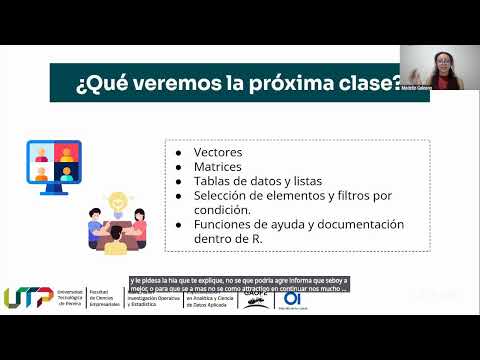
- The instructor outlines future lessons focusing on data types, operators, vectors, matrices, lists, element selection, filtering conditions, and helpful functions within R.
Importance of Learning R Skills
- Emphasis is placed on acquiring basic knowledge in R as beneficial for personal development and enhancing resumes for job opportunities.
Utilizing AI and Community Resources
Supportive Learning Environment
- The discussion highlights leveraging AI tools as supportive resources rather than replacements for human effort while also mentioning community support available for learners interested in deepening their understanding of R programming.
Conclusion and Farewell
- The session concludes with gratitude expressed towards participants for their engagement and encouragement to continue learning throughout the week.
Turn any video into a summary like this
YouTube links, meetings, lectures. With transcripts, search, and chat.