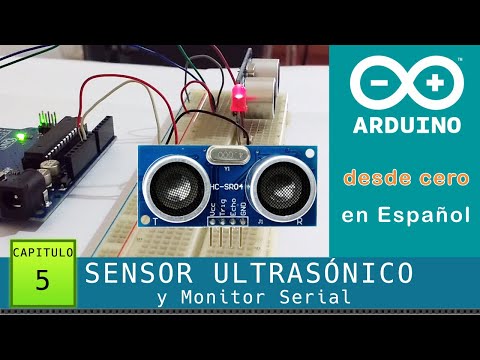
Arduino desde cero en Español - Capítulo 5 - HC-SR04 Sensor Ultrasónico (y uso del Monitor Serial)
Introduction and Sensor Overview
In this chapter, we will learn how to connect an ultrasonic sensor to measure distance and activate an LED when an object is within a certain range. We will also discuss the serial monitor and its importance in Arduino programming.
Connecting the Ultrasonic Sensor
- The HC-SR04 ultrasonic sensor is easy to use and affordable.
- It consists of a transmitter and receiver that use high-frequency sound waves to detect distance.
- The emitted sound cannot be heard by humans as it operates at 40 kHz, which is above our hearing range.
- By calculating the time it takes for the signal to be emitted and received, we can accurately measure distance.
Circuit Setup
- Connect the VCC pin of the sensor to the positive rail of the breadboard.
- Connect GND pin of the sensor to ground on Arduino.
- Connect Trigger pin of the sensor to digital pin 10 on Arduino.
- Connect Echo pin of the sensor to digital pin 9 on Arduino.
LED Circuit Setup
- Connect the cathode (negative leg) of the LED to ground through a 330 ohm resistor.
- Connect the anode (positive leg) of the LED to digital pin 3 on Arduino.
Code Implementation
Now we will write code for our project, defining variables for pins connected to the sensor and LED. We will also set up communication with Serial Monitor.
int trigger = 10;
int echo = 9;
int ledPin = 3;
void setup()
pinMode(trigger, OUTPUT);
pinMode(echo, INPUT);
pinMode(ledPin, OUTPUT);
Serial.begin(9600); // Set baud rate for serial communication
void loop()
// Generate a pulse to trigger the ultrasonic sensor
digitalWrite(trigger, HIGH);
delayMicroseconds(1);
digitalWrite(trigger, LOW);
// Measure the duration of the pulse from echo pin
int duration = pulseIn(echo, HIGH);
// Convert duration to distance in centimeters
int distance = duration / 58.2;
// Print the distance value to Serial Monitor
Serial.println(distance);
delay(200); // Delay between readings for better visualization
Explanation of Code
- We define variables for trigger (pin 10), echo (pin 9), and ledPin (pin 3).
- In the setup function, we set the pinMode for trigger as OUTPUT, echo as INPUT, and ledPin as OUTPUT.
- We also initialize serial communication with a baud rate of 9600.
- In the loop function:
- We generate a pulse on the trigger pin to activate the ultrasonic sensor.
- We measure the duration of the pulse using
pulseInfunction.
- The duration is converted into distance in centimeters by dividing it by a constant value of 58.2.
- The calculated distance is printed to the Serial Monitor using
Serial.println.
- A delay of 200 milliseconds is added between readings for better visualization.
Using Serial Monitor
Now we will learn how to use Serial Monitor to view data sent from Arduino.
void setup()
...
Serial.begin(9600); // Set baud rate for serial communication
void loop()
...
Serial.println(distance); // Print distance value to Serial Monitor
delay(200); // Delay between readings for better visualization
Enabling Communication with Serial Monitor
- To enable communication with Serial Monitor, we add
Serial.begin(9600)in the setup function.
- This sets the baud rate for serial communication to 9600 bits per second.
Printing Distance Values
- To display the distance values on Serial Monitor, we use
Serial.println(distance).
- This prints the value of the
distancevariable to the Serial Monitor window.
- A delay of 200 milliseconds is added between readings to allow time for visualization.
Testing and Observations
We will test our circuit and observe the distance values displayed on Serial Monitor.
Opening Serial Monitor
- Click on the Serial Monitor icon located at the top right corner of Arduino IDE.
- A new window will open where we can view the distance values sent by the sensor.
- Each value is displayed on a new line, with the latest reading at the bottom.
Distance Readings
- The sensor provides distance readings in centimeters.
- The measured distance may vary depending on your setup and surroundings.
- In this case, with the circuit pointing towards a wall approximately three meters away, a value around 320 cm is observed.
The transcript provided does not cover any further chapters or sections.
Sensor Functionality and Range
In this section, the speaker discusses the functionality of the sensor during testing. They mention that seeing a negative value on the sensor is normal and indicates that it is out of range, either because the object is too far or it is not receiving the ultrasound pulse bounce correctly.
Sensor Functionality
- The sensor works correctly during testing.
- A negative value on the sensor indicates that it is out of range.
- Out-of-range can be due to an object being too far or incorrect reception of ultrasound pulse bounce.
Adding Code for Obstacle Detection
This section focuses on adding code to the program to turn on an LED when the sensor detects a distance of 20 centimeters or less. This method is commonly used for obstacle detection in robots or devices that move.
Obstacle Detection Code
- Add code to turn on an LED when the sensor detects a distance of 20 centimeters or less.
- This method is commonly used for obstacle detection in moving robots or devices.
Acting Based on Detected Distance
Here, instructions are given on how to act based on the detected distance. The speaker explains how to stop a motor, recalculate a new route, etc., by turning on an LED. The code snippet provided demonstrates how to evaluate if the distance falls within a specific range.
Acting Based on Distance
- Use an if statement with conditions to evaluate if the distance falls between 0 and 20 centimeters.
- If true, execute code within curly braces.
- Account for negative values by including "and distance >= 0" after evaluating if distance <= 20.
- Turn on LED using
digitalWrite(led, HIGH).
Delay and Proportional Distance
This section explains how to generate a delay proportional to the distance detected by utilizing the value of distance. The delay will determine the speed at which the LED turns on and off.
Delay Calculation
- Use the value of distance to generate a delay that is proportional to it.
- Multiply distance by 10 for the delay calculation.
- Example: If distance is 20 centimeters, the delay will be 200 milliseconds.
- As the object gets closer, the delay decreases, causing the LED to blink faster.
Verifying and Testing
In this section, it is suggested to verify and test the code by uploading it and opening the serial monitor. The behavior of the LED turning on and off repeatedly at an increasing speed as an object gets closer should be observed.
Verifying Code
- Upload code and open serial monitor.
- Observe that when distance is 20 centimeters or less, LED turns on and off repeatedly.
- LED blinks faster as object gets closer.
Modifying Circuit for Buzzer
Here, a modification suggestion for replacing the LED with a buzzer is provided. When an object is within range, instead of turning on an LED, a buzzer can emit a beep that increases in frequency as the object gets closer.
Modifying Circuit for Buzzer
- Replace LED and resistor with a buzzer.
- When an object is within range, activate buzzer emitting increasing frequency beeps.
- Similar to what many cars have in their bumpers when reversing.
Conclusion
The speaker concludes the chapter by mentioning that the next chapter will cover using a servo motor with Arduino and powering Arduino with an external power source. They encourage viewers to subscribe for notifications.
Conclusion
- Next chapter will cover using a servo motor and powering Arduino externally.
- Encourages viewers to subscribe for notifications.