Блок 2. Обзор возможностей InfoWatch Device Monitor for Windows
Device Monitor Overview
Introduction to Device Monitor
- Device Monitor is a client-server application requiring a management console installed on a Windows 7 or higher PC.
- The management console connects to the server by specifying its address, typically using "Local Host" for local installations.
Interface Elements
- Upon logging in, users encounter the main menu providing access to core system functions and navigation panels.
- The interface includes a detailed panel showing information about selected items and a security scheme change panel for unsaved modifications.
- A console log panel displays system messages related to user actions, while the status panel indicates the current security scheme's state.
User Management Features
User Roles and Permissions
- The console shows one pre-installed user; new users can be added from Active Directory or created manually.
- Users can be assigned predefined roles such as Administrator (managing user accounts) or Security Officer (system configuration and event monitoring).
Role Creation
- New roles can be created with specific privileges based on whether they apply to groups of employees or computers.
- Privileges include managing policies, auditing logs, creating groups, agent management on computers, and synchronization settings.
Temporary Access Management
Granting Temporary Access
- The system allows temporary access requests for employees needing resources outside corporate networks under exceptional circumstances.
Configuration Import/Export
- Organizations can import configurations from primary servers to auxiliary servers in branches to streamline setup processes.
System Settings Configuration
Basic System Settings
- Key settings include connection parameters for agents communicating with the server, such as notification intervals and availability checks.
Disk Space Control
- Agents manage disk space by storing shadow copies locally during disconnection; settings dictate how much free space must remain.
Agent Behavior Customization
Data Transmission Settings
- Options are available for adjusting data transmission speeds between agents and servers to balance load effectively.
Logging Preferences
Device Monitoring Configuration
Key Features of Device Monitoring
- The system allows for updating the key used for code generation, which is essential for granting temporary access to employees. Regular updates enhance security levels.
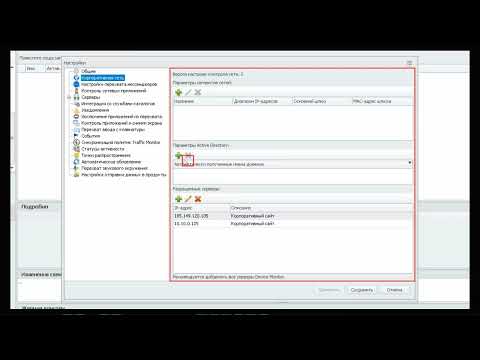
- Employee monitoring can only connect to corporate networks via specific IP addresses and must work with the corresponding Active Directory. Parameters are automatically detected when adding a domain.
- Chat copy frequency settings can be configured to send shadow copies for analysis based on time intervals or message counts, ensuring effective traffic monitoring.
Network Application Control
- Users can specify servers to exclude from interception; events will not be created while interacting with these resources. Conversely, certain servers can be mandated for interception by providing their details.
- Notification settings allow customization of messages sent to employees regarding various access restrictions and actions taken, enhancing communication about security measures.
Exclusion Settings
- Applications excluded from interception typically include system applications but may also encompass user-defined applications to prevent unnecessary traffic overload and streamline security officer workload.
- For Linux systems, users can select specific distributions when adding applications to the exclusion list, allowing tailored configurations based on operational needs.
Application Control Modes
- The system operates in either black or white list modes: black lists permit all applications except those specified, while white lists restrict usage solely to approved applications.
- Blocking application launches occurs only under active rules; automatic screenshot creation can be configured based on user inactivity duration and quality preferences.
Keyboard Input Monitoring
- Conditions for keyboard input event formation include elapsed time since last activity, minimum character count entered, or specific key combinations pressed—any of which trigger interception if selected.
- Event storage parameters dictate whether processed or sent events are deleted after handling. Users must define retention periods to manage database growth effectively.
Device Monitor Server Interaction
- Server interaction settings detail how many shadow copies are processed simultaneously and how many agents handle tasks concurrently within the device monitor environment.
- If server connection is unavailable during installation, offline operation is possible with later integration into the traffic monitor server once connectivity is established.
Traffic Monitor Integration and Configuration
Overview of Traffic Monitor Integration
- The integration process involves connecting the device monitor to the InfoWatch platform, specifically for managing events awaiting processing and monitoring errors.
- To establish this connection, one must specify the server address and token for Activity Monitor to receive control commands.
Synchronization of Policies
- Synchronization of policies between Traffic Monitor and Device Monitor is crucial; it requires specifying the IP address of the Traffic Monitor server to fetch configuration versions.
- The current configuration version (number 29 in this case) is displayed on both Device Monitor and Traffic Monitor web consoles, confirming successful updates.
Agent Status Configuration
- Configuring agent activity statuses includes setting periodicity for activity checks, status names, time since last contact with the server, and color coding for statuses.
- Users can edit status parameters by selecting a status line and adjusting its properties such as name, time period since last contact, while default colors cannot be changed.
Distribution Points Setup
- A distribution service is used to create directories that register as distribution points within the system; more points lead to faster agent updates.
- Additional distribution points can be added by installing the service on another computer or specifying FTP/SMB folders for manual uploads.
Automatic Updates Configuration
- Parameters for automatic agent updates can be configured by enabling auto-updates and setting their frequency (e.g., daily or weekly).
- Options include defining retry attempts for downloads, excluding specific computers from updates, scheduling installations post-download, and configuring reboot notifications.
Data Transmission Settings
- Audio recording settings are specified under Audio Record Control rules; data transmission preferences dictate which products receive event notifications.
- Default settings send events to both Traffic Monitor and InfoWatch platform but can be adjusted to prevent data duplication based on specific event types.
Navigation Panel Insights
- The navigation panel allows users to manage exceptions in traffic monitoring by specifying URLs that should not be intercepted in HTTP/HTTPS traffic.
Validation of URL Addresses in Google
Validating URLs
- The process begins with checking the correctness of a regular expression for validating URL addresses using Google.
- After entering a URL like "google.com" and clicking the validate button, users receive confirmation that the validation was successful.
Managing Exceptions
- Users can save exceptions after validation, as well as edit, delete, import, or export exception lists.
- This functionality is specifically designed for Infowatch Activity Monitor and Inf Prediction to track user actions related to file handling.
Creating Resource Lists for Monitoring
Forming Web Resource Lists
- Users can create lists of web resources that will be monitored during screen capture and keyboard input control.
- For instance, adding video hosting sites involves clicking "Add Resource List," naming it (e.g., "Video Hosting"), and populating it with relevant domains.
Adding Specific Resources
- When adding resources, users specify types such as domain or URL. An example given is entering "youtube.com" along with an optional description before saving.
Application Blocking Functionality
Device Monitoring Capabilities
- The device monitor intercepts file reading and writing by applications. Initially, application sections are empty but can be populated manually or through prepared configurations.
Importing Blockade Configurations
- To import a blockade configuration, users select tools to import the corresponding file which saves security schemes.
Customizing Application Profiles
Adding Applications
- Users can add their own application profiles by specifying details like name (e.g., "Notepad") and then selecting it for identification purposes.
Operating System Profiles
- Similar steps apply when adding operating system profiles; users enter names (e.g., "Windows 11") while ensuring compatibility with Microsoft Windows family systems.
Editing Blockade Technology Configurations
Configuration Management
- In the blockade technology configuration section, users can add, edit or delete configurations based on selected applications or operating systems.
Example: WhatsApp Desktop Configuration
- For instance, editing WhatsApp's desktop configuration allows setting parameters regarding file interception based on extensions or paths.
Event Tracking in Device Monitor
Event Information Display
- The device monitor logs events captured by agents. It retains information about occurrences rather than raw data from those events.
Traffic Monitoring Insights
- Events are processed by a server where details such as date, computer used by employees, applications involved, operation rules triggered are displayed.
Sorting and Filtering Events
Organizing Event Data
- Users can sort event data based on any column in traffic monitoring by clicking on headers to arrange them in ascending or descending order.
Utilizing Filters
- Additional filtering options allow narrowing down displayed events within specified ranges through custom filters set up by users.
User Activity Logs
Reviewing User Actions
- The journal section enables viewing user actions taken via device monitoring including administrator activities similar to event tracking features.
Application Usage Insights
Users see which applications were launched across workstations since agents collect hardware/software info upon installation while logging all application launches except those excluded from interception.
Creating Office Application Lists
How to Add Applications and Manage Device Policies
Adding Applications Manually
- To add an application manually, specify the file extension and correct filename. For example, "notepad.exe" is used to create a list of office applications.
Understanding File Formats and Categories
- The device monitor can work with various file formats. Custom categories can be created for existing formats, but new formats cannot be added since the system detects files by signature rather than extension.
Managing Device Access
- White lists are essential when creating policies that restrict device usage. Exceptions can be made for specific devices, such as allowing a CD/DVD drive for one employee due to operational needs.
Configuring Device Exceptions
- To add an exception, select the device using filters (e.g., employees or computers), find the specific computer, and choose the desired device model.
Saving Changes and Security Schemes
- After selecting a device for exception status, confirm your choice by saving it. You can also set a time limit on this access if temporary permission is needed.
Managing Computer Groups and Policies
Group Management Overview
- The interface shows a list of computers integrated with Active Directory, allowing users to create groups and assign specific actions or policies.
Default Policy Assignment
- Each group of computers can only have one default policy assigned. This policy governs how devices within that group operate.
Agent Behavior Configuration
- Users can override agent parameters like data transmission speed or disk space requirements. Additionally, settings regarding notifications and agent visibility on computers can be adjusted.
Monitoring Agent Status and Diagnostics
Actions Available in Computer List
- Users can add computers, view settings/policies applied to them, exclude them from groups, update statuses, or delete them from security schemes.
Diagnosing Agent Functionality
- Right-clicking on a computer allows users to diagnose agent issues by toggling diagnostic modes or collecting log files related to agent performance.
Employee Group Management
Integrating Employee Groups with Policies
- Similar to computer groups, employee groups obtained from Active Directory allow for policy assignment based on shadow copying needs.
Resolving Policy Conflicts
Device Monitoring Policies Overview
Prioritization of Policies
- The resulting policy is based on the priorities of corresponding policies, where a user-assigned policy allows external device usage while a computer-assigned policy prohibits it. This creates a conflict where the employee cannot use external devices on that specific computer unless exceptions are explicitly made.
Policy Navigation and Default Assignments
- The navigation panel includes a section for security policies, with each device monitoring policy consisting of rules that control employee actions at their workstations.
- During synchronization with Active Directory, default policies are assigned to employee groups. For instance, shadow copy policies are initially empty and designated for computer groups.
Creating Rules in Device Monitoring
- The first rule discussed is Application Monitor, which controls the launch and operation of software. Specific applications can be blocked by activating the relevant option.
- Users can choose between whitelist or blacklist modes for application control; currently, blacklist mode is active with an option to select previously created lists.
Clipboard and Printing Restrictions
- There are options to restrict clipboard usage during terminal sessions or among different workstations. Additionally, printing can be restricted based on specific applications.
- Users can specify which printers (local, networked, or terminal session-connected) will have restrictions applied.
Audio Recording and Browser Compliance
- Audio Record Control allows recording ambient sound when visiting selected web resources while checking compliance across various browsers like Google Chrome and Firefox.
Advanced Monitoring Features
Cloud Storage Management
- Cloud Storage Monitor enables oversight of user interactions with cloud services such as Google Drive and Dropbox. Access levels can be customized per service.
- Options include allowing access, denying access, or permitting only downloads; shadow copying features can also be configured alongside file size parameters.
Device Access Restrictions
- Device Monitor rules allow limiting user access to certain types of devices from a dropdown list. Parameters vary depending on device type (e.g., USB drives).
File Copying Controls
- File Monitor settings enable tracking shadow copies of files copied to removable media or network resources during terminal sessions.
File Operations Monitoring
Controlling File Operations
- File operations monitoring allows oversight over file read/write activities within specified applications like Chrome or Telegram Desktop.
Event Creation Options
- When setting up rules for file operations, users can decide whether events should create logs without shadow copies or allow copying while generating events.
Network Resource Management
- Specific network resources may be designated for copy prohibitions along with event creation settings tailored to organizational needs.
Overview of Monitoring Rules in Network Security
FTP Monitoring Rules
- The FTP protocol allows specifying FTP addresses for which rules are created, including file size restrictions for transfers.
- An HTTPS monitor rule can create shadow copies of user activity over HTTP and HTTPS, with options to exclude internal resource requests.
Client Monitoring Features
- The Client Monitor tracks messenger usage, supporting various protocols like Skype, Telegram, and WhatsApp. Shadow copying of incoming traffic is enabled by default.
- Restrictions on messenger use can be applied; however, specific features may vary by application (e.g., voice traffic capture for Skype).
Keyboard Input and Email Monitoring
- The Keylogger Monitor captures keyboard input across applications and web resources, allowing configuration for screenshot capturing based on user activity.
- Mail Monitor controls email sending/receiving via SMTP, POP3, IMAP, etc., with options to restrict or allow certain types of email traffic.
Network Connection Control
- The Data Transfer Monitor prohibits data transmission over any network connections except those defined as corporate or allowed external addresses.
Print and Screenshot Monitoring
- Print Monitor oversees document printing operations on local and network printers while allowing the definition of process masks for shadow copies.
- Screenshot Control monitors screen captures across all applications or specified ones; settings include frequency and conditions under which screenshots are taken.
User Activity Statistics
- Statistics rules gather user activity data related to file handling and printing without displaying events in the device console.
Policy Creation Demonstration
- A demonstration shows how to add two rules: one prohibiting application launches and another for automatic screenshot creation.
- Application monitoring involves selecting blacklisted office applications like calculators or text editors to prevent their execution.
Configuration Updates
- After creating new rules, changes must be saved in the security scheme configuration before they take effect.
Overview of Device Monitoring and Agent Installation
Introduction to Device Monitoring
- The newly established rules are now in effect, prompting a demonstration of the Notepad application. An attempt to launch it results in a security warning indicating that the application is prohibited from running under current policies.
Accessing Resources for Screenshots
- The speaker plans to visit the Infowatch website to gather sufficient screenshots, which will be taken every 10 seconds.
Reviewing Employee Activity
- Transitioning to the web console for traffic monitoring, the speaker selects an employee account (Shestakova Faina) and opens their profile. They refresh the screen capture section to view previously obtained screenshots.
High Frequency Screenshot Capture
- Acknowledging that many similar screenshots appear due to high capture frequency set at every 10 seconds, they conclude this part of device monitoring system review before moving on to discuss Vision system deployment.
Installing Device Monitor Agent
- The process for installing the Device Monitor agent on workstations is outlined, with options including using Active Directory group policies or directly copying installation packages onto workstations.
Task Execution Options for Agent Installation
- The third method involves executing tasks through the Device Monitor console. Various task types are available such as primary distribution and product updates.
Selecting Distribution Points for Installation
- When setting up a primary distribution task, users can specify installation points from available servers. Default settings allow automatic detection of these points along with version information.
Choosing Target Computers for Agent Deployment
- Users can select specific computers or groups within a domain for agent installation by adding them manually or importing IP addresses from files.
Configuring Connection Settings for Agents
- After selecting target computers, users must specify which Device Monitor server the agent should connect to during installation. This includes setting priorities among multiple servers for load balancing and fault tolerance.
Proxy Server Configuration Parameters
- The agent operates as a local proxy server intercepting HTTP/HTTPS requests; default parameters are typically retained unless changes are necessary.
Security Features During Installation
- Users can set passwords preventing unauthorized removal of agents even by administrators. Additional configurations include hiding agent presence until configuration is received and controlling network traffic interception components.
Finalizing Installation Parameters
Installation and Configuration of the Agent
Notification Settings and Reboot Requirements
- The system allows for notifications to be sent at specific times or intervals, with options to warn employees before a forced reboot.
- It is crucial to remember that after installing the Agent, a workstation reboot is necessary for full functionality.
- Default parameters are recommended during the installation process, which simplifies configuration for users.
Installation Process Overview
- After confirming the settings are correct, users can proceed by clicking "Finish," initiating the installation process.
- The status of the task changes from "Preparation" to "Completed" once the Agent is installed and the workstation has been rebooted.