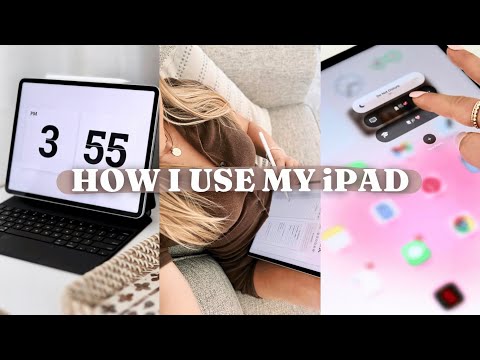
WHAT’S ON MY iPAD + tricks you didn’t know your iPad could do !!!
What's on My iPad and How I Use It
In this video, Sadie shares what is on her iPad, including the model and accessories she uses. She also discusses various ways she utilizes her iPad for school, productivity, digital planning, and entertainment.
iPad Model and Accessories
- Sadie has the 6th generation iPad Pro with a 12.9-inch screen.
- She uses the Apple Pencil in silver color.
- Sadie also has the Magic Keyboard in black color.
Ways of Using the iPad
- Sadie takes all her school notes on Google Docs and uses split-screen to view lectures while taking notes.
- She edits YouTube videos using Final Cut Pro available on her iPad.
- Digital planning and journaling are daily activities for Sadie.
- The iPad is used for content creation, such as planning videos and scheduling events.
- It is also used for listening to music, scrolling Pinterest, and watching Netflix.
Aesthetic Customizations
- Sadie has a gradient heart wallpaper found on Pinterest.
- She uses large app icons for a more aesthetically pleasing look.
- Widgets include a calendar widget to view daily events, a clock widget for aesthetics, Spotify widget displaying recently played songs, multiple mail apps for business/personal/school separation, and GoodNotes for planning.
GoodNotes Digital Planning
- Sadie plans all aspects of her life using GoodNotes.
- Her daily planner includes sections like today's to-do list, tomorrow's tasks (fur tomorrow list), timeline with priorities list, and other to-do items circling the day.
- Sadie mentions upcoming releases of more planners that can be used on laptops as well.
Timestamps have been associated with relevant bullet points based on their order in the transcript.
Quick Notes and iPad Features New Section
In this section, the speaker discusses the features of Quick Notes on the iPad and highlights some useful functionalities.
Quick Notes on iPad
- Quick Notes can be accessed by swiping up from the bottom right of the screen with the Apple Pencil. This feature allows for easy note-taking without having to open the Notes app or choose a specific folder. Link to timestamp
- Quick Notes sync across all devices, making it convenient to access and edit notes from different devices. Link to timestamp
- Screenshots can be added directly to Quick Notes by going into the three dots menu and selecting "Add Screenshot." This is helpful for capturing ideas during projects or tasks. Link to timestamp
- The ability to scan documents directly from the home screen is available by swiping down from the bottom and pressing and holding on "Add a Note." This feature eliminates the need for separate scanning apps. Link to timestamp
Organizing and Customizing Notes
- Quick Notes are organized in folders, allowing for better organization of different types of notes. Link to timestamp
- Tags can be used to create custom Smart lists within notes, making it easier to categorize and search for specific content. Hashtags automatically generate tags on the left side of the screen, enabling efficient organization based on topics or themes. Link to timestamp
- Reminders can be added with specific dates, times, locations, or flags, creating customized Smart lists based on these criteria. This helps in managing tasks that have deadlines or are location-dependent. Link to timestamp
iPad Editing Features
- The iPad offers advanced editing features for videos using apps like Final Cut Pro. These features include a wide range of color adjustment options, line drawing, and various pencil, pen, and highlighter tools with adjustable thickness, opacity, and color. Link to timestamp
- Dragging and dropping clips and cutting them before entering the timeline is possible on the iPad. The touch interface allows for a more intuitive editing experience. Link to timestamp
- The iPad also provides a green screen mask feature that can make text appear as if it's going behind objects in videos. This adds creativity to video editing projects. Link to timestamp
Useful Apps on iPad
- Google Chrome syncs tabs across devices, allowing easy access to bookmarks and browsing history from the iPad. Link to timestamp
- Google Drive is useful for storing school notes and documents, ensuring accessibility across different devices. Link to timestamp
- Outlook serves as a school email client for managing emails related to academic activities. Link to timestamp
- Canva is an excellent tool for creating YouTube thumbnails and other graphic designs with its user-friendly interface. Link to timestamp
Conclusion
The speaker highlights the convenience of Quick Notes on the iPad for quick note-taking without having to open specific apps or folders. The ability to sync notes across devices and add screenshots enhances productivity during projects or tasks. Customization options such as tags and reminders help in organizing notes effectively. Additionally, the iPad offers advanced video editing features through apps like Final Cut Pro, making it a versatile tool for content creation. Useful apps like Google Chrome, Google Drive, Outlook, and Canva further enhance productivity on the iPad platform.
Timestamps are provided within each bullet point where available (e.g., Link to timestamp).
Essential Apps and Customizations for iPad
In this section, the speaker discusses various essential apps and customizations for the iPad.
Essential Apps
- The speaker uses an app called Creator to gather links and affiliate links that are shared on their stories.
- They also mention having different categories in Creator, similar to an Amazon storefront, for clothing, makeup, App Store, PayPal calculator, Zoom bookshelf (for textbooks), and Epidemic Sound (for non-copyright sounds for YouTube).
- The speaker mentions using a Zen flip clock as a decorative item on their desk that also shows the time.
Customizing Home Screen
- There are two different layouts available for customizing the home screen: portrait and landscape. Apps and widgets can be organized differently in each layout.
- The drag and drop feature is useful for moving graphics between apps like Canva or thumbnails.
- Split-screen functionality allows users to have multiple apps open simultaneously.
Focus Filters
- The speaker recommends customizing focus filters based on desired activities and mindsets.
- They share personal examples of creating focus filters for YouTube/social media work and schoolwork.
- For YouTube focus filter, only favorite contacts can contact them while working. Business calendar is displayed during this filter.
- For schoolwork focus filter, only favorite people can contact them. Only school-related apps are displayed along with the school calendar.
Notification Summary
- Users can schedule a summary of notifications from specific apps. This summary is ordered by priority with recent notifications at the top.
Apple Pencil Tricks
- The "straighten" feature helps align slanted handwriting by selecting it and tapping straighten.
- Scribble converts handwritten notes into text format in real-time.
- Scribble is particularly useful when writing on slides provided by teachers.
Timestamps have been used to link relevant sections of the transcript.
Tips for Digital Planning and Note-taking
In this section, the speaker shares some useful tips for digital planning and note-taking on an iPad.
Switching between Writing Tool and Eraser Tool
- Double tap the bottom of the Apple Pencil to switch between the writing tool and eraser tool.
- This feature can be customized in the Apple Pencil settings on iPad.
Split Screen View
- To use split screen view, drag from the top of the screen and place it to one side.
- Open another app to create a split view by pressing on the app.
- Split screen view works in both landscape and portrait mode.
Slide Overview
- Slide overview allows you to have one tab open while viewing another app in full-screen mode.
- Let go of the secondary app on top of the full-screen app to activate slide overview.
Copy, Paste, Undo, and Redo Gestures
- Copy: Pinch with three fingers.
- Paste: Pinch out with three fingers.
- Undo: Slide three fingers to the left.
- Redo: Slide three fingers to the right.
Swiping Between Apps
- Use four fingers to swipe between all open apps on your iPad.
Touch and Drag Events on Calendar
- You can touch and drag events on your calendar for easy rescheduling or editing.
Productivity App Recommendations
The speaker suggests some productivity apps that can be helpful for school, work, creativity, and organization.
Recommended Apps:
- Notability
- Craft
- PDF Expert by Readle
- Liquid Text
Conclusion
The speaker concludes by inviting viewers to ask questions about iPad usage and sharing their own experiences.
- The speaker encourages viewers to comment with any questions or share how they use their iPads.
- The speaker mentions creating videos on digital decluttering, organization, and lifestyle topics.
- Viewers are invited to subscribe for more content.
Turn any video into a summary like this
YouTube links, meetings, lectures. With transcripts, search, and chat.