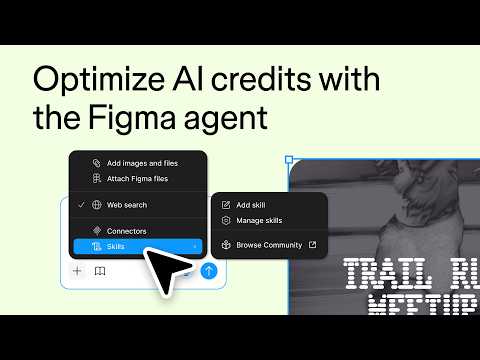
How to make the most of the Figma agent
Best Practices for Working with Figma's AI Agent
Clear Initial Prompts
- Clearly state your needs in the initial prompt, including scope and specific expectations. This upfront clarity may cost more credits initially but reduces rework later.
- Instead of vague prompts like "Design a settings page," provide detailed instructions such as "Design a mobile-first settings page with sections for account, notifications, and billing."
- Well-defined tasks (e.g., updating text layers across frames) typically consume fewer credits due to reduced ambiguity.
Contextual Relevance
- Include only necessary context in prompts; irrelevant attachments or information can increase credit usage without adding value.
- Scope selections to specific frames or layers rather than the entire page to minimize redundancy and unnecessary credit consumption.
Managing Conversations with the Agent
- Continuing a conversation allows the agent to retain context, but longer chats can lead to increased credit usage even for simple prompts.
- Start new chats when switching tasks to avoid accumulating unnecessary history that could inflate costs.
Utilizing Skills and Plugins
- Skills are reusable sets of context that guide the agent's responses, helping achieve desired outcomes efficiently while saving credits.
- Plugins are ideal for well-defined repeatable jobs; once built, they incur no further credit costs since they don't rely on the agent.
Efficient Credit Management
- Both skills and plugins enhance efficiency: skills provide context for reasoning tasks while plugins automate repetitive processes without consuming credits.
- Use Fig, Figma's support chatbot, for questions about features instead of the agent to conserve credits effectively.
Tracking Credit Usage
- Hover over icons during use to see prompt costs; understanding which types of prompts are more expensive helps manage credit balance effectively.
- If you run out of credits, you may request more from your admin based on your plan setup.
Turn any video into a summary like this
YouTube links, meetings, lectures. With transcripts, search, and chat.