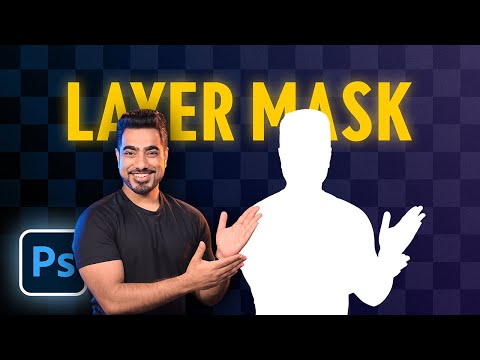
Layer Mask - Photoshop for Beginners | Lesson 4
The Purpose of a Layer Mask
In this section, the instructor explains the purpose of a layer mask in Photoshop and how it works.
Layer Mask Basics
- A layer mask is used to hide parts of a layer.
- Black hides and white shows.
- To create a layer mask, select the layer and click on the mask button.
- Painting with black on the mask hides areas of the layer while painting with white reveals them.
- The use of a layer mask is non-destructive, meaning changes can be made later.
Creating an Effect Using Layer Masks
- To create an effect using a layer mask, select the area you want to hide or reveal.
- Use black to hide and white to reveal.
- Press X to toggle between foreground and background colors.
- Hold ALT/OPT key and click on the mask thumbnail to view only the mask. Click again to view both layers together.
Why Use Layer Masks?
In this section, the instructor explains why using a layer mask is better than simply erasing parts of an image.
Non-Destructive Editing
- Using a layer mask allows for non-destructive editing.
- This means that changes can be made without permanently altering any part of the original image.
Works with Non-Raster Layers
- A major advantage of using a layer mask is that it works with non-raster layers such as text or shape layers.
- Erasing these types of layers would result in permanent damage to their structure.
Sky Replacement Example
- An example given for using a layer masks is sky replacement.
- By selecting and deleting parts of an image using selection tools, new elements can be added behind them without damaging any part of the original image.
Non-Destructive Editing with Layer Masks
In this section, the speaker explains how to use layer masks for non-destructive editing in Photoshop.
Using Layer Masks for Non-Destructive Editing
- To select an area to edit, go to "Select" and choose the desired tool.
- Clicking on the mask button creates a mask of the selected area. White areas show up while black areas are hidden.
- To create an opposite or negative mask, select the mask and press Ctrl or Command + I to invert it. Alternatively, hold Alt or Option and click on the mask button.
- After bringing in a new element, such as a sky image, use a brush with white as the foreground color to paint back any transparent areas.
Using Layer Masks with Non-Raster Layers
- Layer masks work with non-raster layers like smart objects, shape layers, and text layers.
- Smart objects can be placed by dragging and dropping from Finder or Explorer. Make sure to check "Always create smart objects when placing" in preferences.
- To place an object behind a subject layer, first select the subject layer and then click "Select Subject." Create a negative mask by holding Alt or Option and clicking on the mask button.
Hiding Areas in Smart Objects
- Smart objects are previews that cannot be edited directly with brushes or erasers. Use layer masks to hide certain areas instead.
- Raster layers can be edited directly with brushes and erasers because they deal with pixels.
Breaking Apart Layers and Unlinking Masks
In this section, we learn how to break apart layers and unlink masks in Photoshop.
Breaking Apart Layers
- To break apart a layer, hold the alt/option key and click on the slider.
- Take it all the way apart to separate the layer from its mask.
- Press Ctrl/Cmd + T to move or resize the layer as desired.
Unlinking Masks
- Click on the link icon between the layer and its mask to unlink them.
- This allows you to move or resize the layer without affecting its mask.
- To link them back together, click on the same spot where you unlinked them.
Turning Masks On and Off
In this section, we learn how to turn masks on and off in Photoshop.
- Hold shift and click on a mask to turn it off/on.
- This is useful for previewing an image with or without a mask without deleting it entirely.
Layer Mask Properties
In this section, we learn about layer mask properties in Photoshop.
- There are only two properties of a layer mask that you need to worry about - opacity and feathering.
- Opacity controls how transparent or opaque your mask is while feathering softens edges for a more natural look.
Creating a Vignette with Curves Adjustment Layer
In this section, we learn how to create a vignette using curves adjustment layers in Photoshop.
- Create a curves adjustment layer by clicking on its icon in the layers panel.
- Adjust points on the curve to darken/lighten specific areas of your image.
- Select your layer's mask and use a hard round brush to paint black in the center of your image.
- Press Ctrl/Cmd + T to move or resize the vignette as desired.
Properties and Color Grading
In this section, we learn about the properties of a mask and how to color grade an image using a color lookup adjustment layer.
Feathering and Density
- The feather property blurs the mask in a non-destructive way.
- Increasing the feather property blurs the mask more.
- The density property controls the opacity of the mask.
Color Grading
- Use a color lookup adjustment layer to color grade an image.
- Apply a mask to limit the effect of the color grading to specific areas of the image.
- If you already have a selection, create an adjustment layer, and it will come with its own mask.
Adding Noise and Copying Masks
In this section, we learn how to add noise to an image and copy masks.
Adding Noise
- Add noise by creating a new layer with blend mode overlay filled with neutral gray.
- Convert this layer into a smart object so that filters can be changed later.
- Add noise by going to Filter > Noise > Add Noise.
Copying Masks
- Hold Alt/Option key while dragging and dropping masks to copy them.
- Too many copies can be problematic for workflow and results.
Conclusion
In this section, we learn about the importance of avoiding too many copies of masks.
- Too many copies of masks can be problematic for workflow and results.
Grouping and Masking Layers
In this section, the speaker explains how to group layers and use masks to make editing easier.
Grouping Layers
- To group layers, select all of them, press Ctrl or Command + G, and name the group.
- This makes it easier to edit multiple layers at once.
Masking Layers
- Use masks to hide parts of a layer without deleting them.
- To create a mask, click on the mask button in the Layers panel.
- Use black paint on the mask to hide parts of the layer and white paint to reveal them.
- To apply a mask to multiple layers, group them together and apply the mask to the group.
Double Masking
In this section, the speaker explains how double masking can be used for more complex edits.
Creating a Solid Color Adjustment Layer
- Click on the adjustment layer icon and choose solid color.
- Choose any color you want for now.
Selecting Subject Layer
- Select subject layer using any selection tool available
- Create a new mask by filling it with black (Alt+Backspace or Option+Delete).
Double Masking
- Put that layer in a group by pressing Ctrl or Command + G.
- Create another negative mask by holding Alt or Option key while clicking on "Add Layer Mask" button.
- Now you have two masks for one layer.
- Paint with white on second mask where you want highlights back in.
Using an Image as a Mask
In this section, the speaker explains how images can be used as masks for creative effects.
Creating Black Background
- Unlock background layer
- Click on adjustment layer icon and choose solid color
- Choose black color
Pasting Image as Mask
- Create a mask by clicking on the mask button in the Layers panel.
- Hold Alt or Option key while clicking on the mask to get to the mask mode.
- Press Ctrl or Command + V to paste image as a mask.
- Resize it using Ctrl or Command + T.
Double Masking with Image
- Put that layer in a group by pressing Ctrl or Command + G.
- Create another negative mask by holding Alt or Option key while clicking on "Add Layer Mask" button.
- Now you have two masks for one layer.
- Paint with white on second mask where you want highlights back in.
Brightening the Highlights of a Mask
In this section, the speaker explains how to brighten the highlights of a mask using curves.
Brightening the Highlights
- To fix a mask with dull highlights, select the mask and press Ctrl or Command M to bring up curves.
- Move the slider to the left to make the highlights brighter.
- Keep it that way and hit okay.
Two Objectives of Layer Masks
In this section, the speaker explains two objectives of layer masks.
Objectives of Layer Masks
- The only objective of a layer mask is to hide the layer.
- Black hides and white shows.
Conclusion and Call-to-Action
In this section, the speaker concludes by thanking viewers for watching and encourages them to like, subscribe, and ring the bell for future tips, tricks, or tutorials.
Conclusion and Call-to-Action
- This is a free series; enjoy watching without worrying about anything.
- If this video helped you, give it a like and subscribe.
- Don't forget to ring the bell so you don't miss any future tips, tricks or tutorials.