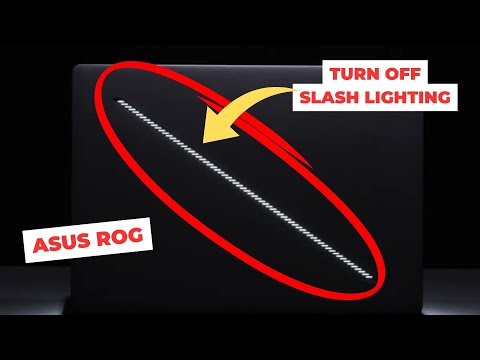
Turn off Slash Lighting (Asus ROG G14 Zephyrus)

Turn off Slash Lighting (Asus ROG G14 Zephyrus)

How to Customize Slash Lighting on Zephyrus G14

Introduction to Customization

  • The video introduces the process of customizing the slash lighting on the Zephyrus G14 laptop, which features a flashing LED that some users find distracting.

Accessing Armory Crate

  • To begin customization, the user is instructed to open Armory Crate, either via a dedicated button on the laptop or through Windows 11 pre-installed software.
  • Within Armory Crate, navigate to the "Device" section and select "RG Zephyrus G14," which is specific to this model.

Customizing Slash Lighting Settings

  • In the "Slash Lighting" tab, users can choose from various animations or turn off the lighting entirely. The presenter finds it annoying and opts for turning it off.
  • The default animation setting is "Bounce," but it can be changed to "Dark" or turned off completely for a distraction-free experience.

Final Thoughts

  • After customization, the presenter demonstrates that the flashing light has been successfully turned off, enhancing their focus while using the laptop.
  • The video concludes with an invitation for viewers to customize their settings as desired and expresses hope that viewers found the tutorial useful.
Video description

Quick video on how to turn off Slash Lighting on ROG laptops like the G14 Zephyrus. ► Links: Master M1 game compatibility list: https://www.applegamingwiki.com/wiki/M1_compatible_games_master_list Please join me on Discord here: https://discord.gg/28CAAr6SpB Check out AppleGamingWiki: https://applegamingwiki.com ►► Mac: Record screen audio and gameplay (Mac): https://youtu.be/i6UewWGWfe0 Set 16:9 aspect ratio (Mac): https://youtu.be/TtKNqoCbOaI Highlight mouse cursor (Mac): https://youtu.be/jDJECtQO97Y Display keystrokes (Mac): https://youtu.be/1MRQ9DmxmU0 Snap windows (Rectangle, Mac): https://youtu.be/qUPSnDYJU6A OBS setup (Mac): https://youtu.be/rpYxhzlaDj8 Temperature/fan monitor (Mac): https://youtu.be/ovnDeHiXnKU ►► General: Microphone setup (Blue Yeti): https://youtu.be/81DsMgR2Qd4 Greenscreen setup (OBS): https://youtu.be/mO4QhV-1rKo Note-taking (Notion, Mac): https://youtu.be/DaMPeS8Bet8 Highlight mouse cursor (Windows): https://youtu.be/kM0RgM7TDFc DIY 2TB SSD USB-C (Mac and Windows): https://youtu.be/43X3Mk5vQK4 ► Windows gaming on Mac: ►► Windows on M1 Mac Tutorial: https://www.youtube.com/watch?v=nVxzCteaWnc ►► CrossOver FREE 14 DAY TRIAL - use coupon APPLEGAMINGWIKINEW for 20% DISCOUNT: https://www.codeweavers.com/store?ad=835;deal=applegamingwikinew ►► Parallels 19 use code APPLEWIKI10 for 10% DISCOUNT: https://prf.hn/click/camref:1101lfR6V Amazon Affiliates Disclosure: Andrew Tsai is a participant in the Amazon Services LLC Associates Program, an affiliate advertising program designed to provide a means for us to earn fees by linking to Amazon.com and affiliated sites as well as other affiliate programs.