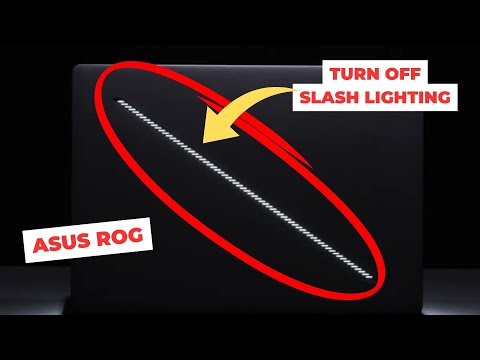
Turn off Slash Lighting (Asus ROG G14 Zephyrus)
How to Customize Slash Lighting on Zephyrus G14
Introduction to Customization
- The video introduces the process of customizing the slash lighting on the Zephyrus G14 laptop, which features a flashing LED that some users find distracting.
Accessing Armory Crate
- To begin customization, the user is instructed to open Armory Crate, either via a dedicated button on the laptop or through Windows 11 pre-installed software.
- Within Armory Crate, navigate to the "Device" section and select "RG Zephyrus G14," which is specific to this model.
Customizing Slash Lighting Settings
- In the "Slash Lighting" tab, users can choose from various animations or turn off the lighting entirely. The presenter finds it annoying and opts for turning it off.
- The default animation setting is "Bounce," but it can be changed to "Dark" or turned off completely for a distraction-free experience.
Final Thoughts
- After customization, the presenter demonstrates that the flashing light has been successfully turned off, enhancing their focus while using the laptop.
- The video concludes with an invitation for viewers to customize their settings as desired and expresses hope that viewers found the tutorial useful.