How to Install a Hard Drive or SSD in a PC
Installing a Traditional Hard Drive
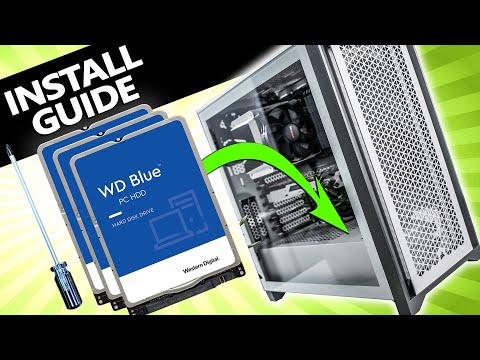
In this video, the process of installing a traditional hard drive into a PC is explained. The necessary components and steps are outlined to guide viewers through the installation process.
Gathering Required Components
- SATA data cables are needed to connect the hard drive to the PC for data transfer.
- There are different designs of SATA data cables, with some having straight connectors and others having 90-degree connections.
- A SATA power cable is required to provide power to the hard drive. It is usually already connected to the power supply inside the PC case.
Preparing for Installation
- A screwdriver may be needed to open the PC case, unless it has thumb screws or is tool-less.
- Opening the case involves removing screws along the back edge of each side panel or using thumb screws in each corner if it has a tempered glass panel.
Mounting the Hard Drive
- Most PC cases have drive bays near the front or bottom. Some cases have removable cages that allow for easier installation outside of restricted spaces.
- Hard drives have threaded mounting holes on both sides. The drive should be slid into the cage or tray, ensuring that all holes line up.
- The connectors on the hard drive should be accessible by mounting it with them facing towards the back or side behind the motherboard.
- The hard drive should be fastened using four screws provided with the case.
Connecting Cables
- Start by connecting the larger SATA power cable to the back of the hard drive.
- Follow this by connecting a data cable from one of its ends to an available port on your motherboard. Ensure it only goes in one way due to its L-shaped notch.
Conclusion
This section concludes with instructions on how to connect a traditional hard drive to a PC. The process involves gathering the necessary components, mounting the hard drive, and connecting the required cables.
The transcript provided does not contain any further content beyond this point.
Initializing a New Hard Drive in Windows
In this section, the speaker explains how to initialize a new hard drive in Windows 11 (or Windows 10). The process involves using Disk Management to create and format a hard disk partition.
Creating and Formatting the Hard Disk Partition
- Open the search bar by clicking on the search icon.
- Type "Disk Management" and select the option that says "Create and format hard disk partition."
- A window will open, displaying all the drives and partitions installed in your system. Look for any unallocated space with a black stripe at the top, which indicates your new drive.
- Right-click on the unallocated space and select "New Simple Volume." This will open a wizard.
- Follow the steps in the wizard to set up your drive:
- Click "Next" to proceed.
- Ensure that the simple volume size matches the maximum disk space available. By default, it should be set correctly.
- Assign a drive letter or choose a custom one.
- Confirm settings such as file system (NTFS), allocation unit size, volume label (optional), and quick format option.
- Review all selected settings and click "Finish" to complete the process.
Verifying Initialization
- Once completed, you can see your newly initialized drive in Windows Explorer with its assigned drive letter.
- The drive is now ready for use, allowing you to transfer files or install programs.
Introduction to Basic PC Building Tasks
The speaker introduces this video as part of a new series focusing on entry-level basic PC building tasks. They encourage viewers interested in expanding their knowledge and gaining confidence in building their own PCs to subscribe for more content.
No specific steps or instructions are provided in this section.