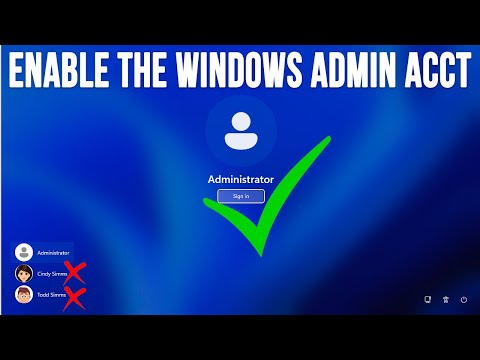
How to Enable & Log in with the Built in Windows Admin Account if You Can't Log on to Your Computer

How to Enable & Log in with the Built in Windows Admin Account if You Can't Log on to Your Computer

How to Access Your Computer When You've Lost Your Password

Introduction to the Process

  • The video demonstrates how to access your computer if you've forgotten your password or PIN, or if other user accounts are unavailable.

Enabling the Built-in Administrator Account

  • From the login screen, hold down the Shift key and click on the Power button, then select Restart while keeping Shift held down.
  • After restarting, navigate through Troubleshoot > Advanced options > Command Prompt. Note that Windows may not be on the expected drive letter (usually C).

Identifying the Correct Drive Letter

  • Use diskpart command followed by list volume to identify which drive letter corresponds to your Windows installation; in this case, it was found as E.

Moving System Files for Access

  • Execute commands to move utilman.exe and replace it with cmd.exe, ensuring you use the correct drive letter identified earlier.

Using Command Prompt for Registry Editing

  • After rebooting and reaching the login prompt again, click on the accessibility button to open Command Prompt and type regedit to access Windows Registry Editor.

Modifying User Account Settings

  • Navigate through HKEY_LOCAL_MACHINE > SAM > Domains > Accounts > Users; locate a specific key with five zeros followed by one F4.
  • Modify a value within this registry entry by deleting a character and replacing it with '1', then close out of all windows.

Logging in with Administrator Account

  • Upon rebooting again, an administrator account will appear allowing access without a password; complete any initial setup required for this new profile.

Conclusion and Key Takeaways

  • Ensure you accurately determine your Windows drive letter early in this process; follow instructions carefully for successful recovery of access.

Turn any video into a summary like this

YouTube links, meetings, lectures. With transcripts, search, and chat.

Video description

Are you locked out of your PC and can't log in? Whether you forgot your password, lost your PIN, or your user profile is corrupted, there is a way to get back into your computer. In this tutorial, we show you a powerful workaround to enable the hidden built-in Windows Administrator account from the login screen. Then you can use this account to log into your computer and then either fix your other account or create a new local or Microsoft account. Here is a writeup of the enable and log in with the built in Windows administrator account process on our website. https://onlinecomputertips.com/support-categories/pc-troubleshooting/enable-built-in-windows-admin-account-if-you-cant-log-on-to-your-computer/ We demonstrate how to use the Windows Recovery Environment and a clever "utilman" command-line trick to bypass the lock screen and access the Registry Editor. From there, you can unlock the super-admin account, log in without a password, and rescue your files or reset your primary account settings. This is an essential emergency repair technique for any Windows user. 0:00 - Introduction: Getting into a locked computer 0:31 - Booting into Advanced Options using the Shift+Restart method 1:00 - Identifying your Windows drive letter using Diskpart 2:06 - The "Utilman" command-line trick explained 3:20 - Accessing the Command Prompt from the Login Screen 3:28- Using Registry Editor (regedit) to unlock the Admin account 4:36 - Restarting and logging in with the "Administrator" account 5:13 - Managing accounts once you've regained access Here is another method you can use to enable the built in administrator account. https://www.youtube.com/watch?v=2iIuYW53t60 You can also use this method to reset a Windows user password & make Them an administrator when locked out. https://onlinecomputertips.com/support-categories/pc-troubleshooting/reset-windows-password-locked-out/ If you need to simply enable the built in administrator account and have access to your Windows, you can use this method. https://www.youtube.com/watch?v=zEr9Zm55uvw Here are the notes from the video. Hold down the Shift key on your keyboard and click Restart with your mouse. Once you are in the command prompt, type diskpart to open the command line disk management tool. Type list volumes to show your partitions and then find the letter associated with your Windows drive. Type the following commands and press enter after each one. Change the letter C to match the one associated with your Windows drive if needed. move c:\windows\system32\utilman.exe c:\ copy c:\windows\system32\cmd.exe c:\windows\system32\utilman.exe exit When done, close the command prompt and then click Continue - Exit and continue to windows. On the sign in screen, click the Accessibility icon to open another command prompt. In the command prompt window, type regedit and press enter. Navigate to the following key. HKEY_LOCAL_MACHINE\SAM\Domains\Account\Users\000001F4 Double click to open the F value within the right pane. Using the down arrow key, place the cursor on the line 0038 before the number 11. Press the delete key one time to delete the number 11 and then just type 1 which will then insert the number 10 Close the Registry Editor and the command prompt windows and then click the power button and choose Shut down. Turn on your computer again and at the sign in screen, click on the Administrator to login with no password. 🎓 Step up your skills with our online training courses: http://madeeasytraining.com 📚 Explore our full library of tech and computer books: https://www.madeeasybookseries.com/home 📘 Get our book "Windows Made Easy" on Amazon: https://www.amazon.com/dp/B09HFXWXRY 🚀 Master your software and hardware with our latest tech tips: https://onlinecomputertips.com #WindowsAdmin #LockedOut #PasswordReset #Windows11 #TechSupport #SystemRecovery #OnlineComputerTips