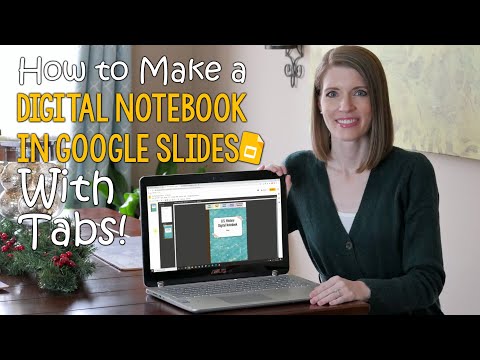
How to Make a Digital Notebook in Google Slides with Tabs | Edtech Made Easy
Creating Digital Notebooks in Google Slides
Introduction to Digital Notebooks
- The speaker introduces the concept of digital notebooks and Google Slides, highlighting their visually appealing design with clickable tabs.
- Initial thoughts on digital notebooks often include feelings of complexity or assumptions about the time investment required to create them.
Simplifying Creation Process
- The speaker reassures viewers that creating these digital notebooks is easier than it appears and does not require extensive time commitment.
- A promise is made to demonstrate a straightforward method for creating digital notebooks with tabs in Google Slides.
Setting Up Google Slides
- To begin, users should open a new Google Slides presentation and resize the slide according to personal preference.
- The recommended size is 8.5 by 11 inches (vertical), which allows for easy printing if needed.
Master View Functionality
- Important elements can be locked down using either background changes or by editing the master view, preventing student manipulation.
- In master view, users can create different layouts; the speaker demonstrates deleting existing layouts for simplicity.
Designing the Cover Page
- The cover page will be designed in master view to ensure students cannot alter it; an example of a composition notebook cover is used.
- Users are encouraged to customize their covers using images from online searches or design tools like Canva.
Adding Interactive Elements
- A text box will be added for students to write their names while ensuring other parts remain uneditable due to being set in master view.
Creating a Digital Notebook for Social Studies
Organizing Tabs and Text
- The speaker discusses arranging tabs in the background to maintain a clean visual line at the bottom of the digital notebook.
- Emphasizes adding text boxes to each tab, labeling them for student navigation, starting with "Early Explorers."
Structuring Content
- Plans to create sections within the notebook that include passages and comprehension questions for each unit.
- Advocates using simple passages in social studies teaching, assessing understanding through comprehension questions.
Enhancing Usability
- Aims to consolidate all necessary information into one digital space, akin to a textbook but more accessible.
- Mentions linking tabs to different parts of the notebook once those pages are created.
Designing Header Pages
- Introduces the idea of having header pages for each section (e.g., Early Explorers, American Indians) for clarity.
- Searches for an image of notebook paper to enhance the visual appeal of these header pages.
Utilizing Master View
- Describes creating layout pages in master view that will automatically update across presentations when modified.
- Explains duplicating layout pages quickly while adding headings relevant to each section.
Linking Sections and Tabs
- Highlights how changes made in master view reflect throughout the presentation seamlessly.
- Demonstrates adding new slides based on previously created layouts and linking them correctly.
Finalizing Links and Functionality
- Details how to link tabs directly to their corresponding subtitle pages within the presentation.
- Shows how copying tabs across slides maintains functionality, ensuring they remain interactive during presentations.
Adding Interactive Elements
How to Create a Digital Notebook
Overview of the Process
- The speaker discusses uploading PDF worksheets into a digital notebook and references another video on making Google Slides presentations interactive.
- Emphasizes the importance of watching the linked video for clarity on the process being demonstrated, particularly regarding adding blank pages.
Adding Blank Pages
- The speaker navigates to "Slide Edit Master" to add blank pages since none are available in their layout.
- After creating blank pages, they proceed to set up background images by selecting "Slide Change Background" and choosing saved JPEG files.
Maintaining Links with New Slides
- Demonstrates how adding new slides does not disrupt existing tab links; tabs remain functional even after new content is added.
- Confirms that Google Slides automatically updates links when new slides are inserted, ensuring seamless navigation.
Interactive Components
- Discusses adding interactive elements like text boxes where students can input their names, highlighting that locked backgrounds prevent manipulation.
- Mentions additional resources for creating drag-and-drop activities within Google Slides for enhanced interactivity.
Viewing and Editing Modes
- Clarifies that students must view the digital notebook in edit mode to interact with components; present mode restricts editing capabilities.
Enhancing Navigation with Home Buttons
- Suggests using the master slide feature to add navigation buttons (like home icons), which will appear on all relevant pages created from that layout.
- Describes creating a half-circle button in red for visibility and attaching a home icon for intuitive navigation back to the main page.
Finalizing the Digital Notebook
- Explains linking the home icon back to the first slide so students can easily return to it from any section of their digital notebook.
Digital Notebooks: Tips for Educators
Creating Digital Notebooks
- The speaker shares their experience of creating digital notebooks, noting that initial attempts were time-consuming due to experimentation. However, with practice, the process became quicker and easier.
- After mastering the creation of digital notebooks, the speaker can now produce them in just minutes, emphasizing the importance of consistent practice.
Overcoming Frustration
- The speaker advises taking breaks when feeling frustrated while learning to create digital notebooks. This approach helps maintain motivation and clarity.
- Viewers are encouraged to revisit the video as needed, allowing them to skip to specific sections that contain relevant information.
Engaging with the Audience
- The speaker invites viewers to leave comments about their experiences using digital notebooks with students, including subjects and purposes for their use.