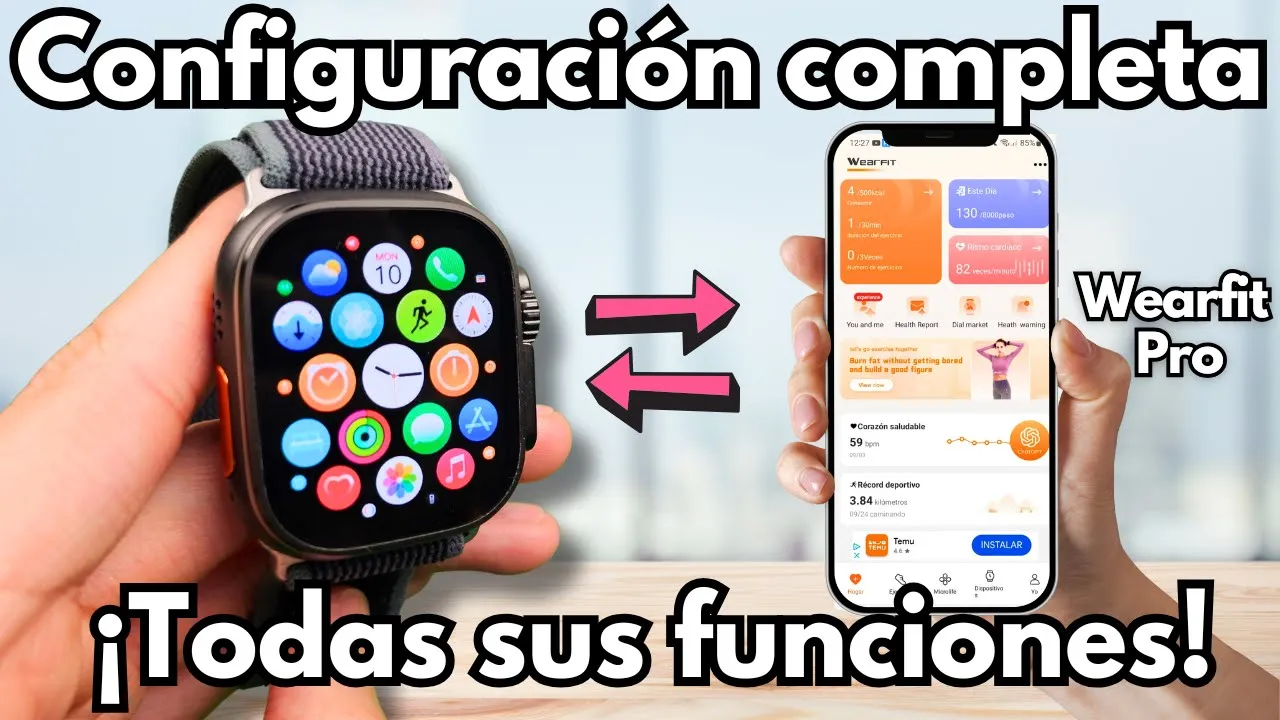
HK11 Ultra 3 👉 ¡Guía COMPLETA de Configuración y TODAS sus Funciones!
Configuring the HK11 Ultra 3 Smartwatch
Introduction to Configuration
- The video introduces the HK11 Ultra 3 smartwatch and aims to guide viewers through its setup using the Wearfit Pro app, while also evaluating its health monitoring capabilities.
Initial Setup Steps
- To power on the smartwatch for the first time, press and hold the crown button located at the top of the device.
- Select Spanish as the language; other languages are available. Then, scan a QR code displayed on-screen to link with Wearfit Pro.
App Installation Process
- Users can download Wearfit Pro from Google Play Store or via a QR code found on the box. The app is compatible with iOS devices as well.
- If scanning is difficult, users can search for "WFED Pro" in Google Play Store to install it directly.
Account Creation and Permissions
- After installing, open Wearfit Pro and accept privacy policies. New users must register by providing their country, email, and verification code.
- Existing account holders can log in by entering their credentials and agreeing to privacy terms.
Device Pairing Challenges
- Users need to allow all necessary permissions for optimal functionality. They can add their smartwatch either by scanning a QR code or manually selecting it within the app.
Troubleshooting Connection Issues
Bluetooth Activation
- Ensure Bluetooth is activated on your phone; if not, enable it before attempting to pair with the smartwatch again.
Repeated Attempts Required
- It’s common to face connection issues when pairing Chinese smartwatches; persistence may be required for successful pairing.
Finalizing Permissions
Additional Permission Settings
- Check application settings on your phone for any additional permissions that may need granting (e.g., microphone access).
Notification Access Setup
- Allow notifications from various apps so that alerts can be received directly on your smartwatch.
Updating Firmware
Importance of Updates
- Regular updates are recommended whenever available; they help improve performance and fix bugs in devices like this smartwatch.
Post-update Verification
Confirming Successful Update
- After updating, verify that you have successfully installed version 1.04 of firmware through device settings.
Adjusting Display Settings
Screen Timeout Adjustment
- Change screen timeout settings from 5 seconds to 30 seconds for better usability during operation.
Ensuring Call Functionality
Call Feature Activation
- Enable call features by ensuring relevant options are toggled green in settings; this allows making and receiving calls through the smartwatch.
Completing Configuration
Final Checks
- Once configured correctly, users should be able to receive notifications and make calls without issues related to audio playback settings.
Exploring Application Features
Overview of App Functions
- The app contains advertisements which may require waiting periods before being dismissed; this is part of user experience feedback regarding ads present in Wearfit Pro.
Fitness Tracking Limitations
The fitness tracking sensors are unreliable according to user experiences; thus it's advised not to rely heavily on them for sports activities.
Customization Options
- Users can change watch faces easily by double-clicking on the crown button which provides different menu layouts based on preference.
Overview of Smartwatch Features
Payment and Alarm Functions
- The smartwatch does not support payment methods like PayPal, Alipay, or WCAT Pay.
- Users can add alarms directly from the smartwatch or via the app; alarms function effectively.
- Customization options for watch faces are limited; users cannot change color, style, or position.
Camera and Voice Memo Capabilities
- The smartwatch allows remote photo-taking with a noticeable delay in display response.
- A voice memo feature is available for recording audio directly on the device.
- Recorded audio can be synced with the app for storage and management.
Calendar and Music Management
- Users can manage schedules through a calendar function that sends notifications for reminders.
- Local music can be imported from a phone to the smartwatch for playback.
- Playback settings allow users to choose between local storage or streaming from their phone.
Translation and E-book Features
- The Wfit Translator requires Bluetooth connection; it has been tested but may have delays in translation accuracy.
- E-books can potentially be imported, though reading on a small screen may not be practical.
Photo Album and Device Search Functionality
- Users can view photos stored on the smartwatch by swiping through an album interface.
- A device search feature helps locate lost devices linked via Bluetooth.
Health Monitoring Features
Activity Tracking Limitations
- Daily activity reminders are available, but sensor accuracy is questionable; heart rate alerts may trigger unnecessarily during sleep.
- The smartwatch's fitness tracking capabilities are deemed unreliable compared to other models like Apple Watch Ultra 3.
Personal Information Management
- User data related to health metrics is accessible but lacks significant features beyond basic tracking.
- Account settings include privacy options and cache clearing but offer little additional value.
Additional Smartwatch Functions
Notification Handling and AI Features
- Notifications are received well, but responding requires voice transcription rather than typing responses directly.
- Stress levels and blood pressure monitoring features exist but may lack reliability compared to established health devices.
Conclusion on Smartwatch Utility
- Overall recommendations suggest using this smartwatch primarily for notifications rather than fitness tracking due to its limitations in health data accuracy.
Turn any video into a summary like this
YouTube links, meetings, lectures. With transcripts, search, and chat.