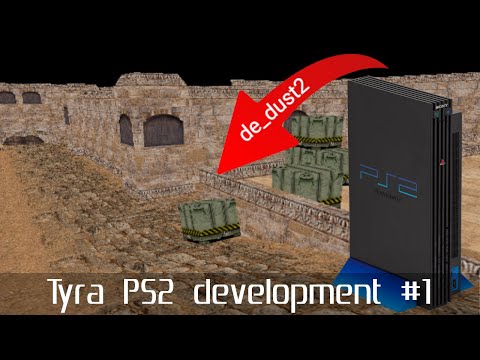
Tyra PS2 #1 - Setup environment
How to Set Up a Development Environment for Tyra Engine
Overview of the Tutorial
- This tutorial is divided into three parts: installation of necessary programs, configuration of these programs, and testing changes in the source code by compiling the engine and running a Tyra tutorial on a PlayStation 2 emulator.
Required Tools and Installation
- The tutorial uses Windows OS but mentions that Linux can also be used since all tools are available in a Docker image. Docker is essential due to the complexity of installing tools for PlayStation 2 programming.
- The Docker image includes a complete development environment with PS2 SDK, libraries, compilers, linkers, Sony's VCL tool for optimized vector unit assembly code, and VCLP preprocessor for assembly files.
- Recommended installations include:
- Docker (with WSL 2 support for better performance).
- PowerShell (ensure it's updated).
- PCSX Emulator (including BIOS file for PS2).
- Git (for version control commands like
git pullandgit clone).
- VS Code as the code editor; however, any editor can be used.
Configuring PCSX2 Emulator
- Configuration steps include enabling host access so that the emulator can access files from the host system. This option may not be visible in some versions but is crucial for functionality. Ensure to close the emulator before making changes to avoid overwriting settings files.
- Enable motion engine timing hack within emulation settings to fix texture flickering issues that do not occur on actual PS2 hardware; this setting is important for proper game rendering in PCSX2.
- Adjust terminal settings by increasing font size and enabling dark theme for better visibility of logs during gameplay sessions. Additionally, map joystick buttons to keyboard or controller inputs as needed.
Downloading Source Code
- Create a directory named "repositories" where you will download the Tyra source code using Git commands through PowerShell; ensure you have navigated correctly before executing commands.
- The downloaded Tyra folder structure includes:
- A VS Code directory with project configuration files.
- A demo game directory.
- Documentation about installation.
- An engine source code template which serves as a base for creating new games.
- A tutorials directory containing various guides related to Tyra development processes.
Understanding Folder Structure
- Within the demo folder:
- bin: Contains output binaries of your game.
- include: Holds header files related to C++ code.
- res: Stores all game assets which are copied during compilation.
- source: Contains your C++ source files (.cpp).
This structure is mirrored in both template and tutorials directories as well, facilitating organization across projects.
Setting Up VS Code
C++ Tools Extension Setup
Installing C++ Tools Extension
- The C++ tools extension is introduced, which includes header utility tools and assembly support. Users are advised that assembly writing is not required at this stage.
- Configuration files need to be copied from the
.vs codefolder, specifically focusing on the Windows configuration directory containing three essential files.
Understanding Configuration Files
- The
cpp_properties.jsonfile contains configurations for IntelliSense, which requires path adjustments.
- The
settings.jsonfile specifies the current build directory, whiletask.jsonholds preconfigured commands for Docker operations related to compilation tasks.
Setting Up IntelliSense
- To fix IntelliSense issues, users must download necessary files from the Tyra repository's latest releases.
- A new directory for IntelliSense will be created on the desktop where downloaded content will be extracted and organized.
Verifying Project Functionality
- After configuring paths correctly in VS Code, users should see no errors in their project. Clicking on functions like
begin frameshould work seamlessly.
Asset Management and Docker Integration
Managing Assets for Tutorials
- Two archives containing assets such as textures and music are discussed; these should be pasted into relevant directories to ensure proper functionality of tutorials.
Opening Terminal and Docker Commands
- Users can open a terminal in VS Code (PowerShell or CMD), where they will execute commands like
docker pullto download the Tyra image if not already done.
Compiling Projects with Docker
Configuring Tutorial Compilation
- For working with tutorial 4, users must edit settings to specify relative paths for compilation within the tutorials directory.
Starting Docker Container
- Instructions are provided on starting a Docker container from an image. This step is crucial before running any tutorial projects.
Editing Source Code
Modifying Engine Code
- Users are guided through editing source code within the engine directory. An example modification involves adding a line in the OB loader file to demonstrate ease of changes.
Streamlining Build Tasks
Tutorial Overview and Code Modification
Compiling Changes in the Tutorial
- The tutorial demonstrates how to compile only the changed files, indicating an efficient workflow.
- A brief pause is taken to check if everything is functioning correctly after making changes.
- The speaker confirms that the tutorial is operational, suggesting a successful compilation process.
Modifying Source Code
- Users are encouraged to modify the source code within the tutorial by changing specific values.
- This flexibility allows learners to experiment and understand the impact of their changes on the overall project.
Conclusion of Current Tutorial