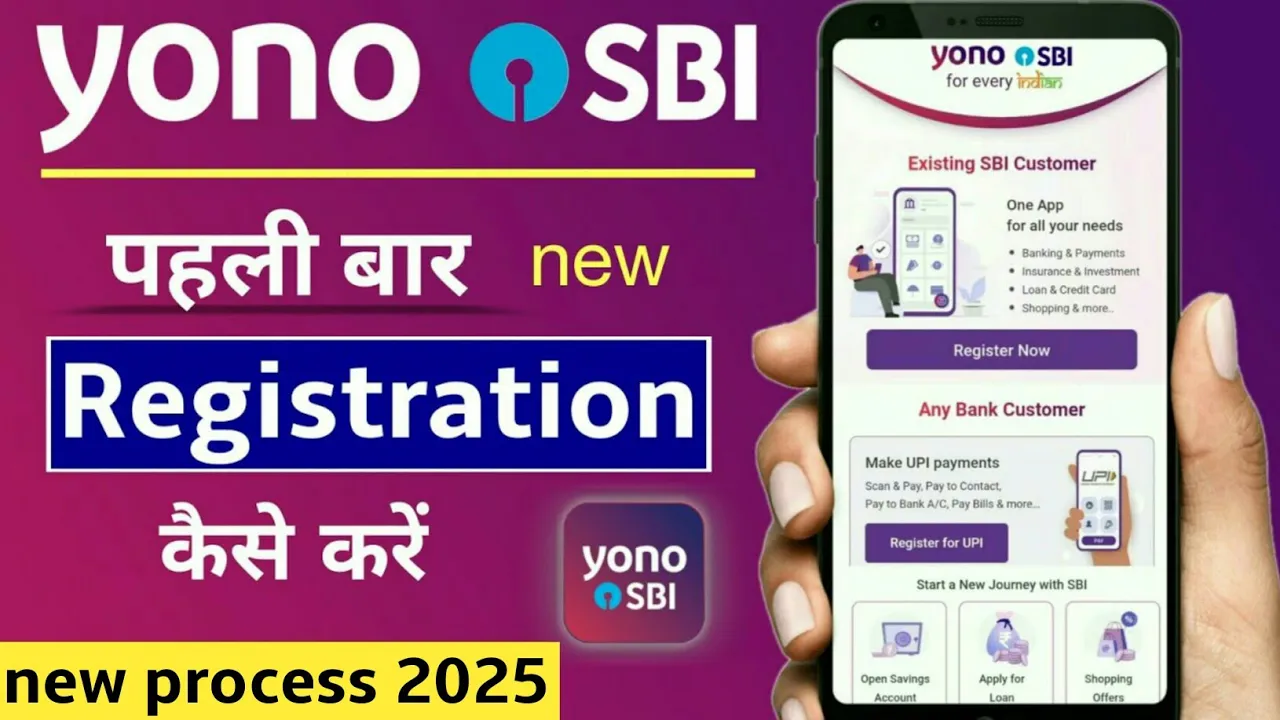
How to register yono sbi app | SBI yono new registration | yono app kaise register kare | yono sbi
How to Register for SBI App: A Step-by-Step Guide
Initial Requirements for Registration
- The video introduces the process of registering for the SBI app, emphasizing two key requirements.
- Users must ensure their phone's operating system is version 9 or higher to run the latest app updates.
- The SIM card used for registration must be linked to the bank account and inserted in the phone, as a new binding feature requires this.
Installation and Initial Setup
- Viewers are instructed to install the SBI app from their phone's Play Store and open it after installation.
- Upon opening, users will see an interface displaying the SBI logo and a pop-up requesting location permission; they should select "Allow while using the app."
Selecting SIM Card for Verification
- After granting location access, users click on "Register Now," leading them to select their SIM card linked with their bank account.
- A timer activates to verify if the selected SIM is indeed linked with the user's bank account.
Creating Internet Banking Credentials
- Once verified, users are prompted to create internet banking credentials by clicking "Proceed."
- Two options are provided: register using ATM card details or account details. The first option allows registration without visiting a bank.
Entering Account Details
- Users opting for ATM card registration need to enter their bank account number and date of birth through a calendar interface.
- After entering these details, they proceed by clicking "Next," which prompts an OTP verification sent to their registered mobile number.
OTP Verification Process
- Users must enter the received OTP; if delayed, they can request a recent OTP via a button.
- Following successful OTP entry, users select transaction rights: view only, limited transactions, or full access.
Understanding Transaction Rights
- Each option has different capabilities:
- View Only: Check balance and transaction history.
- Limited Transactions: Basic fund transfers alongside balance inquiries.
- Full Access: Complete functionality including all transactions and online shopping features.
Finalizing Registration Steps
- It is recommended that users select full access rights for comprehensive usage of all app features before proceeding.
- Next steps involve entering ATM card details—specifically, the last six digits of the card followed by its PIN.
Setting Up Username and Password
User Registration Process
Entering a Username
- Users are prompted to enter their preferred username. If the chosen username is unavailable, they can make slight modifications to ensure acceptance.
Creating a Strong Password
- A strong password must be created using a combination of capital letters, small letters, numbers, and special characters. The password should be at least eight characters long.
Setting Up an MPIN
- After confirming the username and password, users need to set up an MPIN (Mobile Personal Identification Number) for easier login without repeatedly entering credentials.
Conditions for MPIN
- The MPIN must consist of six digits with no repeating numbers or consecutive sequences (e.g., 123 or 456). Examples of valid MPIN configurations are provided.
Finalizing Registration
- Users will enter the MPIN twice for confirmation. Following this, they will receive an OTP (One-Time Password) on their registered number to complete the registration process.
Completion and Features Overview