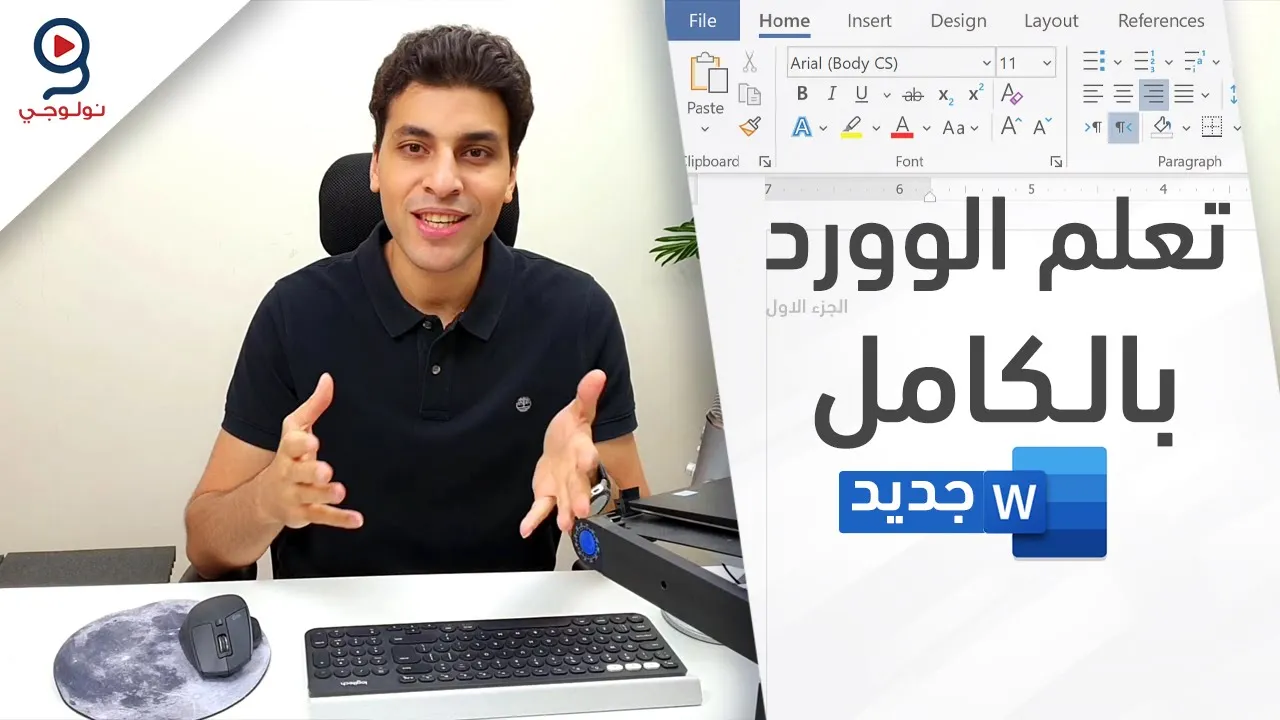
دليلك لتعلم برنامج الكتابة مايكروسوفت وورد من البداية
Introduction to Microsoft Word
Overview of the Video Content
- The video introduces a tutorial on using Microsoft Word, emphasizing its popularity and utility in document creation. It has garnered significant views, indicating widespread interest in learning about this software.
- The presenter encourages viewers to subscribe to the channel for more educational content, particularly aimed at those eager to learn and improve their skills.
Getting Started with Microsoft Word
- Viewers are guided on how to access Microsoft Word through Windows, noting that it may appear differently based on individual installations but remains fundamentally similar.
- The video suggests downloading a trial version of Office from the internet if users do not have it installed, providing a link for easy access. This trial lasts approximately one month before requiring purchase.
Alternatives to Microsoft Word
- For those seeking free alternatives, options like Google Docs and WPS Office are recommended as they offer similar functionalities without cost. Additionally, LibreOffice is mentioned as another viable option for word processing needs.
Navigating the Interface
Understanding the Layout
- Upon opening Word, users encounter various commands and features designed for document editing and formatting; these tools facilitate efficient text manipulation.
- The presenter highlights the importance of using a computer or laptop over mobile devices due to better keyboard accessibility and larger screen size which aids in writing and editing tasks.
Language Settings
- Instructions are provided on how to set up Arabic language support within Word by navigating through file settings; this includes installing additional language packs if necessary. Users are encouraged to ensure their interface is set up correctly for optimal use.
Document Creation Basics
Starting a New Document
- To create a new document, users can select "Blank Document" from the available templates; this initiates an empty workspace ready for text input and formatting adjustments.
Text Input Techniques
- The tutorial covers basic typing techniques including how to insert line breaks (using Enter) and manage spacing effectively between paragraphs while maintaining proper formatting standards throughout the document.
Formatting Tools
Utilizing Formatting Features
- Key formatting tools such as font selection, size adjustment, bolding text, and alignment options are demonstrated; these features enhance readability and presentation quality of documents created in Word.
Managing Page Layout
- Viewers learn about adjusting margins and page orientation settings which play crucial roles in determining how content appears when printed or shared digitally; understanding these settings is vital for professional-looking documents.
This structured approach provides clarity on essential functions within Microsoft Word while guiding users step-by-step through initial setup processes all the way through basic usage techniques.
Understanding Text Formatting and Control in Document Editing
Introduction to Document Navigation
- The speaker discusses the importance of navigating through document sections effectively, emphasizing the need for proper formatting controls.
- A focus on improving document structure is highlighted, with suggestions for better coordination and layout management.
Utilizing Formatting Tools
- The speaker introduces a specific tool called "Fent" that aids in controlling text formatting within documents.
- Various options for modifying text styles are presented, including bolding and italicizing text to enhance readability.
Adjusting Text Size and Style
- Instructions are provided on how to adjust font sizes dynamically, allowing users to customize their document appearance based on preference.
- The ability to change color schemes for text is discussed, enhancing visual appeal and accessibility.
Managing Background Colors
- The speaker explains how background colors can be altered to improve contrast and visibility of the text.
- Techniques for undoing changes using keyboard shortcuts (e.g., Ctrl + Z) are emphasized as essential for efficient editing.
Structuring Content Hierarchically
- The importance of creating a clear hierarchy in content organization is stressed, with tips on using headings effectively.
- Suggestions include ensuring uniformity across all headings to maintain a cohesive look throughout the document.
Finalizing Document Layout
- The speaker concludes by discussing methods for finalizing layouts, ensuring that all elements align properly before publication or sharing.
Understanding Document Formatting and Text Manipulation
Introduction to Document Structure
- The speaker discusses the importance of document formatting, emphasizing the need for clarity in presentation. They mention wanting to explore various styles and formats.
- A focus on reading comprehension is highlighted, with a suggestion that participants should familiarize themselves with detailed content to avoid confusion during video playback.
Text Arrangement Techniques
- The speaker explains how to arrange text properly, mentioning the significance of maintaining an organized structure when dealing with Arabic text.
- There’s a discussion about sorting content effectively, indicating preferences for ascending or descending order based on user needs.
Color and Style Customization
- The use of color coding in documents is introduced as a method for enhancing visual appeal and organization. This includes adjusting background colors for better readability.
- The speaker emphasizes the ability to customize font styles, including capitalization options (e.g., all caps vs. lowercase), which can impact document aesthetics.
Advanced Text Features
- Control over text attributes such as size and style is discussed, allowing users to create visually distinct sections within their documents.
- The potential for adding hyperlinks within texts is mentioned, providing interactivity by linking words or phrases directly to external resources.
Managing Document Elements
- The speaker highlights methods for quickly editing text elements and managing layout adjustments efficiently.
- Instructions are provided on how to insert links into documents seamlessly while maintaining control over formatting choices.
Utilizing Insert Functions
- An overview of using the 'Insert' function in word processing software is presented, detailing how users can add images or other media from various sources.
- Emphasis is placed on understanding spacing between lines and paragraphs, which contributes significantly to overall document readability.
Image Handling Techniques
- Guidance on inserting images into documents is given, including sourcing images from online platforms or local devices.
- Adjustments related to image placement within the document are discussed; this includes resizing and repositioning images according to user preference.
Conclusion: Enhancing Document Quality
Understanding Image Insertion and Formatting in Word
Inserting Images and Text Formatting
- The discussion begins with the process of inserting images into a document, emphasizing the importance of selecting the right format for effective presentation.
- It is highlighted that users can manipulate image placement relative to text by clicking on the image and adjusting its position above or below the text as needed.
- The speaker notes that resizing images can be done by dragging corners, allowing for better integration within the layout of the document.
Advanced Image Editing Techniques
- The tutorial covers how to insert additional images using online sources, demonstrating practical steps for incorporating visuals from external links.
- There’s an emphasis on changing image colors and effects to enhance visual appeal, suggesting that users explore various editing options available in Word.
Utilizing Tables for Better Organization
- The speaker introduces tables as a method for organizing content effectively within documents, explaining how to create and customize table layouts.
- A specific feature called "Table Design" is mentioned, which allows users to apply pre-set styles and formats quickly.
Enhancing Document Layout with Design Features
- Users are encouraged to explore design templates available in Word that can significantly improve document aesthetics without extensive manual formatting.
- The importance of aligning text properly within tables is discussed, ensuring clarity and professionalism in presentations.
Linking Text to External Resources
- Instructions are provided on how to create hyperlinks within documents, enabling readers to access external websites directly from the text.
- The process involves selecting text and linking it through a designated menu option, enhancing interactivity in digital documents.
Finalizing Document Presentation
- The tutorial concludes with tips on final adjustments before sharing documents, including checking formatting consistency across different sections.
Document Formatting Techniques in Word
Inserting and Adjusting Text Boxes
- Discusses the process of inserting a text box in Word, emphasizing the importance of positioning it correctly within the document layout.
- Explains how to create space for writing by adjusting margins and ensuring that the text box does not interfere with other elements on the page.
Working with Margins and Layout
- Highlights techniques for double-clicking to adjust margins effectively, allowing for better organization of content within the document.
- Notes that proper margin adjustments can enhance readability and ensure that all content fits well on each page.
Utilizing Rulers for Precision
- Introduces using rulers to measure spacing accurately, which is crucial when aligning text boxes or other elements in a document.
- Suggests focusing on specific areas of the page where more text may be needed, indicating how to expand writing space efficiently.
Managing Text Flow and Alignment
- Discusses how to manage text flow across different sections of a document while maintaining consistent formatting throughout.
- Emphasizes understanding differences between various alignment options available in Word, which can affect overall presentation.
Advanced Formatting Options
- Explores advanced formatting features such as grouping multiple texts together for easier manipulation without losing individual formatting styles.
- Describes how to apply main and sub-margins effectively, ensuring clarity between primary content and supplementary notes.
Customizing Page Layout
- Covers customizing page layouts by selecting predefined templates that suit specific needs or preferences in document design.
- Advises against random adjustments without understanding their impact on overall layout integrity; emphasizes structured approaches instead.
Finalizing Document Presentation
- Concludes with tips on finalizing documents by reviewing all settings related to margins, spacing, and overall aesthetics before printing or sharing.
- Encourages utilizing built-in templates from Word for consistency across documents while also allowing room for personal customization.
Image Editing Techniques
Introduction to Image Manipulation
- The discussion begins with the concept of image editing, focusing on how elements or images can be manipulated through specific techniques.
- Emphasis is placed on controlling images using software tools, highlighting the importance of saving edited images to a computer.
Background Removal and Adjustments
- The speaker mentions the aesthetic appeal of backgrounds in images, suggesting that simple background removal can enhance visual quality.
- A demonstration is provided on how to remove backgrounds effectively, noting that certain areas may remain intact while others are deleted for clarity.
Fine-Tuning Images
- The process of adjusting image transparency is discussed, allowing for better integration with other visuals.