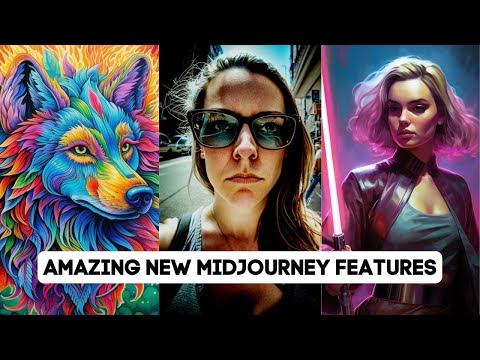
MidJourney Just Got Some Major Upgrades!
Mid-Journey Update 5.1 and Permutations
In this section, the speaker talks about the recent updates to Mid-Journey, including version 5.1 and permutations.
Mid-Journey Version 5.1
- Mid-Journey released version 5.1 which is more opinionated and can make up its own additional things for the image with less context.
- With version 5.1, users can give fragmented shorter prompts while mid-journey fills in a lot of gaps.
- Users can use version 5 or raw mode if they don't want mid-journey to add as much of its own flair to it.
- Additional changes include higher coherence or accuracy to text prompts, fewer unwanted borders and text artifacts, and improved sharpness.
Permutations
- Users can generate their prompt with "--Vive 5.1" at the end of the prompt to get the same effect while keeping the default set to mid-journey version 4 or mid-journey version 5.
- The speaker compares two images generated by versions 5 and 5.1 respectively.
Comparison between Mid-Journey Versions
In this section, the speaker compares two images generated by versions five and five-point-one respectively.
Comparison between Versions Five and Five-point-One
- The speaker compares two images generated by versions five and five-point-one respectively.
- The speaker notes that both images look great and the differences between version 5 and 5.1 are very minimal.
Comparing Different AI Generated Images
In this section, the speaker compares different AI-generated images using the same prompt and seed. They discuss the differences in detail and clarity between the images.
Comparing Version 5, Version 5.1, and Version 5.1 Raw
- The speaker compares three different AI-generated images created using version 5, version 5.1, and version 5.1 raw.
- The speaker discusses permutations and how they can be used to quickly generate variations of a prompt with different combinations of options.
- The speaker gives examples of permutation prompts that can be used to generate multiple versions of a prompt with different combinations of options.
- The speaker explains how to use permutations to test different versions of an AI model at the same time.
Creating Short Codes for Prompts
- The speaker shares a time-saving trick for creating short codes for frequently used prompts.
- The speaker explains how to create a short code for a prompt that includes multiple add-ons for context.
Using Mid-Journey to Save Time
In this section, the speaker explains how to use Mid-Journey to save time when creating prompts.
Using Dash-Dash Cam
- Use dash-dash cam at the end of a prompt to automatically append additional information.
- This saves time by not having to type out all the details every time.
Niji Mode in Mid-Journey
In this section, the speaker introduces Niji mode in Mid-Journey and explains how it can be used for different styles.
Niji Version 4 and 5
- Niji version 5 is a recent addition that produces anime and illustrative styles.
- It is tuned for more cartoony and illustrative looks.
- There are several styles available in Niji mode, including cute, expressive, and scenic.
Testing Different Styles with Permutations
- Use permutations to test all three styles at once.
- Type dash-dash style followed by curly brackets containing cute, expressive, and scenic.
- Hit enter to see the prompts with each style applied.
Describing Images with Mid-Journey
In this section, the speaker demonstrates how to describe images using Mid-Journey.
Uploading an Image
- Type describe and hit enter.
- Upload an image from your computer by dragging it into the box provided.
- Hit enter again to see a description of the image.
Comparing Styles with Same Seed Prompt
In this section, the speaker compares different styles using the same seed prompt.
Using Same Seed Prompt for Comparison
- Type imagine followed by a prompt and dash-dash seed with random numbers.
- Use cute, expressive, and scenic styles to see the differences.
- Hit enter to see the prompts with each style applied.
Mid-Journey's Image Description Feature
In this section, the speaker explains how to use Mid-Journey's image description feature.
Uploading an Image for Description
- Type describe and hit enter.
- Upload an image from your computer by dragging it into the box provided.
- Hit enter again to see a description of the image.
Mid-Journey's Describe Feature
In this section, the speaker talks about Mid-Journey's describe feature and how it can generate prompts based on an image. The speaker also demonstrates how the feature can be used to describe real images.
Generating Prompts with Describe Feature
- Mid-Journey's describe feature generates prompts based on an image.
- The generated prompts provide insight into how Mid-Journey is thinking and can be used to add additional ideas to your own prompts.
- The speaker shows examples of generated prompts such as "ue5 for Unreal Engine 5" and "brooding mood".
- When using the generated prompts, the resulting images have a mid-journey flair to them.
Describing Real Images
- The describe feature can also describe real images, not just AI-generated ones.
- The speaker demonstrates by typing "describe this" followed by a picture of a gorilla.
- Mid-Journey describes the image as a gorilla walking amongst green plants in dark gray and light gray style.
- The speaker shows examples of generated images from the prompt, which are somewhat close to the original image but with mid-journey flair.
Combining Image Prompt and Text Prompt
- To get closer to what you're looking for when generating images, you can combine an image prompt with a text prompt.
- The speaker copies the link to the gorilla image and types "imagine" followed by pasting in the URL and adding a space before adding one of mid-journey's generated prompts.
- This blends the actual image with mid-journey's prompt, resulting in an image that is closer in color palette and composition to what was desired.
Updates on Moderation System
In this section, the speaker talks about updates made to Mid-Journey's moderation system that allows for less blocked prompts.
Updates to Moderation System
- Mid-Journey has updated its moderation system to allow for less blocked prompts.
- Some things that used to get blocked no longer do, such as "blue-footed boobie" and "Moby Dick".
- The moderation system uses AI to try to understand the context of the prompt before blocking it.
- However, there are still many things that will get blocked.
Mid-Journey Updates
In this section, the speaker talks about the new features added to Mid-Journey and upcoming updates.
New Features
- Version 6 of Mid-Journey is in development and will have even more realism and quality.
- Advanced options like drawing and generating images from drawings are being worked on.
- Consistent character generation is one of the most requested features, and it's actively being developed.
- An advanced user interface outside of Discord is being developed for users who have generated over 10,000 images.
Other Updates
- The speaker hasn't made a Mid-Journey video in several weeks, so they wanted to update viewers on all the cool things that have come out recently.
- The speaker provides some tips for using Mid-Journey effectively, such as setting preferences and trying out different styles.
- There are other AI art tools available besides Mid-Journey, such as Leonardo. However, this video focuses specifically on Mid-Journey updates.
Conclusion
In this section, the speaker concludes by encouraging viewers to try out Mid-Journey and check out their website for more AI news.
Final Thoughts
- The lowest plan for Mid-Journey is still $10 a month, but there may be a free trial coming soon.
- Viewers can share their creations with the speaker on Twitter or in the community Discord.
- The speaker encourages viewers to check out their website, futuretools.io, for more AI news and resources.
Introduction and Call to Action
In this section, the speaker thanks the audience for tuning in and encourages them to subscribe to the channel if they enjoy AI news, tutorials, breakdowns, and challenges.
- The speaker expresses gratitude towards the audience for watching the video.
- The speaker invites viewers who are interested in AI-related content to subscribe to their channel.
- The speaker encourages viewers who enjoyed the video to give it a thumbs up.
Conclusion
In this section, the speaker concludes the video by thanking the audience once again and saying goodbye.
- The speaker thanks viewers one last time for watching.
- The speaker says goodbye to the audience.
Turn any video into a summary like this
YouTube links, meetings, lectures. With transcripts, search, and chat.