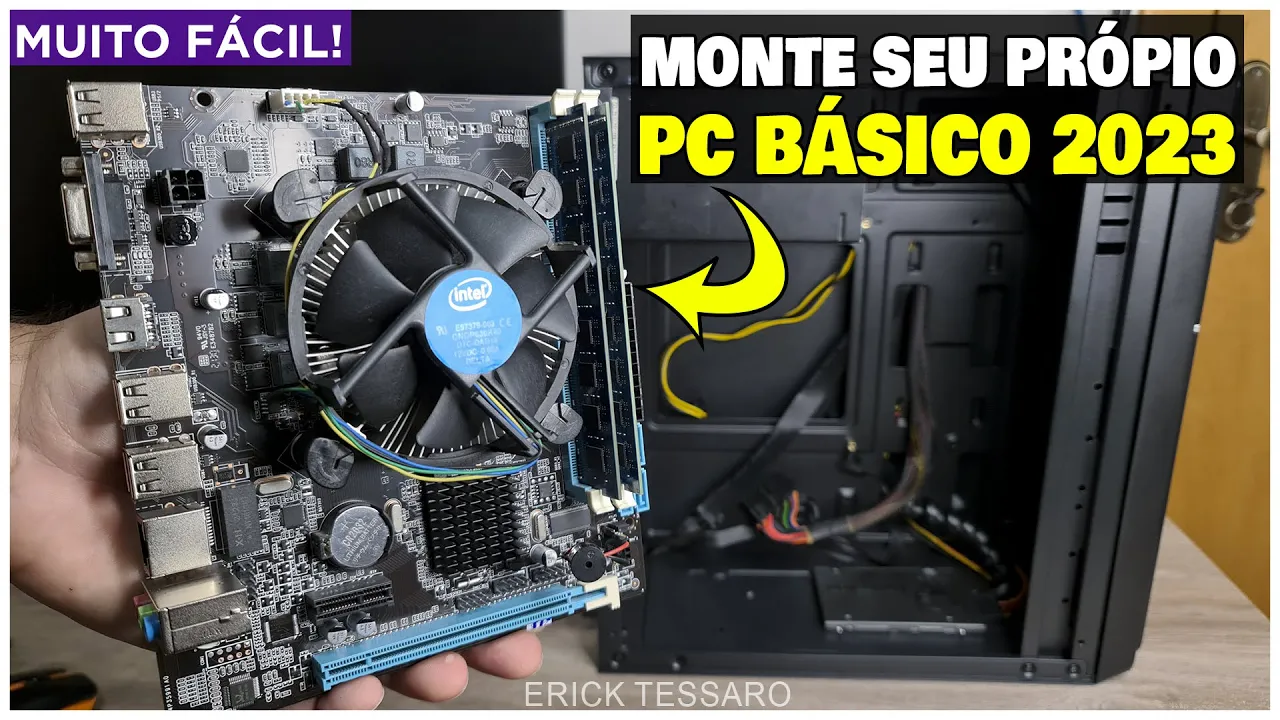
PASSO A PASSO DE COMO MONTAR UM PC BÁSICO EM 2023 MUITO FÁCIL!
Montagem de PC: Passo a Passo
In this section, the speaker introduces the topic of assembling a PC and emphasizes the importance of formatting the machine when upgrading components like the processor to avoid conflicts.
Introduction to Assembling a PC
- When upgrading components like the processor in a PC, it is crucial to format the machine to prevent conflicts between old and new drivers and applications.
- Formatting is particularly essential when changing critical components like the processor or RAM to ensure smooth operation without issues like blue screen errors.
- The speaker recommends formatting when replacing components such as RAM or graphics cards to remove old files that may cause compatibility problems.
Organização dos Cabos e Componentes do PC
This section focuses on organizing cables and components during PC assembly, highlighting key steps such as installing the motherboard and CPU.
Installing Motherboard and CPU
- Begin by placing the processor on the motherboard after ensuring it has a battery. Carefully align and insert it into the socket.
- Securely attach the processor by gently pressing down, ensuring proper alignment with socket pins for AMD processors.
- Pay attention to panel connections on the motherboard, including those for power supply, CPU, and potential onboard speakers.
Power Supply Installation
- Install the power supply unit (PSU), considering cases with bottom-mounted PSUs for optimal airflow. Secure PSU with screws provided in most cases.
- Start with PSU installation before mounting other components like motherboards to manage cable routing effectively behind them.
Cable Management
- Address cable management early by starting with PSU connections. Consider replacing PSUs if necessary for heavy testing requirements.
Setting Up a Computer: Detailed Assembly Guide
In this section, the speaker provides a detailed guide on assembling a computer, focusing on components like the processor, motherboard, fan, thermal paste application, and RAM installation.
Processor and Motherboard Setup
- Ensure proper placement of the processor and motherboard.
- The processor cable connects to the motherboard.
- Apply thermal paste before installing the fan.
Thermal Paste Application
- Apply an appropriate amount of thermal paste.
- Spread evenly without using excessive force.
Fan Installation
- Install the fan correctly for efficient cooling.
- Properly align and secure the fan pins.
- Verify secure attachment by applying pressure.
RAM Installation
- Carefully install RAM modules on the motherboard.
- Press both sides evenly until securely in place.
Cable Connections and SSD Installation
- Connect necessary cables and install additional components like SSD.
- Organize USB connections and audio panel cables.
- Securely connect SSD and panel cables.
Cable Management Techniques for a Neat Setup
This section focuses on cable management techniques to maintain a tidy setup inside the computer case.
Organizing Cables
- Strategically organize cables within the case for a clean look.
- Use zip ties or clamps to secure cables neatly.
Securing Wires
- Ensure wires are properly secured to avoid clutter.
- Use clamps to hide colorful wires effectively.
Final Touches
- Complete cable management with final adjustments for aesthetics.
Setting Up a Computer: Detailed Assembly Guide
In this section, the speaker provides a detailed guide on assembling a computer, starting with connecting the SSD and motherboard cables.
Connecting SSD and Motherboard Cables
- The process of connecting the SATA cable to the SSD is demonstrated, emphasizing that a simple wrapping technique suffices for functionality.
- Instructions are given on connecting panel cables to the motherboard, highlighting variations in LED and power button placements.
- Importance of using a cooler to prevent excessive heat within the system is discussed, along with voltage settings for stability.
- Cautionary advice on potential damage from improper disconnection or power settings is shared, particularly concerning SSDs and hard drives.
- Differences in modern power buttons compared to older models are explained, ensuring safety during PC operation.
Installing Graphics Card and Final Checks
This section focuses on installing a graphics card into the system and performing final checks before completion.
Graphics Card Installation
- Careful handling of panel connections is emphasized to ensure proper LED functioning without issues like constant illumination.
- Step-by-step guidance on installing a Zotac GT graphics card is provided, including securing it with screws for stability.
- Detailed instructions on securely attaching the graphics card within the case are outlined for optimal performance.
Final Checks and Recommendations
- Recommendations for additional support if needed due to large graphics cards are given to prevent strain on PCI slots.
- Advice on cable management and airflow optimization within the case is offered for efficient cooling and system maintenance.
Post-Assembly Considerations
This section covers post-assembly considerations such as video cable connections, power supply verification, and general usage tips.
Post-Assembly Steps
- Instructions on connecting video cables appropriately after installing a graphics card are provided for audio output verification.
- Verification steps post-powering up the PC include checking LED indicators for operational status clarity.
Maintenance Tips
- Emphasis on periodic cleaning and cautious part handling during operation is stressed for prolonged system longevity.
Conclusion: Setup Completion
The conclusion summarizes key assembly steps while encouraging user creativity in cable organization based on individual preferences and budget constraints.
Detailed PC Build Overview
In this section, the speaker provides a detailed overview of a PC build, highlighting the aesthetics and cable management of the setup.
Aesthetics and Cable Management
- The PC build looks more aesthetically pleasing with cables neatly organized behind the system.
- The speaker acknowledges that the cables from the power supply are unsightly, prompting them to route the cables behind the cabinet for a cleaner look.
Video Conclusion and Interaction
The conclusion of the video is discussed along with an interaction prompt for viewers to engage with.
Video Wrap-Up and Viewer Engagement
- The video duration nears 20 minutes, thanking viewers for watching till this point and encouraging likes from those who haven't already done so.
- Viewers are prompted to engage by leaving a like on the video as a form of support.