Altium - How to Create Library from Existing Project - Step by Step Tutorial
Introduction and Purpose
In this video, Robert Feranek from Fedela Academy explains how to create libraries from existing projects. He discusses the usefulness of this skill and why it is important to know how to import components from reference designs into your own projects.
Why Create Libraries from Existing Projects?
- Reusing components from reference designs can save time and effort.
- Avoid redrawing symbols or creating footprints that already exist in a reference design.
Downloading the Altium Project
Robert demonstrates how to download the Altium project for a 28pins open source board, which will be used as an example throughout the video.
Steps:
- Go to the 28pins.com website and click on "Download" to get the Altium files for the project.
- Unpack the downloaded zip file in a desired location on your computer.
Opening the Project and Generating Libraries
Robert shows how to open the downloaded project in Altium and generate libraries from it.
Steps:
- Open Altium and click on "File" > "Open Project" to locate and open the downloaded project folder.
- Inside the project, there are no libraries initially.
- To create a library from an existing project, double-click on a schematic page.
- Go to "Design" > "Make Integrated Library" command.
- A new folder called "libraries" will be created with an integrated library inside it.
Exploring the Integrated Library
Robert explores the contents of the integrated library generated from the project.
Steps:
- Open the component panel by going to "Panels" > "Component".
- In the component panel, locate and open the "28pins project integrated library".
- The integrated library contains all the components used in the project.
Creating Schematic Symbol and PCB Footprint Libraries
Robert explains how to create separate schematic symbol and PCB footprint libraries from the integrated library.
Steps:
- Double-click on the integrated library to open it as a new project.
- Inside this project, there will be a schematic symbol library and a PCB footprint library.
- Open the schematic symbol library by double-clicking on it.
- Use the schematic library tab in the panel to view all symbols used in the project.
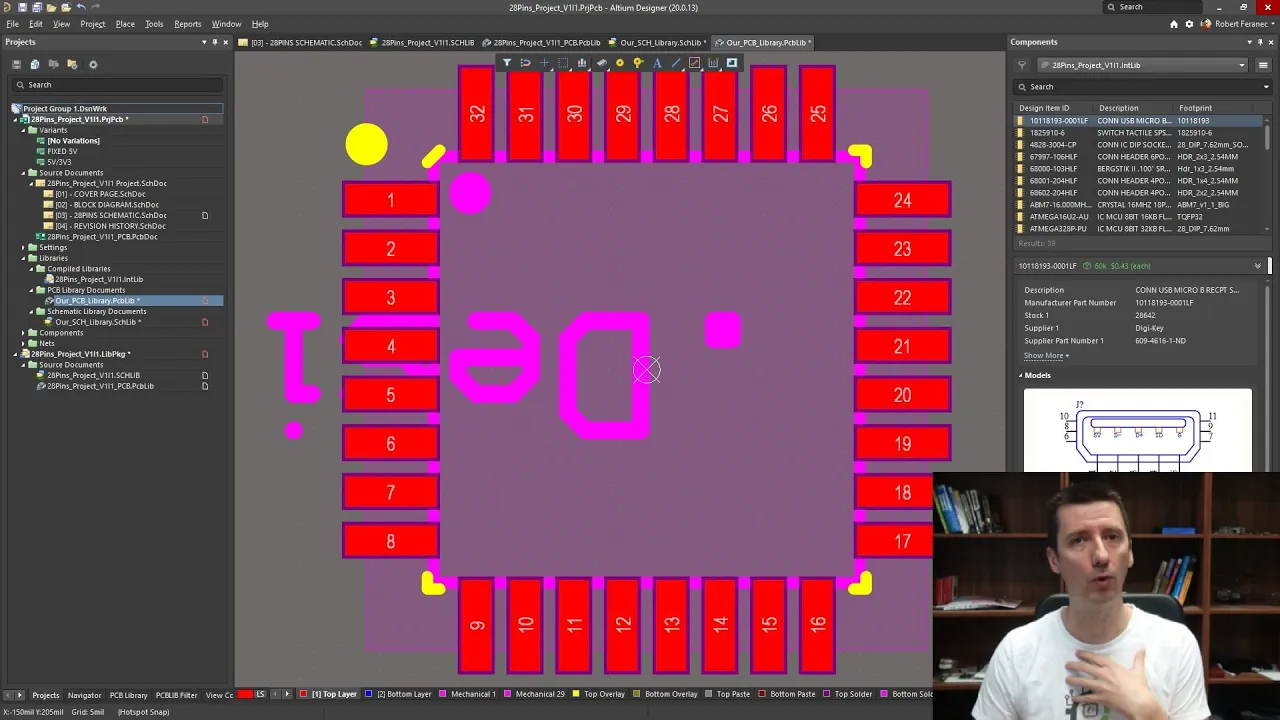
- Similarly, open the PCB footprint library using the PCB Library panel.
- The PCB Library panel displays all footprints used in the 28 pins project.
Copying Symbols and Footprints to Own Libraries
Robert demonstrates how to copy symbols and footprints from existing libraries into your own libraries.
Steps:
- Create your own schematic symbol library by right-clicking on "Projects" > "Add New to Project" > "Schematic Library".
- Create your own PCB footprint library by right-clicking on "Projects" > "Add New to Project" > "PCB Library".
- Open your own schematic symbol or PCB footprint library.
- To copy only a drawing of a symbol, select it and use copy-paste within your own library.
Copying Symbols and Footprints between Libraries
In this section, the speaker explains two methods for copying symbols and footprints between libraries in a PCB design software.
Copying Symbols and Drawings
- To copy symbols between libraries, you can select the name of the symbol, the drawing of the symbol, and all parameters.
- There are two methods for copying symbols:
- Copy only the drawing
- Copy the entire symbol with all parameters and properties.
Copying Footprints
- To copy a footprint from one library to another:
- Open the footprint library containing the desired footprint.
- Right-click on the footprint and select "Copy."
- Go to your own PCB footprint library.
- Right-click in the panel and choose "Paste One Component" to paste the copied footprint.
Conclusion
The speaker concludes by summarizing how to copy symbols and footprints between libraries.
- Copying symbols involves selecting specific components or copying everything including drawings, parameters, and properties.
- To copy footprints, simply right-click on the desired footprint in one library, copy it, then paste it into your own PCB footprint library using "Paste One Component."