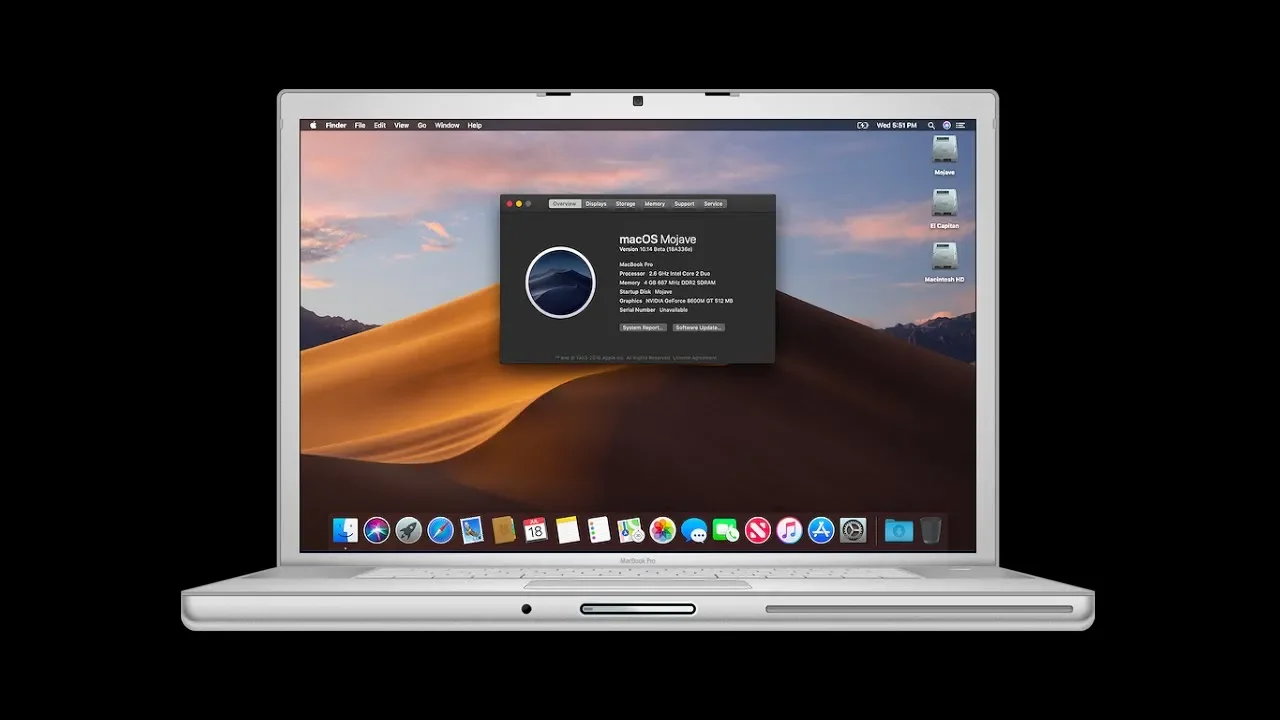
How to Install macOS 10.14 Mojave on an Unsupported Mac
Installing Mac OS Version 10.14 Mojave on an Unsupported Mac
In this video, the speaker shows how to install Mac OS version 10.14 Mojave on an unsupported Mac. The speaker provides information about system requirements and known issues with the patch.
System Requirements
- Head over to the speaker's webpage for all the information needed to install Mojave on an unsupported system.
- Compatible machines include early 2008 and later systems, late 2008 and later systems, early 2009 or later systems, as well as these 2x serve models.
- Take note of machines that are not supported.
Known Issues with Patch
- Weird graphics anomalies with light mode under Mojave on graphics cards that don't support metal.
- AMD Radeon HD 5000 and 6000 series GPU issues.
- AMD GPU support on the early 2008 mac pro (mac pro 3 comma one).
Installing Mojave
- Need a flash drive or other USB volume that is at least 16 gigabytes in size.
- Download a copy of Macaluso mojave patcher from the provided link.
- Mount the dmg file and open Mojave patcher.
The speaker provides detailed instructions for installing Mojave on an unsupported system. The notes above provide only a brief overview of key points discussed in the video.
Downloading and Installing Mojave
In this section, the speaker explains how to download and install Mojave on a Mac using a supported tool.
Downloading the Mojave Installer
- To download the latest copy of the Mojave Installer straight from Apple's servers, go to the menu bar, select tools, and then select "Download macOS."
- Select a location in which to save the Mojave installer.
- The download will proceed.
Preparing USB Drive for Installation
- Connect an external hard drive.
- Open Disk Utility and format the drive appropriately as G UID partition map as well as OS 10 or Mac OS extended journaled.
- Name it whatever you want.
- Erase this partition right here instead so I'm gonna go ahead and erase this I'm gonna name it mohawk or Mac OS because I'm gonna be using it as the installer.
Creating Patched Installer Volume
- Once you have prepared your USB Drive, close out of Mojave patcher and then reboot your system off of the newly created patched installer volume.
- Boot while holding down the option key so it will get into the boot menu.
- Select the USB volume you named when you formatted it.
- Press ENTER and wait for system to finish booting up.
Upgrading or Clean Install
- Proceed with installation as normal to upgrade a current installed OS 10 you might have installed on your system or do a clean install by formatting your hard disk or SSD.
Formatting and Installing MacOS Mojave
In this section, the speaker explains how to format and install MacOS Mojave on a Mac computer.
Formatting the Drive
- To format the drive, open Disk Utility from the Utilities menu in the menu bar.
- Select the volume or drive you want to format. If it's not visible, go to View and then Show All Devices first.
- Click on Erase and select Mac OS Extended Journaled or APFS as the format.
- For smooth system updates, use APFS. However, machines that do not natively support High Sierra will have AVO Bo's booting output every time you start up the system off of an APFS volume.
- Once done, select Done on Disk Utility and close out of it.
Installing MacOS Mojave
- Select the volume that you've just erased or created using the erase option in Disk Utility.
- Click on Continue to proceed with installation.
- Wait for installation to complete successfully before restarting your machine.
Post-installation Steps
- Open up Mac OS post-install utility from either Utilities menu here or by double-clicking on it.
- Select your system model from where it says "Select Model".
- Choose your installed Mojave volume under "Volume Selection" and click Patch.
- Wait for patches to be applied before rebooting your system.
Verifying Installation
- Check if your machine is running Mojave by going into About This Mac.
Graphics Issue in Light Mode
In this section, the speaker discusses a graphics issue that occurs in light mode. The menu bar and Finder sidebar have a gray tint instead of being translucent.
Gray Tint Issue
- The menu bar and Finder sidebar have a gray tint instead of being translucent.
- This issue does not affect system performance but is a weird graphics effect.
- Switching to dark mode resolves the issue.
Patch Updater Application
In this section, the speaker introduces the Patch Updater application that comes installed with the tool. The application allows users to install new patches for their system as they are released and reinstall currently installed patches if necessary.
Introduction to Patch Updater
- Patch Updater is an application that comes installed with the tool.
- It allows users to install new patches for their system as they are released.
- Users can also use it to reinstall currently installed patches if necessary.
Reinstalling Patches
- After a system update, some patched files may be overwritten, requiring users to reinstall some of the patches using Patch Updater.
- Users can view all installed patches and select which ones to reinstall or choose to reinstall all at once.
- Automatic checking for updates can be disabled using a checkbox in the application.
Conclusion
In this section, the speaker concludes by summarizing how to install Mac OS version 10.14 Mojave on an unsupported Mac using the tool.
Installing Mac OS Version 10.14 Mojave
- The speaker provides a summary of the steps to install Mac OS version 10.14 Mojave on an unsupported Mac using the tool.
- The speaker hopes that viewers enjoyed the video and found it helpful.