OBJECT RECOGNITION WITH VUFORIA 6.5 & UNITY 2017.2 | AUGMENTED REALITY TUTORIAL FOR BEGINNER🚗
Welcome and Introduction to Superimposition Based Augmented Reality
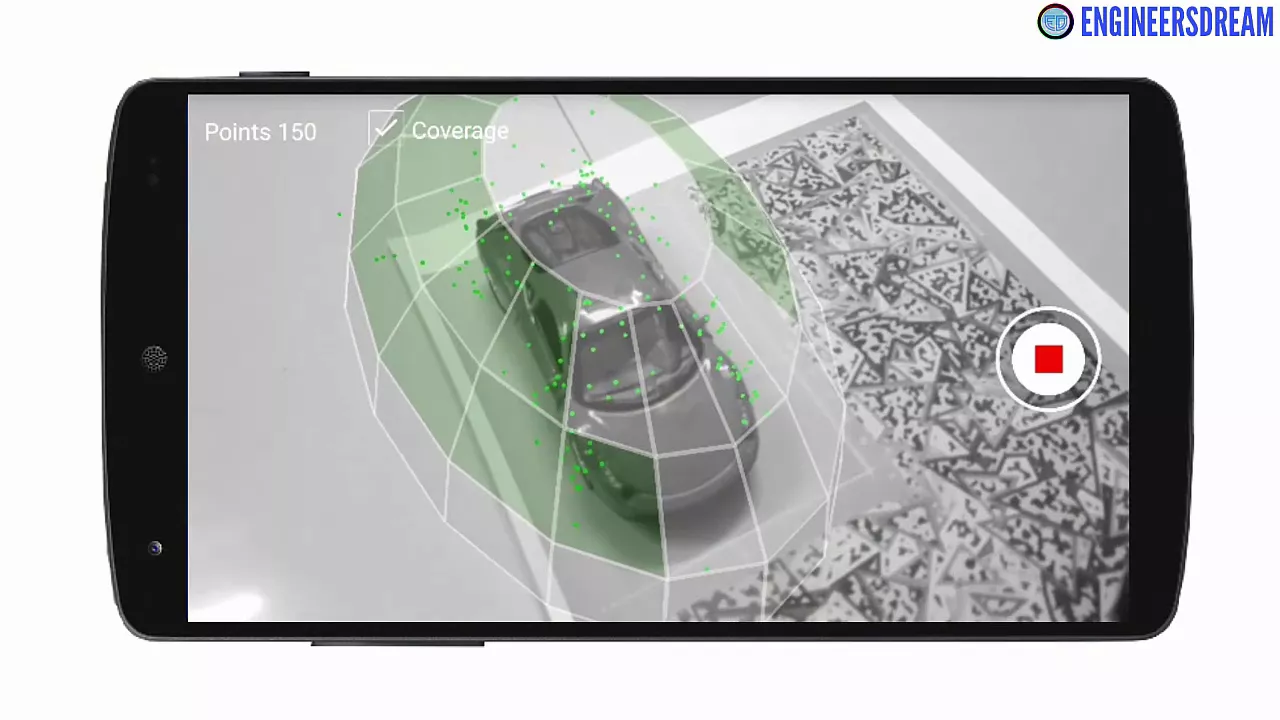
In this section, the concept of superimposition-based augmented reality is introduced, focusing on object tracking and the process of scanning 3D objects.
Exploring Superimposition-Based AR
- Using an object scanner Android application to scan 3D objects.
- Discussing the types of 3D objects suitable for object tracking in AR projects.
- Criteria for selecting 3D objects: opacity, rigidity, and minimal moving parts.
Criteria for Suitable 3D Objects in Object Tracking
This part delves into the specific criteria that make a 3D object suitable for object tracking in augmented reality applications.
Key Criteria for Suitable 3D Objects
- Opacity requirement: Objects should be opaque, not transparent.
- Rigid structure: Objects must be hard and not easily deformable.
- Minimal moving parts: Ideal objects have few movable components.
Optimal Scanning Environment and Object Selection
Understanding the importance of the scanning environment and selecting appropriate objects for successful AR implementation.
Environmental Considerations
- Importance of indoor settings with moderate bright light and diffuse lighting.
- Action figures and toy cars are recommended for starting an object tracker project.
Process of Scanning 3D Objects with View Foria EOS App
Detailing the process of scanning 3D objects using the View Foria EOS Object Scanner application on Android smartphones.
Scanning Procedure with View Foria EOS App
- Compatibility with specific smartphone models like Samsung Galaxy series.
Scanning 3D Objects with Euphoria's Object Scanner
In this section, the process of scanning 3D objects using Euphoria's Object Scanner application is detailed, emphasizing key steps and considerations for successful scanning.
Scanning Process
- The height of an object affects the appearance of the dome when scanned.
- Green areas indicate successfully scanned parts of the 3D model.
- Patience is required to ensure objects remain stationary during scanning.
- Aim to cover 80-90% of blocks for proper recognition by Unity's webcam.
Comparing Scan Results on Different Smartphones
A comparison between scan results obtained using different smartphones highlights variations in object feature detection capabilities.
Smartphone Comparison
- Galaxy S7 Edge outperformed Note 4 in detecting object features.
- Galaxy S6, S7, S8, and S Hitler smartphones are recommended for scanning by Euphoria.
Setting Up AR Object Tracker Application
Initiating the creation of an augmented reality (AR) application named "Air Object Tracker" involves setting up the project and configuring necessary components.
Project Initialization
- Creation of "Air Object Tracker" AR application project.
- Saving scene and selecting Android platform for app development.
- Activating Vuforia AR support and integrating AR camera component.
Generating License Key for AR Application
Obtaining a license key from Vuforia account is essential for continued development and deployment of AR applications.
License Key Generation
New Section
In this section, the speaker demonstrates how to configure settings and upload a 3D object file for an augmented reality project.
Configuring Settings and Uploading 3D Object
- The speaker opens the Vuforia configurations option and pastes the app license key. After saving the scene, clicking on play activates the camera.
- Uploading a Ferrari car OD file into the database involves creating a new database named AR object tracker, adding a target by selecting the 3D object option, browsing for the Ferrari car OD file, naming it as Ferrari car, and uploading it.
- Despite initially showing as processing, after refreshing, the status changes to active. The AR object tracker unity package is then downloaded and imported into the project.
New Section
This part focuses on superimposing a 3D car model onto an object target in an augmented reality project.
Superimposing 3D Car Model
- Accessing game objects in the AR object tracker scene reveals an added component named object target. Changing the database to AR object tracker allows selecting the uploaded Ferrari car as the default target.
- Placing a low poly sports car prefab inside the hierarchy as a child of the object target cube requires adjusting its position within this cube using scaling and positioning tools.
New Section
The final segment covers setting up components for viewing and activating augmented reality content.
Setting Up Components
- Identifying the front side of an object target cube based on axis arrows orientation guides placement of assets like low poly sports cars.
Superimposing a 3D Model on an Object Target
In this section, the process of superimposing a low-poly sports car 3D model on top of an object target is demonstrated.
Superimposing the 3D Model
- The low-poly sports car is placed on top of the car object target.
- Adjustments are made to ensure the entire car is covered by the 3D model.
- After scaling and positioning, the low poly car model successfully covers the entire car object.
Building an AR Object Tracker Project
This part focuses on constructing an AR object tracker augmented reality project for Android smartphones.
Setting Up the Project
- Detailed instructions for building augmented reality applications with Unity for iPhone are provided in the AR one section.
- Steps to build the AR object tracker application include adding scenes, adjusting settings like company name and package name, selecting API levels, and creating APK files.
- The APK file for the AR object tracker application is generated after making necessary changes in settings.
Course Promotion and Enrollment Information
This segment discusses a course on augmented reality available at a discounted price along with enrollment details.
Course Details
- A best-selling course on Udemy about augmented reality priced at $200 but currently offered at $10.