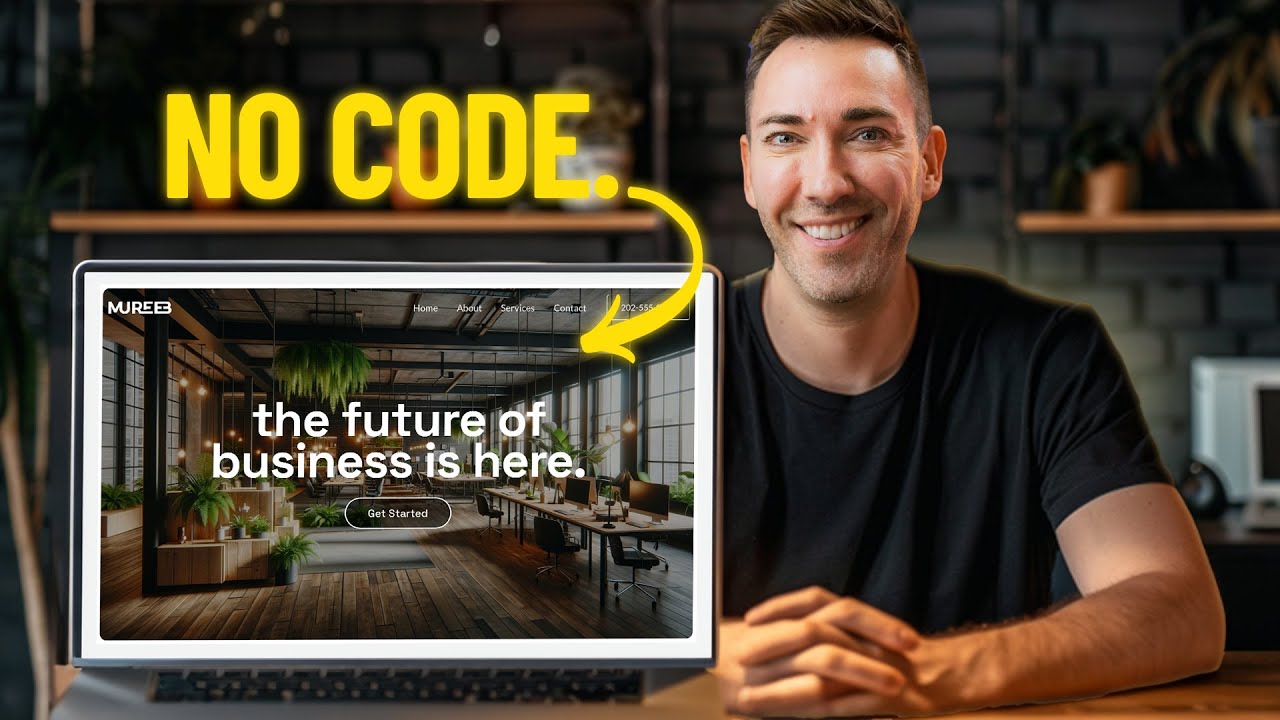
How to Create a Business Website in 30 Minutes
Creating the Best Website for Your Business
In this section, the speaker introduces the goal of creating a professional website without the need for design or marketing experience. The focus is on using a drag-and-drop page builder to achieve this efficiently.
Setting Up Hosting and Domain
- Affordable hosting plan setup is crucial for starting your website.
- Follow the provided link or visit Westmcd.com hosting.
- Get inclusions like a free domain for the first year at $19.99 per month.
- Selecting a plan:
- Choose the basic plan unless you have specific needs like an online store.
- Input existing domain or create a new one during setup.
Building Your Website with WordPress
- Installing necessary plugins:
- Access plugins through WordPress dashboard.
- Search and install "Starter Templates" plugin with over 1 million installations.
- Choosing Elementor as the builder:
- Opt for "Elementor" from available templates to start building your site easily.
Customizing Your Website
- Selecting template options:
- Choose a preferred template such as "Hope" for simplicity and cleanliness.
- Personalizing design elements:
- Customize colors, fonts, and content blocks according to your preferences.
Gaining Inspiration and Customization
This part focuses on gaining inspiration from external sources to enhance website design and customization efforts.
Seeking Design Inspiration
- Visiting showcase websites like rom.showcase for inspiration:
- Explore layouts, colors, and styles that resonate with your vision.
- Emulating desired looks:
- Use selected designs as references while customizing your own website.
Transitioning to Edit Mode
- Switching to edit mode in Elementor:
Detailed Walkthrough of Website Customization
In this section, the speaker provides a detailed walkthrough of customizing a website using various widgets and tools available on the platform.
Exploring Widgets and Customization Options
- The customization process involves dragging different widgets like headings, images onto the stage area for editing.
- Users can change text color, font style with access to thousands of Google fonts for personalization.
- Editing headlines involves selecting fonts similar to inspiration sites through style typography options.
Enhancing Design Elements: Buttons and Background
This part focuses on modifying design elements such as buttons and background to align with the desired aesthetic.
Customizing Buttons
- Editing buttons includes changing text, setting links, adjusting styles like font type, weight, case, spacing.
- Users can customize button backgrounds by choosing colors, gradients, adjusting transparency levels.
Adjusting Background Images
- Changing background images involves selecting or uploading images from personal collections or free image libraries.
- Utilizing advanced functionalities like ChatGBT4 for creating visually appealing images tailored to specific themes or concepts.
Optimizing Image Display and Readability
This segment delves into optimizing image display and readability through overlay adjustments for better visual impact.
Enhancing Image Readability
- Improving image readability by adding a black overlay with adjustable opacity to ensure text legibility while maintaining visual appeal.
Website Customization Tutorial
In this section, the speaker demonstrates how to customize a website by adding images, changing fonts, colors, and adjusting sections to create a visually engaging and cohesive design.
Customizing Images and Sections
- Adding high-quality images enhances website design, keeping visitors engaged and improving site credibility.
- Customizing each section involves editing or deleting elements as needed, such as text or images, to align with the desired design aesthetic.
- Matching fonts and color schemes across the website maintains consistency and visual appeal.
Image Customization and Styling
- Changing images involves selecting new ones by dragging them onto the screen for a personalized touch.
- Adjusting image sizes can be done by dragging the height slider or using copy-paste style shortcuts for uniformity.
Enhancing Testimonial Section
This part focuses on customizing a testimonial section to match the overall look of the website template.
Testimonial Section Customization
- Simplifying testimonials by removing unnecessary elements like buttons creates a cleaner layout.
- Rearranging elements like pictures and names within testimonials allows for better visual flow and impact.
- Modifying typography settings for testimonials helps in emphasizing key points effectively.
Adapting 'About Us' Section
The speaker demonstrates how to adjust the 'About Us' section placement on the webpage and make additional modifications.
Flexible Website Editing
- Easily repositioning sections on the webpage by dragging them ensures optimal layout customization.
Detailed Website Styling Tutorial
In this section, the speaker provides a tutorial on styling a website using Elementor, focusing on changing images, text styles, button colors, and adding new sections.
Changing Images and Text Styles
- The speaker demonstrates how to delete images one at a time and change them by clicking on them.
- Instructions are given on changing text styles such as making fonts smaller and adjusting button colors to match the overall design theme.
- Details are provided on changing button styles with circle edges and matching text color for better readability.
Adding New Sections
- Two methods of adding new sections are explained: inserting pre-made blocks or creating custom sections from scratch.
- The process of selecting and importing pre-made blocks is outlined, emphasizing the ease of customization for mobile responsiveness.
Customizing Section Blocks
- The speaker navigates through various section blocks available in Elementor, highlighting the "statistics" block for showcasing data effectively.
- Emphasis is placed on customizing pre-made blocks to align with the desired design aesthetic while ensuring flexibility in color choices.
Creating Custom Sections from Scratch
This part focuses on building website sections from scratch using Elementor's customization options.
Designing Custom Layouts
- Instructions are given on creating custom sections by choosing layouts that suit individual needs, such as two-column designs for side-by-side elements.
- The process of adding elements like counters to custom sections is demonstrated, including duplicating elements for consistency.
Styling Elements
- Guidance is provided on spacing out elements within a section for better visual appeal by adjusting justification settings.
- Steps to style individual elements within a section are detailed, covering typography adjustments and background color changes for cohesive design.
Final Touches
- The importance of maintaining consistency with inspiration sites in terms of font choices and color schemes is highlighted during the styling process.
New Section
In this section, the speaker discusses creating space on a webpage to enhance visual appeal and user experience.
Creating Space on a Webpage
- Adding space to sections for visual comfort is crucial.
- Pre-made blocks usually come with adequate space, but custom sections may require manual adjustment.
- Adjusting padding between elements can significantly impact the overall look and feel of the webpage.
- Unlinking values allows customization of spacing for different sides independently.
- Consider mobile responsiveness when setting up spacing to ensure consistency across devices.
New Section
This part focuses on facilitating easy booking of services through a website using tools like Calendly.
Easy Booking of Services
- Providing an easy way for users to book services enhances user experience.
- Utilizing tools like Calendly enables users to schedule appointments conveniently.
- Integrating booking tools into websites can be done quickly and efficiently.
- Customizing button colors to match branding enhances visual coherence.
- Embedding booking widgets seamlessly into webpages improves accessibility for users.
New Section
The discussion shifts towards optimizing webpage layout for mobile devices to cater to a significant portion of website traffic.
Mobile Optimization
- Adapting webpage design for mobile devices is essential due to high mobile traffic.
- Using responsive mode helps visualize and adjust the layout for mobile screens effectively.
- Making text adjustments, such as increasing font size, ensures readability on smaller screens.
- Checking and refining each section's appearance on mobile devices is crucial for a seamless user experience.
Detailed Website Customization Process
In this section, the speaker discusses the process of customizing a website, focusing on elements like logos, fonts, colors, and menu design.
Customizing Header
- Changing logo, fonts, and colors in the header.
- Accessing WordPress dashboard to make header modifications.
- Removing or adding elements like logo, menu items, and buttons in the header.
Logo Customization
- Editing the logo by selecting a new image file.
- Adjusting the size of the logo for optimal display.
- Choosing a logo that complements the overall design theme.
Font and Color Adjustment
- Modifying font styles for consistency with brand identity.
- Changing text colors to align with branding guidelines.
- Ensuring responsiveness by checking mobile view adjustments.
Enhancing Menu Design and Color Scheme
This part focuses on refining menu design elements such as font style and color scheme to enhance visual appeal and brand consistency.
Font Style Modification
- Selecting desired font style for menu items.
- Making font bold for emphasis or clarity.
Color Scheme Adjustment
- Changing menu background color to match brand aesthetics.
- Experimenting with different color options for improved visual impact.
Finalizing Website Look and Feel
The speaker concludes by emphasizing the importance of creating visually appealing websites through color choices and layout adjustments.
Background Color Selection
- Opting for a yellow or black background color based on preference.
Publishing Changes
- Finalizing website appearance by clicking "Publish."
Turn any video into a summary like this
YouTube links, meetings, lectures. With transcripts, search, and chat.