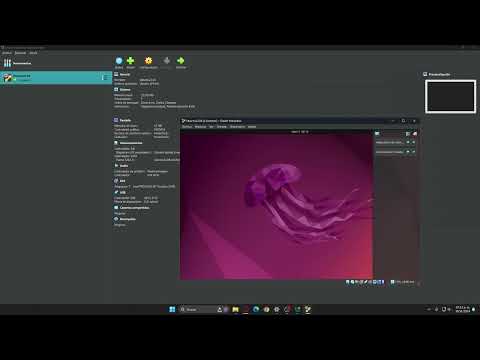
Como Instalar Ubuntu 22.04.5
Installing Ubuntu 22.04 on VirtualBox
Downloading Ubuntu ISO and Setting Up VirtualBox
- The video begins with an introduction to installing Ubuntu version 22.04, directing viewers to the official Ubuntu website for downloading the ISO file.
- A link to download VirtualBox is also provided in the video description, which is necessary for creating a virtual machine.
Creating a New Virtual Machine
- After installing VirtualBox, users are guided to create a new virtual machine named "22.04" and select the path where the downloaded ISO file is stored (e.g., Downloads).
- The installation process involves selecting options for unattended installation and changing default passwords as needed.
Configuring Hardware Settings
- Viewers are advised to allocate sufficient hardware resources (CPU, RAM) without exceeding recommended limits (indicated by a warning line), ensuring optimal performance during installation.
- Once settings are adjusted, users finalize the setup and start the virtual machine to begin OS installation.
Completing Installation Process
- Upon starting the virtual machine, users select the first option presented on-screen and wait for the operating system to install completely.
- After installation completion, users will be prompted to enter a password for accessing their newly installed system.