Word - Crear y editar tablas en Word. Tutorial en español HD
How to Create and Edit Tables in Word
Creating Tables
- The tutorial begins with an introduction to creating and editing tables in Microsoft Word, emphasizing the importance of the "Insert" tab.
- Users can create a table by selecting the number of columns and rows using a grid that appears when hovering over it. The maximum size is 10 columns by 8 rows; for example, a 5x3 table can be created easily.
- Another method involves clicking on "Insert Table," where users can specify the exact number of columns and rows they want, such as three columns and fifteen rows.
- Users have options to adjust column widths either automatically or manually based on content or window size before finalizing their table creation by clicking "OK."
- A third option allows users to draw their own tables directly using a pencil tool, enabling custom shapes like diagonal lines.
Editing Tables
- To edit tables, users can delete selected tables via right-clicking or through the "Table Tools" design tab that appears upon selection.
- Options for adding rows or columns include pressing "Enter" at the end of a row or using "+" symbols that appear when hovering near existing cells.
- Additional insertion options are available in the presentation tab, allowing users to insert rows above/below or columns left/right as needed.
- Deleting specific rows or columns is straightforward; selecting them brings up an arrow icon for easy removal from the table structure.
Combining and Dividing Cells
- Users can combine multiple selected cells into one larger cell (e.g., combining an entire top row), which simplifies layout adjustments.
- Conversely, dividing cells allows customization of how many new cells are created within an existing cell (e.g., splitting into two rows and six columns).
Adjusting Sizes and Alignment
- The height of each row and width of each column can be adjusted manually by dragging borders; this provides flexibility in design aesthetics.
- Distributing space evenly among selected rows/columns ensures uniformity across the table's layout, enhancing visual appeal.
Auto Fit Options
- Text alignment within cells offers various positioning options (centered, top/bottom aligned), similar to standard text formatting in Word documents.
Adjusting Table Columns and Design Options
Column Width Adjustment
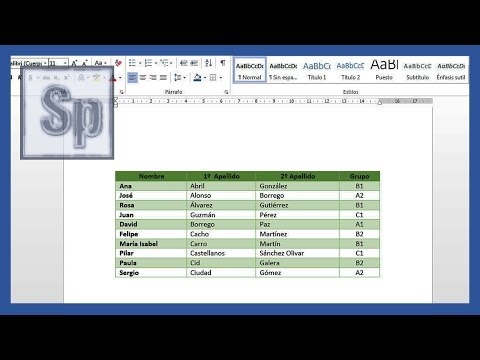
- The name column is adjusted to fit "María Isabel," which is the longest name in the dataset.
- The second surname, "Sánchez Bolívar," is also adjusted for length.
- There are options to either adjust columns to fit the window size or set a fixed width for each column.
Exploring Table Design Options
- Users can change the appearance of their table by selecting from predefined styles available in the design options.
- As users navigate through different styles, they can see real-time changes reflected in their table's design.
- An example style is chosen, demonstrating how easy it is to apply different designs.
Customizing Table Appearance
- In addition to predefined styles, users have the flexibility to customize their table's design according to personal preferences.
- Users can select specific columns and apply shading effects as desired.