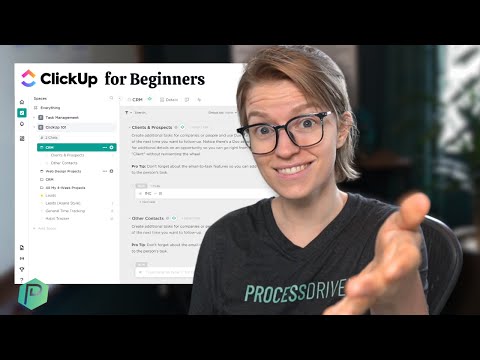
ClickUp Beginner's Guide: Introduction to the ClickUp Hierarchy
Understanding the ClickUp Hierarchy
In this video, the presenter explains the ClickUp hierarchy using analogies to help those who have never used a task management system before. The hierarchy consists of tasks, subtasks, lists, and folders.
Physical To-Do List
- Using physical pieces of paper to keep track of a to-do list is common.
- A piece of paper can be used as a simple list with tasks and subtasks.
Folders for Organization
- When there are many lists and projects going on at once, having physical documents may not be sustainable.
- Folders can be used to group multiple to-do lists together for easy access.
- Multiple folders can be created for different purposes such as work or personal use.
ClickUp Task Management Tool
- ClickUp functions similarly to physical folders but has more capabilities.
- Tasks are located in the center of ClickUp and can have subtasks created within them.
Introduction to ClickUp
This section introduces ClickUp and explains how it can be used to organize tasks.
Tasks and Subtasks
- ClickUp is a task management tool that allows users to create tasks and subtasks.
- Tasks can be organized by creating subtasks for each room of the house, such as the kitchen, bathroom, and living room.
- Completed tasks are checked off and removed from the list.
Lists
- ClickUp uses lists to organize tasks in one place.
- Lists are found on the left sidebar and can have names and colors.
- Folders are used to group lists together when there are many projects or tasks.
Spaces
- Spaces are like filing cabinets that contain folders or loose pieces of paper.
- Multiple spaces can be created to further organize tasks.
Creating a ClickUp Space
In this section, the speaker explains how to create a new space in ClickUp and customize it according to your needs.
Setting up a New Space
- To create a new space, click on the "+" icon next to "Spaces" on the left-hand side of the screen.
- Choose a name for your space and select an emoji and color.
- You can set different access levels for your space and its contents.
- Choose what statuses you want to use for your tasks.
Customizing Your Space
- ClickApps are features that help you organize your tasks within ClickUp. They provide different options and structures for note-taking templates.
- Turn off all but the required ClickApps if you're new to project management.
- Views allow you to choose how you want to view your tasks within each list or folder in your space.
Understanding the Hierarchy of Spaces, Folders, Lists, and Tasks
In this section, the speaker explains how spaces, folders, lists, and tasks work together in ClickUp's hierarchy.
The Hierarchy of Spaces
- The hierarchy contains spaces, folders, lists, and tasks.
Inside a Task
- Each task has two sides where you can add details such as descriptions or comments.
Task Description
This section covers how to add more information to a task beyond just the name, including descriptions and notes.
Adding More Information to Tasks
- ClickApps allows for adding more information beyond just the task name.
- The document is like a fill-in-the-blank form with space for additional information.
- Examples of additional information include descriptions and notes.
- Descriptions can provide context and reminders for tasks that are not immediately urgent.
- Detailed descriptions are particularly helpful for tasks that repeat often.
To-Dos
This section explains the two types of items that can be added to the To-Dos section: subtasks and checklists.
Subtasks vs. Checklists
- The To-Dos section has two types of items: subtasks and checklists.
- Subtasks allow for more detailed information, including their own description area.
- Breadcrumbs indicate when you are inside a subtask.
- Checklists are simpler than subtasks.
ClickUp Task Overview
This section provides an overview of the different features and options available in ClickUp tasks.
Task Features
- Tasks can be broken down into subtasks, which can be clicked into and have additional options.
- Attachments can be added to a task, including links to Google Drive or uploaded files.
- Checkboxes are available to mark tasks complete, both for subtasks and the parent task itself.
- The assign button allows you to choose who the task is assigned to, either manually or through automation.
- The share task publicly option allows you to share the task and its details on the internet.
- Permissions allow you to share a task with specific people rather than making it public.
Task Details
- Tasks have optional fields for creation date and due date. Adding due dates is recommended for collaboration purposes.
ClickUp Task Watchers and Activity Area
This section covers the features of ClickUp task watchers and activity area.
ClickUp Task Watchers
- Tasks have watchers that notify people about changes to the task.
- Watchers are people who receive notifications about changes to a task based on their own settings.
- Users can add other users as watchers to a task.
Activity Area
- The activity area is where users can see a changelog of every single thing that has happened to this task since it was created.
- It is one of the main reasons to go digital versus physical.
- Users can message directly within this task, assign tasks, and collaborate with others in real-time.
- Comments can be assigned as mini-tasks for others to complete, making it a really collaborative experience.
- Having conversations, work, data, and notes all in one place eliminates versioning issues that arise when copying information in and out of a physical notebook or spreadsheet.
ClickUp Views
This section covers the concept of views in ClickUp.
Views
- Views are different ways of looking at tasks in ClickUp.
- There are several types of views available such as list view, board view, calendar view etc.
- Each view provides different ways to organize tasks based on user preferences.
Introduction to ClickUp
In this section, the speaker introduces ClickUp and explains how it differs from physical notes.
ClickUp Views
- ClickUp allows users to view tasks in different ways, such as a Board View or a Calendar View.
- Different team members can view the same data in different structures of information.
- ClickUp views don't just live on lists. Users can have a whole filing cabinet (space) and have this whole space shown in different ways.
- Users can customize each view to find what is the most effective way for them to see what they need to do to get things done.
Benefits of Using Digital Task Management Systems
- Digital task management systems like ClickUp are dynamic and allow users to change the way they look at data depending on who's viewing it, depending on what they care about and depending on where they are.
- Switching from physical pieces of paper to a digital task management system allows users to customize their views and group their data in different ways.
Conclusion
- The speaker hopes that this introduction gives viewers enough information about ClickUp.
- Viewers can click on the "i" icon in the corner of the video or check out the description below for more information about how the speaker works with people.
Introduction to ClickUp
In this section, the speaker introduces an online course and community geared towards helping people get started with ClickUp.
Getting Started with ClickUp
- The speaker recommends checking out the resources in the description below if you're having a hard time getting started with ClickUp.
- Leave a comment and let the speaker know what your questions are. She'd be happy to answer them or even make another video based on your questions.
Conclusion and Next Steps
In this section, the speaker concludes the video and previews upcoming content.
Wrapping Up
- The video was based on one of your questions, so thank you for submitting it as a suggestion for a video.
- Thank you for watching this video.
Preview of Upcoming Content
- The speaker will be back next week with two more videos about how to use processes and ClickUp.