Oxfordlearn for Teachers
Creating Accounts and Joining Classes
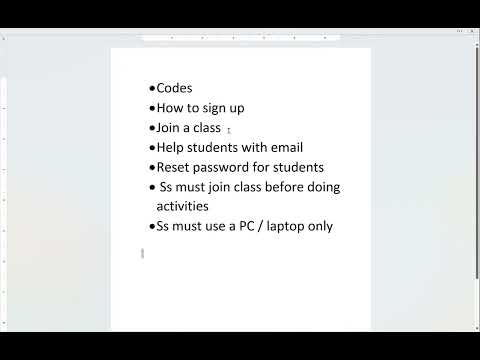
This video explains how to create accounts and join classes on OxfordLearn.
Class Codes
- Each class has a unique class name, teacher code (starts with T), and student code (starts with S).
- Be careful not to mix up the two codes when sharing them with students.
- Use the student code to share with your students so they can join your class on OxfordLearn.
Signing Up
- Go to oxfordlearn.com and create an Oxford ID by providing your first name, last name, email, password, country, time zone, security question, and accepting terms and conditions.
- Choose a strong password that meets the criteria of having at least six characters with a lowercase letter, uppercase letter, no spaces, and may include numbers or symbols.
- After creating an account successfully, take note of your username and password for future reference.
Joining Classes
- Click on "Join" in the left-hand menu after logging in.
- Enter the teacher code provided by your coordinator or found in the Excel file.
- Click "Continue" to join the class.
Helping Students Remember Their Emails
As a teacher on OxfordLearn you have authority over helping students remember their emails if they forget them.
Email Reminders
- Some students may forget their emails after joining your class.
- You can help remind them of their email address if needed.
Managing Classes and Students
In this video, the speaker explains how to manage classes and students on a website. The tutorial covers adding students to a class, changing student passwords, and ensuring that students use a PC or laptop for activities.
Adding Students to a Class
- To add students to a class, click on "Edit" and scroll down to see the list of people in your group or class.
- Click on the green information sign next to the student's name to view their user ID and email address.
- Give the student their email address so they can join your class using the joining code related to your class.
Changing Student Passwords
- To change a student's password, click on "Change Password" under their user ID.
- Create a new password that meets the criteria (minimum of six words with uppercase and lowercase letters).
- Confirm the new password by clicking "Save."
Important Reminders
- Students must join a class before doing any activities.
- Ensure that students use a PC or laptop for activities as mobile devices will not show up on the website.
- If students start doing activities before joining your class, you won't be able to see what they have done until they join.
Overall, this tutorial provides helpful tips for managing classes and students effectively.