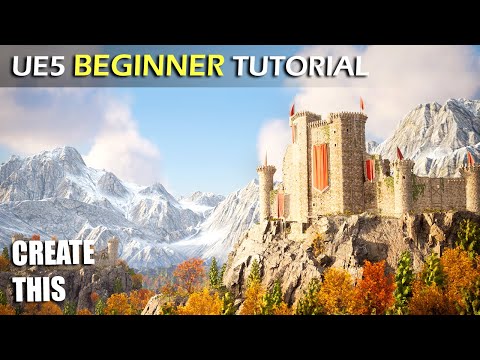
Unreal Engine 5 Beginner Tutorial - UE5 Starter Course
Introduction to Unreal Engine 5
In this tutorial, we will learn how to use Unreal Engine 5 from scratch. We will cover topics such as installing the engine, navigating and moving objects in a 3D world, creating materials and importing 3D models, sculpting landscapes and painting foliage, downloading free Nanite objects from the Mega Scans library, programming a game using Blueprints, and creating a fantasy environment.
Installing Unreal Engine 5
- To download Unreal Engine 5, you need the Epic Games Launcher.
- Click on the Library tab and select Unreal Engine.
- If you don't see UE5 in your launcher, click on the plus icon next to engine versions and select UE5 to install it.
- Once installed, open up UE5 by clicking Launch or create a shortcut on your desktop.
Creating a Project
- Open up the Unreal Project Browser.
- Select Blank under Games.
- Choose where to save your project and name it (e.g., First Project).
- Enable Starter Content for some nice assets to play with while learning UE5.
- Click Create.
Navigating UE5
- The main window is divided into several panels: World Outliner (displays all actors in your level), Content Browser (displays all assets available in your project), Viewport (displays what's happening in your level), Modes Panel (contains tools for editing levels), Details Panel (shows properties of selected actors).
Conclusion
Unreal Engine 5 is an incredibly powerful tool for creating stunning games and environments. By following this tutorial step-by-step, even beginners can learn how to use it effectively. Remember that each chapter can be treated as its own self-contained lesson if you ever get stuck on something.
Introduction to Unreal Engine 4 User Interface
In this section, we will learn how to navigate the user interface of Unreal Engine 4 and understand the different windows.
Viewport
- The viewport is where we can view our 3D world and manipulate objects.
- Camera controls and object movement will be covered later.
Toolbar
- The toolbar provides access to tools and buttons for adding objects, switching modes, etc.
- Adding an object involves clicking on the plus icon, selecting a shape, and placing it in the world.
- Modes include select mode, landscaping mode, foliage mode.
Outliner
- The outliner lists all objects in the current world.
- Objects can be selected or organized into folders by dragging them into a folder created by right-clicking and selecting "create folder".
- Objects can also be hidden or unhidden temporarily using the eye icon.
Details Panel
- The details panel allows editing of properties of selected objects.
- Scaling an object involves selecting it and increasing its scale in a particular axis (e.g. z-axis).
- Pressing control + z undoes any changes made.
Content Drawer
- The content drawer stores all assets that make up our project.
- It is accessed by clicking on "content drawer" at the bottom left corner or pressing ctrl + space simultaneously.
- Assets are organized into folders and subfolders just like in a computer's file explorer.
Understanding Unreal Engine 4 Content Drawer
In this section, we will learn more about the content drawer in Unreal Engine 4.
Starter Content Folder
- The starter content folder contains props such as chairs, tables etc.
- These assets can be edited by double-clicking on them within their respective subfolders.
Introduction to User Interface
This section covers the basics of the user interface in Unreal Engine 4.
Navigating the Content Browser
- Clicking on folders in the Content Browser allows you to navigate through your project's assets.
- The Content Drawer can be docked to your layout for easy access.
- Tabs can be hidden or moved around by right-clicking and dragging them.
Customizing Your Layout
- Windows can be docked to a sidebar or unlocked from it by right-clicking on them.
- Pressing F10 will automatically dock all windows except for the viewport.
- The World Settings window is useful for editing map properties.
Camera Navigation
This section covers how to navigate your camera around a 3D world in Unreal Engine 4.
Moving Your Camera
- Hold down the right mouse button and use WASD keys to move around your scene.
- Use E and Q keys to move up and down respectively.
- Adjust camera speed using the camera icon at the top right corner of the viewport.
Navigating the Viewport
This section covers how to navigate around the viewport in Unreal Engine 4.
Moving Faster or Slower
- To move faster or slower, scroll far away from your geometry and use the F key to focus on an object.
- Pressing F again will zoom in on that object.
- Alt + Left Mouse Button allows you to rotate around a pivot object.
- Alt + Right Mouse Button allows you to zoom in and out.
Viewport Controls
- Use Right Mouse Button to pan and Scroll Wheel to zoom in and out for orthographic view mode.
- Perspective is the default view mode. Top-down bird's-eye view can be selected by clicking on the perspective button and selecting top.
- The shortcuts for different view modes are Alt+4 for lit, Alt+3 for unlit, and Alt+2 for wireframe.
- Show Flags allow turning on/off different object types. Default flags can be brought back by clicking on "Use Defaults".
- Game View shows exactly what the player will see in-game. It can be toggled with G key.
Creating Objects and Moving Them Around
This section covers how to create new objects and move them around.
Simple Movement
- Select an object to move it.
- By default, translation or movement tool is selected.
- Use W,A,S,D keys or arrow keys to move objects along X,Y,Z axis respectively.
Scaling Objects
- Select an object to scale it.
- By default, scaling tool is selected.
- Use Scale Gizmo handles (red/green/blue arrows) along X,Y,Z axis respectively.
Rotating Objects
- Select an object to rotate it
- By default, rotation tool is selected
- Use Rotation Gizmo handles (red/green/blue circles) along X,Y,Z axis respectively.
Snapping Objects
- Use the snap tool to align objects with each other.
- The snap tool can be accessed by clicking on the magnet icon in the toolbar.
- Snap settings can be adjusted in the details panel.
Duplicating Objects
- Select an object to duplicate it.
- Press Ctrl + W or use Edit > Duplicate to create a copy of the selected object.
Introduction to Unreal Engine 4
In this section, we learn about the basics of Unreal Engine 4 and how to move, rotate, and scale objects in the engine.
Moving Objects
- Unreal uses centimeters for measurements.
- We can change the snapping distance by selecting a number from the drop-down menu.
- To move an object, select the translation button or press "W".
- Hover over the square between axes to lock movement in two directions.
Rotating Objects
- Select the rotation button or press "E" to rotate an object.
- Rotation snapping is turned on by default but can be turned off by clicking on its icon.
Scaling Objects
- Select the scaling button or press "R" to scale an object.
- Hover over any of these squares hold down left mouse button and drag to scale in that exact direction.
- Scale snapping is turned on by default but can be turned off by clicking on its icon.
Creating and Duplicating Objects
In this section, we learn about creating and duplicating objects in Unreal Engine 4.
Duplicating Objects
- Press Ctrl + D to duplicate an object.
- Hold Alt + Left Mouse Button while hovering over an arrow with a translation widget selected to easily duplicate and drag an object away.
Adding Objects
- Click on Add tool in toolbar
- Drag shapes like sphere into scene
- Add lights like point light into scene
Using Content Browser
- Open content browser using Ctrl + Space
- Go into props
- Drag objects into world
Introduction to Unreal Engine 4
In this section, the speaker introduces Unreal Engine 4 and provides tips on how to use it effectively.
Tips for Using Unreal Engine 4
- Hold down Alt + left mouse button to duplicate objects.
- Hold down Shift while dragging an object to lock the camera onto it.
- Use Shift + select to move multiple objects at once.
- Press E to rotate objects and R to scale them.
Creating a Simple Scene
In this section, the speaker demonstrates how to create a simple scene in Unreal Engine 4.
Steps for Creating a Simple Scene
- Duplicate chairs by holding down Alt and left mouse button.
- Rotate chairs inward using E key.
- Select table and elongate it using R key.
- Add lamps from starter content using Ctrl + Spacebar.
- Rotate lamp using E key or enable snapping with Ctrl+Z.
- Scale up lamps in Z-axis by pressing R key.
Post Process Volume & Exposure
In this section, the speaker explains what auto exposure is and how it works in Unreal Engine 4.
Understanding Auto Exposure
- Auto exposure mimics the way our eyes work when adjusting from dark environments to bright ones.
- Zooming into shadows makes screen brighter; zooming out makes screen darker.
- Unreal Engine 4 uses auto exposure to adjust brightness and darkness of the screen.
Duplicating a Map
In this section, the speaker demonstrates how to duplicate a map in Unreal Engine 4.
Steps for Duplicating a Map
- Press Ctrl + Spacebar to open content drawer.
- Duplicate minimal_default by pressing Ctrl + D.
- Rename duplicated map and save it using Ctrl + S.
Selecting and Deleting Objects
In this section, the instructor demonstrates how to select and delete objects in Unreal Engine.
Selecting Objects
- To select individual objects, use the control key.
- To select a row of objects, hold down shift and click on the first and last object in the row.
Deleting Objects
- To delete selected objects, press the delete key.
Creating a Simple Hut
In this section, the instructor demonstrates how to create a simple hut in Unreal Engine.
Adding a Cube
- Click on "Add" and select "Cube."
- Hold down left mouse button on cube to add it into the scene.
Duplicating Walls
- Hold down alt to duplicate walls.
- Press E to rotate walls 90 degrees.
- Drag out duplicated wall by holding down alt again.
Creating a Roof with an Opening
- Rotate duplicated wall as roof.
- Create opening for sunlight by leaving slight gap between walls.
Adjusting Screen Brightness in Unreal Engine
In this section, the instructor explains how screen brightness can be adjusted in Unreal Engine.
Turning Off Auto Exposure
- Go to "Lit" settings.
- Uncheck "Game Settings" under exposure.
- This will lock screen brightness at a constant level.
Using Post Process Volumes
Editing Exposure Compensation
- Turn on exposure compensation within post process volume settings.
- Change metering mode from auto exposure histogram to manual.
- Adjust exposure compensation value as desired (e.g., 9).
- Press play to see changes made in game mode without auto-exposure enabled.
Other Post Process Volume Settings
- Bloom: adjust intensity to desired level.
- Vignette: adjust strength of darkening around camera.
- Color Grading: adjust saturation and other color settings.
Creating a Post Process Volume
- Select "Add Volume" in the "Volumes" section of the Modes panel.
- Choose "Post Process Volume."
- Adjust settings as desired within the post process volume.
Introduction to Post-Processing and Materials
In this section, we will learn how to use post-processing volumes and materials in Unreal Engine 4.
Using Post-Process Volumes
- By default, the post-process volume only affects what is inside it.
- To make the post-process volume affect the entire world, turn on "Infinite Extend Bound" under "Unbound".
- Post-processing can be complicated for beginners. Rewatch sections if needed.
Creating a New Map and Level
- Create a new folder called "My Stuff" under Content.
- Use level templates to create a blank level by going to File > New Level > Basic.
- Save the level in the "My Stuff" folder using Ctrl + S.
- To access the level later, double-click it in the Content Browser.
Adjusting Level Settings
- Hide the grid by going to Show > Grid.
- Scale down or adjust floor size using R or details panel settings.
- Add objects from Unreal's default content by enabling "Show Engine Content" in Settings.
Controlling Exposure with Post Process Volume
- Create a post-process volume that affects the entire world.
- Set metering mode to manual and adjust exposure compensation as desired (e.g. 11).
- Make sure game view is turned on for exposure changes to take effect.
Adding and Editing Materials in Unreal Engine 4
In this section, the speaker explains how to add and edit materials in Unreal Engine 4.
Adding a Material
- To add a material to an object, hold down the left mouse button on the material and drag it onto the object.
- Different materials can be used for different objects.
- The reflections update when switching between different materials.
Creating and Editing a Material
- Press Ctrl + Space to open up the editor window.
- Right-click and select "Create Basic Asset" > "Material".
- Double-click on the new material to open up the material editor.
- Use nodes that connect to each other in order to create a material graph.
- Use right mouse button to pan, scroll wheel to zoom in/out, left mouse button to select nodes or marquee select them.
- Use palette on left side of screen or right-click anywhere for node selection.
- Constant 3 vector is essentially Unreal's version of color (RGB).
- Hover over pin with left mouse button held down, drag out wire and choose where it should go into any of the inputs.
- Compile after making changes before seeing them reflected in level.
Adding Color and Adjusting Material Properties
In this section, we learn how to add color to a material and adjust its roughness and metallic properties.
Adding Color
- To add color to a material, we need to edit the base color channel.
- After editing a material, we need to compile it with the apply button for changes to take effect.
Adjusting Roughness
- To adjust the roughness of a material, we need to edit the roughness channel.
- Roughness takes a scalar value between 0 and 1, where 0 is smooth and 1 is rough.
- We can get a scalar value by selecting constant under palette.
Adjusting Metallic Properties
- To adjust the metallic properties of a material, we need to edit the metallic input.
- Metallic input takes a constant vector value between 0 and 1, where 0 is non-metallic and 1 is fully metallic.
- We can get another constant vector by duplicating an existing one or getting it from the palette.
Understanding Physically Based Rendering (PBR)
In this section, we learn about physically based rendering (PBR) in Unreal Engine's material system.
PBR Values
- Unreal Engine's material system is based on physically based rendering (PBR).
- The two main PBR values are metallic and roughness.
- Both values are on a scale from 0 to 1.
- A value of zero means there is no metallic or roughness.
- A value of one means there is full metallic or maximum roughness.
Effects of Changing PBR Values
- Changing the roughness value affects how shiny or reflective the material appears.
- Lower values make it shinier while higher values make it rougher.
- Changing the metallic value affects how metallic or non-metallic the material appears.
- Lower values make it non-metallic while higher values make it fully metallic.
- Both values are clamped from 0 to 1, so any input outside this range will be clamped down.
Opening and Editing Materials
In this section, we learn how to open and edit materials in Unreal Engine.
Opening Materials
- To open a material on an object, click on the object and find its materials in the details panel.
- Double-clicking on a material will open it for editing.
- Alternatively, clicking on the magnifying icon next to a material will jump to its location in the content drawer.
PBR Sliders
- The PBR sliders for metallic and roughness correspond with their respective values in Unreal Engine's material system.
[CUTOFF_LIMIT]