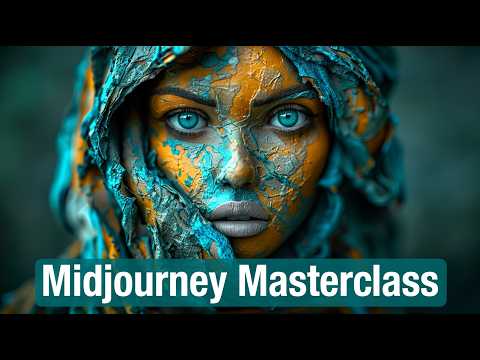
Master Midjourney - Updated Beginner to Advanced Course
MidJourney: A Comprehensive Guide to Image Generation
Introduction to MidJourney
- MidJourney is highlighted as a leading image generator, surpassing others in usability and aesthetics.
- The recent launch of the website marks a significant improvement over Discord for user experience.
- The guide aims to assist both beginners and experienced users in mastering MidJourney.
Navigating the Website
- Users start on the explore tab, which showcases images generated by others, providing endless inspiration.
- Clicking on an image reveals its full prompt and parameters, allowing users to utilize them for their own creations.
- A unique feature allows users to find similar images by hovering over an image and clicking the magnifying glass icon.
Generating Images
- The prompt bar is used for generating images; users can type prompts directly or use previous ones with the up arrow key.
- The archive tab organizes previously generated images into thumbnails for easier navigation through history.
- Users can create folders based on keywords (e.g., "logo") for better organization of their work.
Customizing Outputs
- Users can switch between light and dark modes according to preference while viewing generated images.
- One-word prompts are effective in showcasing how MidJourney interprets concepts creatively.
- Parameters play a crucial role in controlling output; they allow fine-tuning of aesthetic directions.
Understanding Parameters
- Main settings include options for image size (portrait, square, landscape), influencing composition and feel.
Understanding Mid-Journey Parameters
Overview of Manual Parameters
- Users can manually type parameters, which will override dropdown selections. A cheat sheet with all parameters is available in the description for reference.
Free Resources for ChatGPT
- HubSpot offers a free resource bundle that includes five PDFs on utilizing ChatGPT effectively in various careers, including sales and marketing, project management, and time management.
- One notable PDF titled "How to Supercharge Your Workday with ChatGPT" provides 100 sample prompts applicable across different industries.
Stylization in Image Generation
- Stylization affects the artistic quality of images; low stylization results in more realistic outputs while high stylization favors artistic aesthetics.
- Examples include a child's drawing of a cat where low stylization appears authentic compared to a highly stylized version that looks overly artistic.
Exploring Weirdness and Variety
- The 'weirdness' parameter allows exploration of unconventional aesthetics, leading to unique outcomes. Lower values yield traditional images while higher values produce unexpected compositions.
- For example, an apple on a table becomes increasingly abstract as weirdness increases, showcasing unusual angles and perspectives.
Chaos Parameter Explained
- The chaos parameter controls the diversity of initial grid images; lower values yield consistent results while higher values provide varied interpretations.
- To summarize:
- Stylize influences aesthetic application,
- Weird determines how unusual an image is,
- Chaos affects output diversity.
Understanding MidJourney's Image Generation
Overview of MidJourney Versions
- MidJourney has various versions, with version 6 being the default and most advanced for photo-realistic images. It interprets prompts more literally and is ideal for realistic photographic styles.
- Users can select previous versions, such as 5.2, which offers easier results through keyword prompts, while version Nii specializes in anime and illustration styles but can yield interesting results across other styles.
Personalization and Speed Settings
- Personalization allows users to influence image generation based on their aesthetic preferences by ranking image pairs to train the algorithm.
- The default speed setting is "fast," with a monthly GPU time cap depending on the subscription plan. Relax mode offers unlimited generations but takes longer (1 to 10 minutes).
GPU Time Management
- Turbo mode generates images four times faster than fast mode but consumes double the GPU minutes. Users can earn free GPU hours by rating images under the tasks tab.
- The top rankers daily receive a free fast hour; however, increased usage due to personalization may extend the time required to earn this benefit.
Key Parameters in Image Generation
- Two important manual parameters are "no" (to exclude specific elements from an image) and "seed" (which influences initial visual noise). For example, using
--no bananaswill generate an image without bananas.
- The seed number can be copied and used in prompts to create consistent variations across different images.
Utilizing Permutations for Variations
- Permutations allow users to run multiple variations of parameters or prompts without retyping each one. This is done using curly brackets `` with values separated by commas.
- Understanding these features may seem complex initially but becomes intuitive with practice.
Structuring Prompts Effectively
- Prompting remains crucial as it drives output quality; there’s no perfect prompt—experimentation is key. A structured approach includes scene, subject, details about setting, and style.
Describing Characters and Settings in Mid Journey
Importance of Descriptive Language
- Using specific descriptors like "a hood and holding a burning torch" helps clarify character imagery, preventing confusion with new characters.
- Incorporating cinematic references, such as "Pan's Labyrinth," enhances the atmosphere description, allowing for a more vivid visualization.
Refining Visual Prompts
- Experimenting with film grain types (e.g., 35 mm Kodak Vision 2 500T) can yield better results than using camera names alone.
- The use of detailed prompts about friends' appearances ensures accurate representation in generated images, especially when multiple archetypes are involved.
Achieving Realism in Image Generation
Candid vs. Posed Imagery
- Higher stylization values lead to more posed images; lower values create a candid feel, which is crucial for achieving intended interactions among subjects.
Understanding Power Tokens
- Mid Journey utilizes tokens to break down words into impactful components; some words have greater influence on image generation than others.
- Power tokens can be combined creatively to enhance the overall impact of the generated image.
Exploring Artistic Styles and Techniques
Learning About Art Styles
- Familiarity with various art forms and techniques enriches prompt creation; understanding vocabulary related to different styles aids in effective communication with Mid Journey.
Utilizing Resources for Inspiration
- The resource "Mid Library" offers extensive insights into artistic styles and techniques, serving as an invaluable tool for inspiration and guidance.
Advanced Prompting Techniques
Visual Prompting Strategies
- Instead of relying solely on descriptive words, users can visually reference styles from Mid Library to inform their prompts effectively.
Image Analysis for Style Discovery
- Uploading an image allows users to receive style descriptions and artist comparisons that can inspire new prompt ideas or refine existing ones.
Specialized Categories: Vector Art
Creating Logos with Specific Parameters
Logo Design and Text Generation Techniques
Key Concepts in Logo Design
- Specific terminology such as "minimalist," "abstract," "brandmark," and "geometric" can enhance logo design prompts. More niche descriptors like "Boutique psychedelic retro" may also be effective.
- Uploading a brand's color palette can serve as a style reference, aiding in the creation of logos that align with brand identity.
Generating Text for Logos
- When generating text, using quotation marks around the desired company name is essential. The process is case-sensitive and works best with simpler text elements.
- MidJourney allows for text generation but requires careful prompting to achieve consistent results. Complex ideas often necessitate multiple attempts or variations.
Tips for Effective Prompting
- Simplifying phrasing improves outcomes; instead of lengthy descriptions, focus on concise keywords that convey the essence of what you want.
- Be specific about quantities and details (e.g., specifying “three cats” rather than just “cats”) to reduce ambiguity in generated images.
Advanced Prompting Strategies
- Use the “no” parameter to exclude unwanted elements from your prompts effectively. Specify all critical components to ensure accurate representations.
- Experimentation is encouraged; switching styles or adding emojis can yield unexpected yet interesting results.
Next Steps After Image Generation
- After generating images, options like subtle or strong variations allow users to explore different compositions while maintaining some original characteristics.
Image Editing Techniques and Tools
Creative Upscaling and Reframing
- The creative upscale feature enhances images by adding new details, particularly useful for correcting distorted faces.
- The reframe tool allows users to change the aspect ratio and reposition images, generating missing areas as needed.
- Users can pan and zoom out to explore different scenes or add new elements, showcasing versatility in image editing.
Remixing Images
- The "remix strong" option enables significant changes while maintaining a similar composition; "remix subtle" is preferred for minor adjustments.
- Repaint functionality allows selective inpainting of specific image parts, such as fixing facial features or hands.
Understanding Image References
- Different types of references include image prompts (structure), style references (aesthetic), and character references (specific traits).
- Using references simplifies the process of blending styles and directing outputs compared to traditional text prompts.
Practical Application of References
- Users can drag images into the tool to select reference types; multiple references can be combined for richer outputs.
- Adjusting the influence of an image on output is possible through the image weight parameter, allowing for varied artistic interpretations.
Experimentation with Random Images
Exploring Style References in Mid Journey
Understanding Style References and Image Prompts
- The speaker discusses the ability to add prompts into the image generation process, enhancing guidance. They demonstrate this by switching a mushroom image to a style reference while retaining colors and vibe.
- A comparison is made between default style references and image prompts, highlighting that changing the prompt alters the scene but keeps the style consistent. The strength of style application can be controlled using "S SW" for style weight.
- Different styles can be blended together using multiple images as references, likening it to mixing paints on a palette. This experimentation yields visually appealing results.
Combining Styles with Image Prompts
- The power of combining style references with image prompts is emphasized. Holding down shift allows users to use a single image as both an image prompt and a style reference.
- Unique codes assigned to styles in Mid Journey enable consistent application across images, which enhances creative control. Links to databases for curated styles are mentioned as upcoming resources.
Character Reference Feature
- The character reference feature is introduced as one of the most requested functionalities in Mid Journey, allowing for consistency in character design across different scenes.
- Users can adjust how closely characters match their original designs through a parameter called "D-CW," which influences matching face, clothing, and accessories.
Inpainting with Character References
- The speaker demonstrates how character references work with non-Mid Journey images but notes that results may vary. Rerolls can help achieve closer matches despite imperfections.
- Inpainting capabilities allow users to replace characters or adjust features post-generation by providing URLs for specific images, enhancing customization options significantly.
Experimenting with Textures and Colors
- Using textures or colors as character references can yield interesting results; however, outcomes may vary based on parameters set during generation.
- An example illustrates replacing objects (like guitars) across scenes while maintaining similar styles; though not perfect matches are achieved, they still provide useful alternatives for visual consistency.
Advanced Control Over Image Generation
Understanding Style Reference Seeds in MidJourney
Generating Consistent Styles
- The process of generating consistent styles across different image generations is introduced, emphasizing the use of style reference seeds (srf).
- Users can input a specific number or use "random" to generate a random style reference seed, allowing for exploration of various aesthetics.
- Demonstrates the application of srf with different prompts, showcasing its power in maintaining consistent styles across diverse themes.
Utilizing Style Weight Parameters
- The style weight parameter can be adjusted from 0 to 1,000, with 100 being the default; this influences how strongly a particular style affects the output.
- Different srfs behave uniquely; some are versatile while others may be more rigid and challenging to manipulate across various mediums.
Mining for Style Reference Seeds
- The practice of "mining" for effective srfs is discussed, highlighting its time-consuming nature but rewarding outcomes.
- Several sources for discovering quality srfs are mentioned: Ali Jewels' visual index and contributions from Wade McMaster and Charlie Q.
Combining Multiple Styles
- Users can merge multiple srfs by adding them together in prompts, allowing for creative combinations and adjustments in relative strength using double colons.
Personalization Features
- Personalization is introduced as a new feature that tailors outputs based on individual user preferences rather than default community aesthetics.
- To activate personalization, users can add "d-p" to any prompt or enable it globally through settings.
- A personal code allows sharing of unique aesthetic preferences among users; however, most will likely prefer their own codes for customization.
Ranking Images for Better Personalization
- To enhance personalization effectiveness, users must rank at least 200 images based on aesthetic preference without focusing on prompt adherence.
- The ranking process involves selecting preferred images quickly using keyboard shortcuts to streamline the experience.
Adjusting Personalization Impact
Image Generation Techniques and Parameters
Exploring Image Customization with Parameters
- The speaker discusses personalizing image generation by adjusting parameters such as style references, chaos levels, aspect ratios, and stylization. They emphasize the importance of finding a combination that fits the desired vibe.
- Introduction of the "tile" parameter for creating seamless patterns suitable for textures, wallpapers, or 3D scenes. A demonstration is provided using a multicolored stone pattern to illustrate its effectiveness.
- Explanation of "super tiling," which enhances variety in generated images. The speaker shows how to use this technique to create less repetitive patterns by selecting regions within an image.
Advanced Tiling Techniques
- The tile parameter can also convert images into seamless 360° photos. A panoramic view example is shared, showcasing how it maintains continuity without visible seams when viewed in VR.
- Comparison between using the tile parameter and generative fill methods in Photoshop for achieving seamless results. The speaker notes that while both methods work, generative fill may yield more consistent outcomes.
Utilizing Stop Parameter for Image Detail Control
- Discussion on the "stop" parameter which allows users to halt image generation at various stages for different levels of detail. This can produce softer images useful for backgrounds or thumbnails.
- The stop parameter's utility is highlighted in generating less detailed images (80% or 90%) especially when preparing backgrounds intended for further editing in Photoshop.
Multi-Prompting and Concept Importance
- Multi-prompting is noted as effective primarily in V5 and earlier versions due to V6's improved language understanding capabilities.
- Explanation of assigning relative importance to concepts using colons (e.g., spaceship vs. space:ship). This method influences the prominence of elements within generated images but has limited effectiveness in V6.
Video Generation Feature
- Introduction of a video generation feature available only on Discord where users can create short videos from generated images by adding "--video" to prompts.
Mid Journey Insights and Techniques
Adjusting Settings for Optimal Results
- The speaker discusses modifying settings in Mid Journey, emphasizing the importance of adding "chaos" to enhance creativity. They suggest switching to raw mode and turning personalization on for a stronger output.
- A specific recommendation is made to lower the weight setting to 20 and adjust personalization down to 50, indicating these changes should yield satisfactory results.
- The speaker expresses satisfaction with the unique vibe produced by the adjusted settings, noting that they have tested this configuration multiple times.
Resources for Continued Learning
- The speaker summarizes their knowledge about Mid Journey, encouraging viewers to explore linked resources in the video description for further information.
- Futurepedia is highlighted as a valuable platform for learning about AI tools and developments, suggesting it can help users find suitable tools for various use cases.