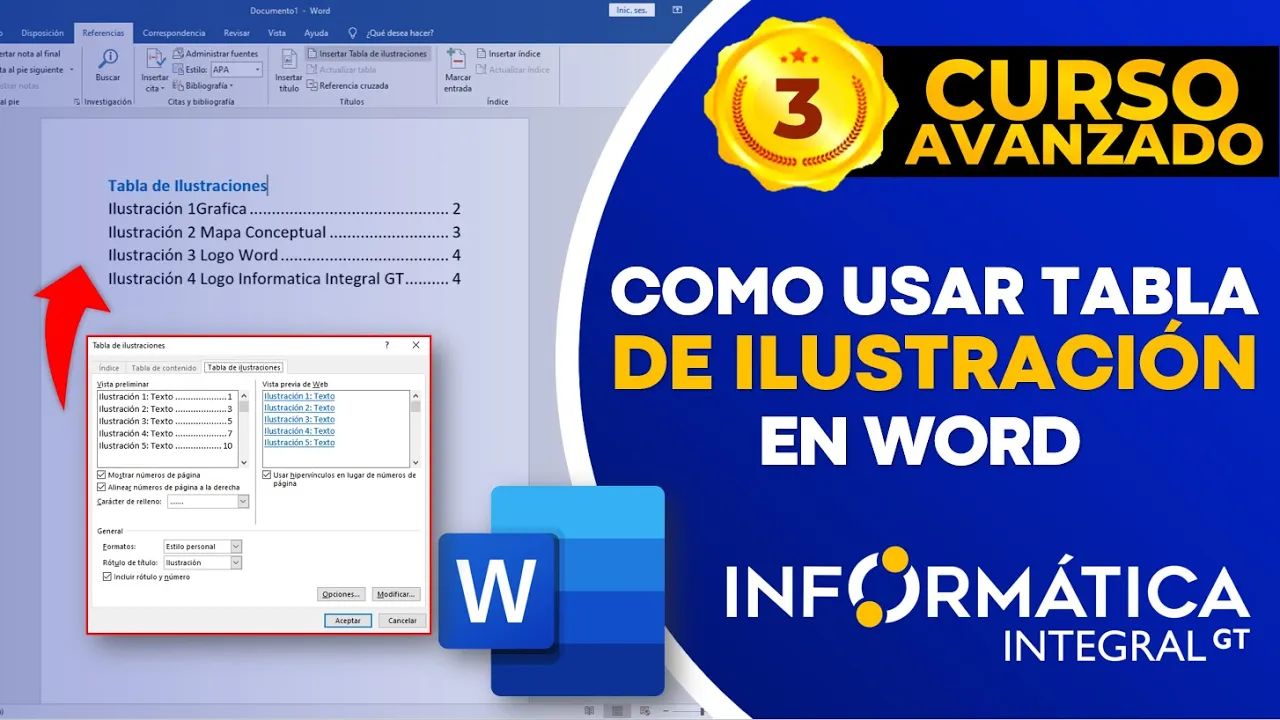
COMO CREAR UNA TABLA DE ILUSTRACIONES EN WORD (Edición 2)
Creating Illustration Tables
In this tutorial, the speaker explains how to create an illustration table in a document.
Inserting Images for Illustrations
- The illustration table is separate from the table of contents. It can be created in any part of the document.
- To insert an image as an illustration, click on the image, go to "References," select "Insert Caption," name the illustration (e.g., "Intruder"), and click "OK."
Adding Graphs and Charts
- Insert graphs or charts by resizing them as needed. Use "References" and "Insert Caption" to label them appropriately.
- Any type of visual aid can be added using the same process, such as CAD drawings or SmartArt graphics.
Creating a Comprehensive Illustration Table
- After adding multiple illustrations, insert a page break where you want the illustration table.
- Click on "References," then "Insert Table of Figures" to generate a comprehensive list of all illustrations used in the document.
Differentiating Between Table of Contents and Illustration Table
- Unlike the table of contents, the illustration table does not have a predefined title. Users can manually add a title for clarity.