Microsoft Purview Data Map - How to start from scratch
Getting Started with Microsoft Purview Data Map
Introduction to the Live Demo
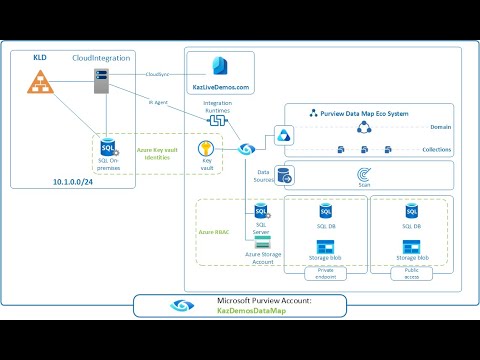
- The session will cover a live demo starting from scratch, focusing on configurations for connecting to on-premise SQL servers.
- Participants are encouraged to engage in the chat and provide feedback; a survey will be shared at the end of the webinar.
Setting Up Microsoft Purview Account
- To use Microsoft Purview Data Map, users must first access the new portal at
pview.microsoft.com.
- An H subscription is required to enable Data Map within your Microsoft 365 tenant.
- Creating a Microsoft Purview account is essential for enabling Data Map functionality.
Configuration Overview
- After creating an account, participants will see that Data Map becomes available through the portal.
- The focus will be on connecting to SQL on-premise and configuring storage options (public/private endpoints).
Domain and Collection Setup
- Users can create domains within their organization to manage data more effectively; default settings allow for separation based on operational needs.
- Collections can be created for better data grouping; subcollections can further categorize data by region or type (e.g., SQL databases).
Exploring Data Sources
- The environment map displays all components, including collections for Azure SQL and Blob Storage.
- Various services like Oracle, SAP, PostgreSQL, and Amazon are also accessible through Microsoft Purview Data Map.
Future Sessions and Additional Resources
- Upcoming sessions will delve into data cataloging and management strategies using insights gained today.
Cloud Integration and Microsoft PBI Integration Runtime Setup
Overview of Cloud Integration Requirements
- The initial focus is on the necessity of cloud integration, specifically using the Microsoft PBI (Power BI) integration runtime.
- A new self-hosted integration runtime will be set up, allowing for a dedicated server connection.
Installation Process
- During installation, a long key must be copied from the Microsoft PBI integration runtime setup; this key is essential for server configuration.
- High availability can be achieved by creating a cluster with multiple nodes configured identically to distribute scanning loads across servers.
SQL Database Connection Configuration
- An Azure Key Vault will be utilized alongside the Microsoft PBI integration runtime to manage SQL permissions effectively.
- A new key vault will be created to securely store SQL passwords, supporting both SQL and Windows authentication methods.
Setting Permissions in Azure Key Vault
- It’s crucial to assign oneself as a Key Vault administrator to avoid common errors when adding secrets.
- Additional permissions need to be granted to allow the Microsoft PBI account access for data requests.
Authentication Methods and Best Practices
- Windows authentication is highlighted as potentially more efficient than SQL authentication due to centralized account management across all SQL servers.
- Users are encouraged to explore free Azure subscriptions or Visual Studio credits for setting up necessary resources without incurring costs.
Final Steps in Configuration
- After configuring the key vault with appropriate permissions, attention turns back to setting SQL permissions within the database environment.
Integration Runtime Configuration and SQL Authentication
Overview of Integration Runtime Setup
- The session discusses the need for scanning capabilities, specifically mentioning "lineage" which will be explained in a subsequent session. Initial setup involves using Microsoft Power BI Data Map and HSQL permissions.
- The integration runtime configuration is pending completion. It is noted that the Microsoft Power BI account on Azure must be created to enable data mapping.
- Installation of the Microsoft Power BI integration runtime on the server is necessary. A key is copied for registration, indicating a step towards finalizing server configuration.
Server Registration Process
- The server named "Cloud Integrator" is registered as part of the integration runtime setup process.
- There may be delays in seeing status updates during registration; it’s common for configurations to take time before reflecting changes.
Security Considerations
- Data transfer from Microsoft Power BI integration runtime to data map occurs over HTTPS with SSL encryption. Users can opt for basic or additional SSL certificates for enhanced security.
- A fully qualified domain name (FQDN) from SQL is required for proper configuration, emphasizing its importance in connecting to on-premise servers.
Database Connection Setup
- Users are guided through identifying correct connections within their data center, highlighting potential confusion between Azure SQL Database and SQL Server options available through integration runtime.
- For SQL Server on-premise setups, default configurations are typically used unless specific changes are needed by users.
Scanning Activities and Credentials Management
- Initiating scan activities requires selecting appropriate databases; users have flexibility with empty fields allowing broader searches across all databases if desired.
- SQL authentication credentials are discussed, with emphasis on using Windows authentication as a more efficient alternative due to reduced account management overhead across multiple servers.
Live Demo and Troubleshooting
- Questions arise regarding SQL authentication setup; clarification provided about creating common credentials versus individual accounts per server instance.
- During a live demo, users set up an account with specified username and password while managing connection settings effectively.
SQL Authentication and Data Source Configuration
Setting Up SQL Authentication
- The speaker discusses creating a new SQL authentication account named "live demo account" to validate the connection.
- Emphasizes using the same password stored previously, highlighting that only a password is needed for this authentication method.
Testing Connection and Scanning
- After testing the connection, it was successful despite an earlier issue with Windows authentication due to a wrong password.
- The speaker mentions covering various concepts in future sessions, focusing on starting from scratch with different services.
Scheduling Scans
- Options are provided for scheduling scans, including monthly or weekly frequencies, allowing users to set specific times for data retrieval.
- The option to save and run immediately is discussed, indicating that initial data collection may take several minutes.
Integration Runtime and Security Configurations
Microsoft Purview Integration Runtime
- The integration runtime acts as a bridge between Purview data map and on-premise data sources.
- Communication can be configured with SSL for security; otherwise, it runs in plain text which poses risks.
User Permissions and Authentication Recommendations
- A brief overview of saving passwords necessary for connecting to Microsoft Purview accounts is provided.
- Windows authentication is recommended over SQL authentication for easier scalability across multiple servers.
Storage Account Configuration
Overview of Storage Blob Setup
- Introduction to configuring storage accounts begins; the speaker plans to explain two configurations: public access vs. private input.
Public vs. Private Access Settings
- Organizations often use VPN connections or ExpressRoute for secure access without internet exposure; both configurations will be demonstrated.
Role-Based Access Control (RBAC)
- Recent updates allow simpler management of permissions through Azure RBAC instead of complex identity management systems.
Permissions Management
- Discusses granting storage blob data reader permissions specifically to Microsoft Purview accounts without traditional passwords.
How to Register and Manage Azure Blob Storage
Registering Azure Blob Storage
- The process begins with registering the Azure Blob Storage, using a clear naming convention for easy identification. It's recommended to use the data source name for clarity.
Scanning Data Sources
- A scan is initiated on the registered storage account using the default integration runtime. The connection test is successful, indicating proper setup.
Configuring Scan Rules
- Users can scope and reduce data as needed during scanning. The default rule set can be configured to run scans daily.
Managing Private Endpoints
- Discussion about managing private endpoints reveals that connections may be disabled initially. Assigning roles like "Blob Data Reader" is essential for access.
Setting Up Networking and Permissions
- To manage private endpoints effectively, users must create a virtual network and assign necessary permissions to ensure secure access to services.
Understanding SQL Database Configuration
SQL Server Setup
- For SQL databases, it's crucial to have an SQL server in place. Permissions need careful assignment per database, focusing on lineage tracking.
Granting Database Permissions
- The configuration requires granting "Database Data Reader" permissions specifically for scanning purposes rather than broader DB owner rights.
Networking Considerations
- Public access settings are important; enabling exceptions allows Azure services to reach SQL servers when public access is used.
Troubleshooting Connection Issues
- If connection issues arise while accessing databases through private endpoints, troubleshooting steps are provided to resolve common errors effectively.
Finalizing Permission Settings
Live Demo of SQL Database Configuration
Setting Up the SQL Database
- The speaker initiates a live demo, executing a query that successfully connects to the SQL database.
- They navigate to the data sources section, specifically focusing on registering an Azure SQL database and scanning it for data mapping.
- The speaker discusses using Microsoft’s PView account while configuring settings such as line extraction and scan levels.
Configuring Scan Levels and Tables
- A test connection is performed to verify configurations, allowing the user to view all tables in the database. Options are available to select or deselect specific tables.
- Issues related to public access for SQL databases and storage are resolved, with emphasis on completing private endpoint configurations.
Sensitivity Labels Discussion
- The speaker addresses questions about sensitivity labels within Microsoft PView, urging users to transition from the old compliance portal before its removal at year-end.
- Users must enable integration for Microsoft PView data maps and create labels for effective classification of data assets.
Limitations of Sensitivity Labels
- It is clarified that sensitivity labels currently only classify data rather than provide protection; this limitation will be discussed further in future sessions.
- The session aims to guide users on connecting various components from scratch while addressing recent updates regarding policies and capabilities.
Managing Private Endpoints
- The speaker checks if private endpoints are ready for management but encounters delays in provisioning states.
- They explain that approval requests will be necessary once connections are set up correctly, emphasizing the importance of managing virtual networks effectively.
Troubleshooting Connection Issues
- An error may occur during connection tests; however, steps can be taken to avoid these issues by ensuring proper configurations beforehand.
Connecting Microsoft PView Data Map to Azure SQL Database
Establishing the Private Endpoint Connection
- The speaker selects the private endpoint for the Microsoft PView account, indicating that the connection setup is in progress.
- After approval of the connection, a scan is initiated using the private endpoint, confirming a successful connection test.
Scanning Performance Considerations
- A question arises regarding scanning performance; adjustments can be made to enhance or reduce performance, which incurs costs.
- The speaker discusses ongoing scans for various data sources, including SQL databases and public connections.
Identifying Sensitive Information
- Microsoft PView Data Map helps identify sensitive information types across databases, crucial for compliance and data governance.
- Over 200 sensitive information types are available for Data Loss Prevention (DLP), aiding organizations in understanding their stored data.
Managing Permissions and Connections
- The speaker navigates through permissions settings in Azure Portal to ensure access to necessary resources.
- Steps are outlined for managing private endpoints and approving requests within Azure networking settings.
Running Scans and Incremental Updates
- The process of registering SQL databases with private endpoints is detailed, emphasizing testing connections before proceeding with scans.
How to Start Microsoft PView Data Map from Scratch
Overview of Microsoft PView Data Map Setup
- The session focuses on initiating the Microsoft PView Data Map from scratch, emphasizing the importance of understanding its setup process.
- Participants are encouraged to complete a survey for feedback, highlighting the significance of user input in improving future sessions.
SQL On-Premise Integration
- To start with SQL on-premise, users must utilize the Microsoft PView integration runtime, which allows for multiple server connections.
- High availability can be achieved by adding additional nodes; however, only one node is used in this demonstration. Communication between components is encrypted using SSL.
Authentication and Security Measures
- Users can opt for Windows or SQL authentication; passwords are securely stored in a key vault requiring specific permissions for access.
- The key vault is utilized solely for storing passwords associated with different accounts, ensuring secure management of sensitive information.
Simplifying Configuration Processes
- The presenter believes that their method simplifies configuration compared to other complex options like managed identities or service principals.
- Using Azure RBAC (Role-Based Access Control), permissions are granted to the Microsoft PView account for accessing SQL servers and Azure Blob storage.
Organizing Data Collection
- Domains can be set up based on organizational needs; having multiple domains may help in managing data assets across regions or countries effectively.
- Collections and subcollections facilitate better identification and filtering of collected data from various sources.
Scanning and Scheduling Data Collection
- After adding data sources, scans can be scheduled at various intervals (hourly, daily, weekly), allowing flexibility in data collection processes.
Additional Resources and Future Discussions
- A GitHub page will provide detailed steps related to configuring the session; recordings will also be available on YouTube later.
Sensitivity Labels and Data Protection
- Current sensitivity labels primarily serve classification purposes rather than protection. Improvements are anticipated from product teams regarding this functionality.
Connectivity Requirements
- For successful integration with SQL on-premise databases via Microsoft PView integration runtime, specific service URLs need to be enabled.
Future Topics
Understanding Data Management and Sensitivity Labels
Overview of P View Data Map
- The P View Data Map can be utilized without requiring information protection or a Microsoft 365 tenant, indicating its flexibility as a separate service.
- Users have the ability to add other sensitive information types directly within the P View Data Map, enhancing its functionality beyond standard offerings.
Post-Completion Actions for Customers
- After completing data management tasks, customers typically need to identify actions related to their data cataloging efforts.
Insights on Data Cataloging
- The data catalog allows users to monitor how their data is stored in cloud services, including growth and reduction trends.
- Identifying sensitive information types in SQL servers may prompt internal investigations regarding the appropriateness of that data's presence.
Recommendations on Sensitivity Labels
- It is advisable to create separate sensitivity labels for different scopes (documents, groups, and data assets) to avoid confusion among end users.
- Using the same sensitivity labels across various elements can lead to misunderstandings; thus, distinct labels per scope are recommended.
DLP Policies and Future Discussions
- New policies related to DLP (Data Loss Prevention) will be discussed in future webinars, focusing on classification and subsequent actions based on classified data.
Upcoming Webinars and Resources