Turn Your Phone into a Productivity Machine
How to Make Your Phone a Productivity Tool
In this section, the speaker introduces the idea of using our phones as productivity tools instead of distractions.
Creating Focus Profiles
- Create several focus profiles that are automated and switch back and forth to optimize your experience.
- Choose the people you want to receive notifications and calls from, as well as the apps that are authorized to send you notifications.
- Organize your home screen pages that take into account your profiles.
Disabling Notifications
- Disable badges on app icons to reduce anxiety and fear of missing out.
- Disable "raise to wake" on the display in brightness settings.
- Schedule a big notification summary at predetermined times instead of receiving everything as it arrives on your phone.
Reader Mode and App Review Requests
- Use reader mode on Safari for distraction-free reading.
- Disable app review requests in App Store settings.
Widgets and Text Replacement Options
- Tailor your home screen with widgets such as calendar, email, to-do list, weather, and sticky notes widgets.
- Use text replacement options for repetitive information like email addresses or home addresses.
Writing Emails on Your Phone
This section provides tips for writing emails on your phone.
Using Native Notes App as a Template Repository
- Writing emails on the phone can be annoying.
- Most email apps don't allow in-app template creation and usage.
- Use your native notes app or another app of your choice to create a template repository that you only have to copy and paste into your email app whenever you need to send something from your phone.
Setting Screen Time Limits
- If other hacks haven't worked, set screen time limits for yourself on iPhone settings.
- Tap "App Limits" and then add limits for one or more app categories or individual apps.
- Set the amount of time allowed and set limits for specific days.
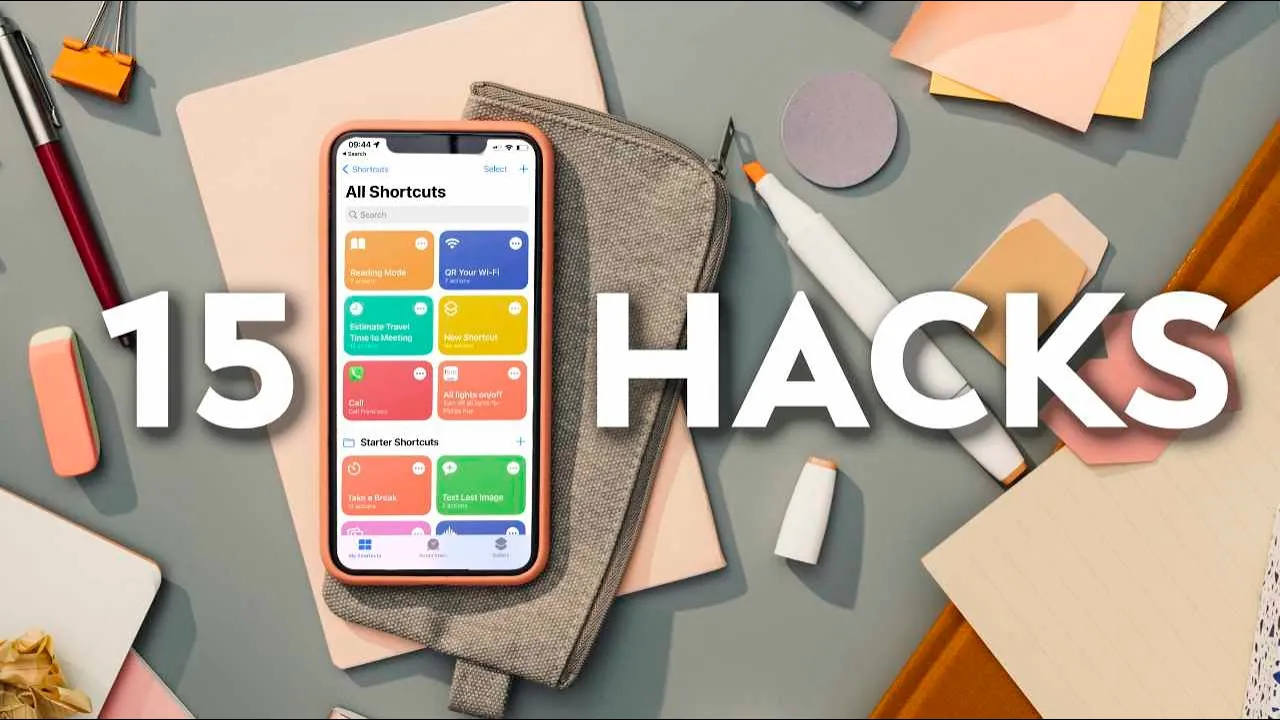
iPhone Shortcuts
This section introduces some amazing examples of iPhone shortcuts.
Travel Time Shortcut
- Get travel time for any address instantly with this shortcut.
- The shortcut puts the address into maps, grabs the driving time to that address from your current location, and returns the driving time to you.
Automated Routine Shortcut
- Create an automated routine where you can share your wifi without sharing the password.
- The shortcut will display a QR code with your wifi password on it, which all your friends have to do is scan the code to access.
Reading Mode Shortcut
- Create a reading mode with one click.
- Your iPhone will set a timer, start your favorite app, enable do not disturb, and play some music.
Notion Productivity Hacks
This section provides productivity hacks for using Notion on your phone.
Adding Widget to Phone
- Add a widget to your phone that has a compilation of your most used pages or favorites like notes, a project you're currently working on, your habit tracker page, and so on.
- Click those pages to access them without having to open and search around inside the app.
Turning Keyboard into Trackpad
- Turn your iPhone's keyboard into a trackpad.
- Press and hold on the spacebar while typing and the letters will disappear.
- The entire keyboard will transform into a trackpad slide where you can move the text cursor anywhere on the screen with precision.
Safari Extensions
- Safari extensions are great for making browsing experience better.
- Pocket runs directly in your browser helping you collect all references in one place only converting text into audio and helping you organize and search via content type.
- Momentum extension helps convert safari start page into smart dashboard.
Conclusion
This section concludes by providing additional resources for maximizing iPhone productivity.
- A Notion checklist is available for free in the description box below.
- The checklist has more hacks and tweaks to maximize your iPhone's productivity as well as an extensive list of apps, extensions, shortcuts, and widgets to experiment with.
- Notion can help you balance everything in 2022 and so much more.
- Your personal plan is literally free with absolutely no restrictions or strings attached.
- Start using Notion today by clicking the link in the description box or on the screen.
Turn any video into a summary like this
YouTube links, meetings, lectures. With transcripts, search, and chat.