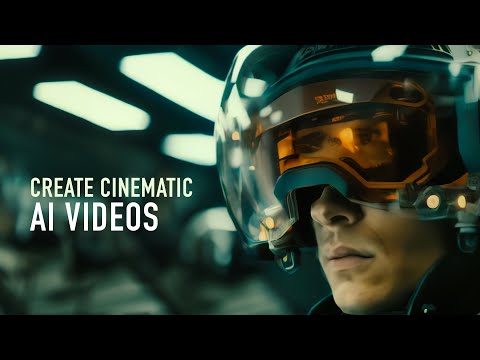
Create Cinematic AI Videos with Runway Gen-2
How to Maximize Quality with Runway Gen 2
Introduction to Runway Gen 2
- Caleb introduces himself and the purpose of the video, which is to demonstrate how to achieve maximum quality from Runway Gen 2.
- He emphasizes that while Runway Gen 2 is impressive, there are technical adjustments needed for better resolution.
Setting Up in Runway
- The process begins on the home screen of Runway, where users select "image to video" and upload an image (e.g., from Mid Journey).
- Caleb highlights the importance of clicking on settings before generating a video, as many users overlook this step.
Key Settings for Quality
- He explains the "interpolate" button's function—creating smooth animations by generating frames between existing ones—but advises against using it due to inferior algorithm performance in Runway.
- Users should also avoid selecting the "upscale" option; a different workflow will yield better resolution results.
Generating Video Clips
- Caleb notes that some features may require payment and mentions a limitation of four seconds for video duration in this version.
- He warns against typing anything into the text box during generation as it can compromise image quality.
Creative Process and Results
- While videos are being generated, users can upload additional images for batch processing without waiting.
- The creative aspect is emphasized; it's about enhancing one's vision rather than replacing creativity.
Reviewing Generated Videos
- Caleb reviews generated videos, noting their choppy quality reminiscent of GIF animations rather than high-quality footage.
Improving Video Quality with Topaz Video AI
Transitioning to Topaz Video AI
- To enhance video quality further, Caleb introduces Topaz Video AI as a recommended tool despite its cost.
Understanding Frame Rates
- He clarifies that videos downloaded from Runway may display as 24 frames per second but actually run at only 8 frames per second due to frame duration issues.
- This discrepancy contributes to choppy playback; Topaz can analyze individual frames and interpolate them effectively.
Video Quality Enhancement Techniques
Initial Setup for Video Quality Improvement
- The speaker emphasizes the importance of starting with a high-quality video source, noting that the current video is only 52 pixels tall, which is very low resolution.
- Instead of using standard presets like 1920x1080, the speaker recommends upscaling to achieve better overall quality, specifically suggesting a fourfold upscale to reach near 4K resolution.
Frame Rate and Motion Settings
- The output frame rate is set to 24 frames per second, aligning with traditional film standards used in cinema.
- Stabilization is not selected as camera shake can add realism; however, frame interpolation is highlighted as crucial for enhancing visual fluidity.
Advanced Features and Model Selection
- Frame interpolation uses advanced algorithms to create new frames between existing ones, improving motion smoothness without slowing down footage unnecessarily.
- The speaker prefers the Apollo AI model for its effectiveness in detecting duplicate frames and suggests setting sensitivity at 10% for optimal results.
Finalizing Video Output Settings
- For video enhancement settings, Progressive type is chosen along with the Proteus model for best results. Noise addition is avoided to maintain clarity.
- The ProRes 422 high-quality encoder preset is recommended over H264 due to its lower compression and reduced artifacting in final outputs.
Course Promotion and Results Overview
- While waiting for export completion, the speaker promotes their course on AI filmmaking aimed at enhancing productivity without replacing creative input from filmmakers.
- Upon reviewing the final result post-export, improvements in detail retention are noted despite some distortions present in facial features. This highlights both potential and areas needing refinement within AI tools.