12 Life-Changing Ableton Tips
Ableton Tips for Enhanced Workflow
Introduction to Ableton Tips
- The speaker addresses comments about their desk setup, mentioning a change from using a preamp as an iMac stand to now using it for an Apple Studio Display.
- The video focuses on various Ableton tips that can significantly improve workflow and efficiency, many of which are lesser-known.
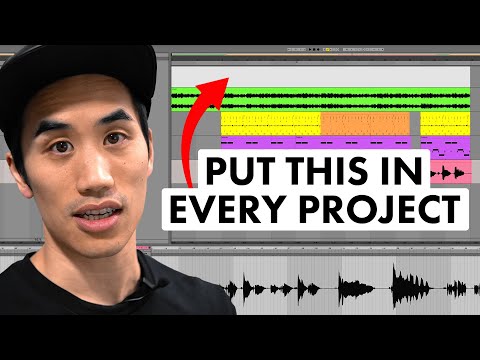
Tip 1: Using a MIDI Track for Looping
- A suggestion from Pusher involves creating a MIDI track named "length" in every session, with a clip matching the current work-in-progress length.
- This allows users to freely place loop braces without resizing them when rendering tracks, streamlining the creative process.
Tip 2: Efficient Plugin and File Searching
- The speaker emphasizes the importance of utilizing the search bar in Ableton to quickly find plugins or audio files instead of manually navigating folders.
- Users can filter results by categories or view all results, making it easier to locate needed items swiftly.
Tip 3: Streamlined Audio Editing
- Ill Gates' tip involves cutting and pasting audio clips efficiently; after editing down audio files, users can remove empty spaces by pasting into session view.
- This method is particularly useful for organizing found sound projects where multiple edits create significant empty space on timelines.
Tip 4: Reducing Latency When Monitoring
- The speaker discusses reducing latency during monitoring by checking specific settings in Ableton, especially when recording with multiple plugins that introduce delays.
- By enabling this feature, users can monitor tracks more responsively without compensating for plugin-induced latency unless those plugins are active on the monitored track.
Tip 5: Identifying Latency Sources
- To identify which plugins contribute most to latency, hovering over the title bar reveals detailed latency information per plugin.
- Notably, many stock devices in Ableton do not introduce latency, providing an advantage when building projects.
Tips for Optimizing Computer Performance in Music Production
Managing CPU Load
- When experiencing glitches, it's essential to identify and freeze the track with the most plugins or CPU-intensive effects rather than freezing multiple tracks. This targeted approach can resolve performance issues without overhauling your entire session.
- Acknowledgment of a tip from Symbionic emphasizes that focusing on individual tracks can significantly improve system performance.
Efficient Navigation Between Views
- Instead of manually switching between plugin view and clip view by double-clicking, use the shortcut Shift + Tab to toggle instantly between these views, saving time during sessions.
- This shortcut allows you to quickly access either the selected clip's details or its associated plugins, enhancing workflow efficiency.
Keyboard Shortcuts for Grid Management
- Commonly used shortcuts for grid size adjustments include:
- Command + 1: Decrease grid size
- Command + 2: Increase grid size
- Command + 3: Toggle triplets on/off
- Command + 4: Toggle grid snapping on/off
- These shortcuts streamline the process of adjusting settings without navigating through menus.
Layout and Navigation Shortcuts
- The acronym "LIMBO" represents various layout controls:
- Command + Option + L: Toggles launch panel
- Command + Option + I: Toggles inputs/outputs
- Command + Option + M: Toggles mixer view
- Command + Option + B: Toggles browser view
- Command + Option + O: Toggles overview panel
Warping Techniques in Timeline Editing
- Ableton now allows warping directly in the timeline, which enhances editing flexibility. By holding Shift while dragging near the top of a clip, users can adjust playback speed easily.
- The slipping technique enables users to move audio within a clip without altering its overall position. Holding Shift and Option changes the cursor to allow this adjustment seamlessly.
Advanced Editing Tips with Grid Control
- Using Command while performing warping or slipping actions allows for fluid movement outside of grid constraints. This is useful when precise timing adjustments are needed.
- Conversely, if you want to snap movements back to the grid while editing, holding Command will activate snapping features even when they are turned off otherwise.
These tips aim to enhance productivity and streamline workflows in music production environments by leveraging keyboard shortcuts and efficient techniques.