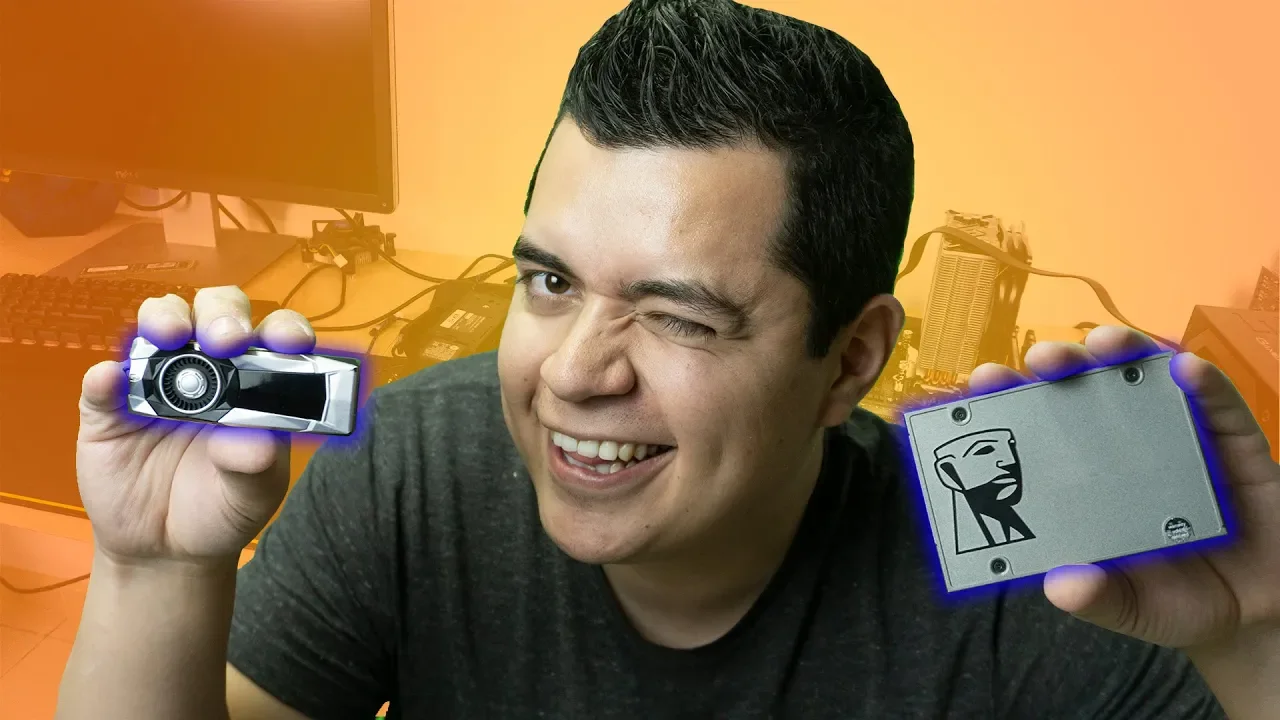
Como instalar un SSD en una PC - Paso a paso
Desarmando una PC y Acelerándola con una SSD
In this section, the speaker introduces their online store and discusses the accessibility and affordability of solid-state drives (SSDs) for improving PC performance.
Introduction to Online Store and SSD Affordability
- The speaker mentions their online store, High Pro, where viewers can find a range of products to customize their computers.
- Detailed steps on how to install an SSD are provided, emphasizing the low cost and high impact on PC speed.
- SSD prices have become more affordable, ranging from $20 to $40 for 240GB storage and even lower for 120GB options.
Requisitos para la Instalación de un SSD
This section outlines the necessary components and preparations required for installing an SSD in a PC.
Required Components for Installation
- SATA cables are essential for connecting the SSD to the motherboard; they can be purchased separately if not included with the computer.
- A crosshead screwdriver is needed for installing the SSD securely.
- An 8GB USB drive is necessary for preparing and installing Windows 10 on the new SSD.
Recomendaciones y Preparativos Previos a la Instalación
Recommendations are provided regarding data backup and preparation before installing the new SSD.
Data Backup and Preparation
- It is advised to back up important files from the existing hard drive to a designated folder named "backup" in the root directory.
Installation Process Overview
In this section, the speaker discusses the process of moving necessary files to a backup folder and then proceeding with the installation of a new unit.
Moving Files to Backup Folder
- The speaker advises forgetting about programs and focuses on moving all required files to a backup folder.
- This step is crucial before accessing the new installation on SCD.
Preparing for Unit Installation
- Ensure the computer is completely turned off and disconnected from power.
- Remove screws or other mechanisms to access the internal components of the computer.
Disconnecting Hard Drive
- Locate and disconnect the hard drive carefully to avoid any data loss.
- Disconnect both the power cable and data cable from the hard drive.
Choosing Solid State Drive (SSD) Capacity
The speaker discusses selecting an appropriate SSD capacity based on individual needs and usage requirements.
Determining SSD Capacity
- Consider factors like file size, speed requirements for games or programs when choosing between 120GB, 240GB, or 500GB SSD.
- Analyze how many files need quick access or how many programs will be installed for optimal performance.
Installing Windows 10
This part covers restarting the machine after installing Windows 10 through a USB drive following detailed instructions provided in another video.
Restarting for Windows Installation
- After completing hardware changes, restart the computer to initiate Windows installation.
- Follow step-by-step instructions provided in a separate video for installing Windows 10 via USB drive.
Downloading Motherboard Drivers
The speaker emphasizes downloading specific drivers from the motherboard manufacturer's website post-Windows installation for optimal system performance.
Identifying Motherboard Model
- Identify your motherboard model (e.g., ASUS Z370 Pro Gaming) for downloading correct drivers.
Installation Process of Additional Storage Devices
In this section, the speaker provides detailed instructions on installing additional storage devices in a computer system.
Installing Storage Devices
- The speaker advises leaving existing cables installed and searching for the perfect spot to install the storage unit.
- Demonstrates connecting the second hard drive by providing power and data connections.
- Emphasizes organizing cables neatly, locating SATA ports for connection, ensuring faster data transfer speeds.
- Discusses improved speed due to correct positioning of connected devices.
- Provides a tip on rebooting the PC to ensure proper recognition of newly installed drives.
Booting Process and File Access
This part focuses on booting up the system after installation and accessing files stored on different drives.
Booting Up and File Access
- Instructions on entering BIOS settings to select the primary boot device.
- After booting with the new storage unit, users can access files stored in designated folders.
- Advice on managing files between primary and backup drives efficiently for quick access.
Optimizing Computer Performance
The speaker discusses optimizing computer performance post-installation of additional storage devices.
Performance Optimization
- Encourages deleting unnecessary files from old drives to free up space and enhance performance.
- Highlights that adding a solid-state drive (SSD) can significantly boost computer speed and storage capacity.
Conclusion and Call to Action
The conclusion emphasizes key takeaways from the installation process and encourages viewer engagement.
Conclusion & Engagement
- Recapitulates benefits of SSD installation for enhanced PC performance.