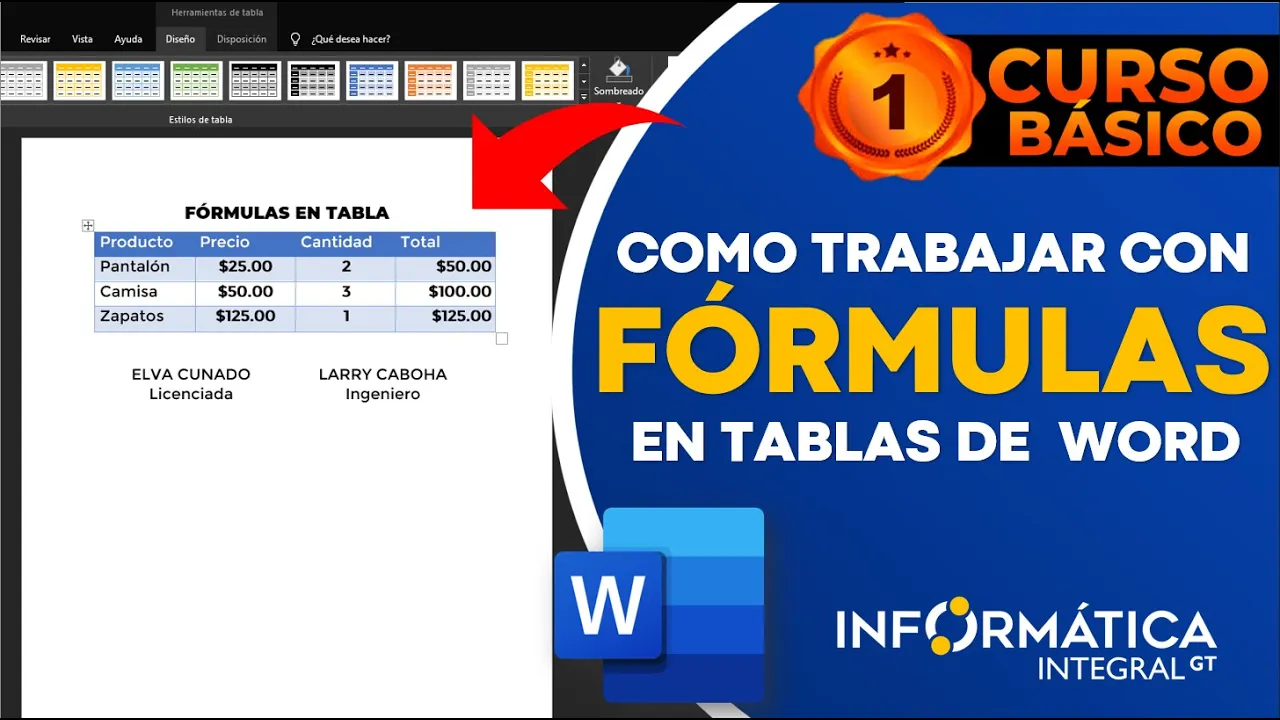
COMO CREAR Y USAR FORMULAS EN TABLAS DE WORD (edición 2)
Explanation of Working with Formulas in Word Tables
In this section, the speaker explains how to work with formulas within a table in Microsoft Word.
Understanding Formulas in Word Tables
- Click on the cell where you want the result and ensure you are on the "Layout" tab (or "Design" tab for older versions). In the "Data" group, find the formula icon to access pre-created formulas.
- Word automatically generates formulas like SUM for adding values. Note that Excel functions are mostly in English, requiring some knowledge of Excel or English to understand them.
- Similar to Excel, understanding basic Excel functions is crucial for performing calculations within Word tables. It's recommended to watch tutorials on Excel basics if unfamiliar.
Applying Formulas and Formatting
- Excel consists of rows identified by numbers and columns by letters. Cells are at intersections. To multiply values like price and quantity for a total, input corresponding cells into the formula box.
- After entering the correct formula (e.g., 2 x 2), clicking "OK" displays the multiplication result. Word recognizes currency symbols manually entered and performs calculations accordingly.
Modifying Formulas and Formats
- Updating data requires right-clicking on a cell, selecting "Update Field," ensuring changes reflect accurately. Modify formulas through the formula icon and adjust number formats as needed.
- Customize number formats based on regional settings; for instance, selecting currency format specific to your country. Unlike Excel, copying formulas vertically isn't automated in Word; each calculation must be adjusted individually.
Enhancing Calculation Efficiency
- Utilize built-in functions like SUM by clicking on a cell and selecting it from available options. Understanding formula terms is essential for modifying calculations effectively.
- For complex calculations, use logical functions like IF statements within Word tables similar to Excel's capabilities. Adjust formatting through design options for better presentation of data.
Linking and Formatting in Word
In this section, the speaker demonstrates how to format a document in Word by using tables for signatures and adjusting borders for better presentation.
Using Tables for Signatures
- Two people can sign a document by placing their names in a table.
- In the "Design" tab, selecting "No Borders" ensures proper centering for signatures.
- This method allows individuals to sign at designated spaces within the document.
Utilizing Tables for Data Alignment
- Tables are useful for aligning data without displaying gridlines.
- They help organize information such as resumes with sections and quantities.
- The "View Gridlines" option under the Table group enables users to toggle grid visibility.
Enhancing Document Presentation
This part focuses on improving document appearance by adjusting gridlines visibility and preparing documents for printing.
Managing Gridlines Visibility
- Gridlines can be viewed without affecting print settings.
- Enabling "View Gridlines" provides visual guides while editing.