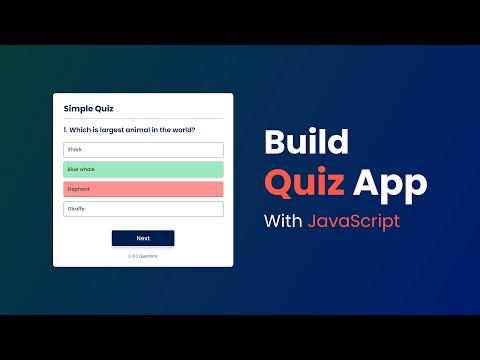
How To Make Quiz App Using JavaScript | Build Quiz App With HTML CSS & JavaScript
Creating a Simple Quiz App with JavaScript
Introduction to the Quiz App
- Avinash introduces the video, stating that viewers will learn to create a simple quiz app using HTML, CSS, and JavaScript.
- The functionality of the quiz is demonstrated: selecting answers changes colors based on correctness (red for wrong, green for correct).
- After answering questions, users can see their score displayed at the end of the quiz.
Project Overview
- The project consists of four questions; users can replay to improve their scores.
- Avinash encourages viewers to like, share, and subscribe if they find the tutorial helpful.
Setting Up Files
- The tutorial begins with setting up an HTML file and a CSS file in Visual Studio Code.
- Basic HTML structure is established along with linking to a CSS file named
style.css.
Designing the Layout
- The body background color is set using CSS; styles are applied for margins, padding, font family, and box sizing.
- A div with class name "app" is created in HTML to contain all elements of the quiz.
Adding Content
- An H1 title "Simple Quiz" is added along with another div for displaying questions.
- An H2 element is used for question text placeholder ("Question goes here") and answer buttons are created within another div.
Styling Elements
- Four buttons representing answer options are added; each button has a class name "BTN".
- CSS styling is applied to enhance visual appeal: font size adjustments and border properties are defined for headers and buttons.
Final Touches on Design
- Additional styling includes padding adjustments for question text and button designs focusing on background color and text alignment.
- Hover effects are discussed as part of enhancing user interaction with buttons.
This structured approach provides clarity on how to build a simple quiz application while highlighting key steps in both coding and design processes.
How to Create a Quiz Application with HTML, CSS, and JavaScript
Adding Button Styles and Functionality
- The background color for buttons is set to change on hover, transitioning smoothly over 0.3 seconds. The text color is adjusted to white for better visibility against the black background.
- A "Next" button is added below the answer options with an ID of
nextBTN. This button's presence indicates progression in the quiz.
- CSS styles are applied to the "Next" button, including dimensions (150px width), border settings (0), padding (10px), margin adjustments (20px auto), and cursor style (pointer). The button is centered using
display: block.
Hiding and Displaying Elements
- Initially, the "Next" button is hidden until an answer option is selected. This enhances user experience by preventing premature navigation.
Setting Up JavaScript Functionality
- A new JavaScript file named
script.jsis created and linked to the HTML document just before the closing body tag.
- Questions are defined in a constant variable within the JavaScript file. Each question includes its text and associated answers.
Structuring Questions and Answers
- The first question structure includes multiple answers where one answer is marked as correct (
true) while others are incorrect (false).
- Additional questions can be added by duplicating existing structures, ensuring that each question maintains a consistent format with updated texts.
Managing Quiz State
- Variables for key elements such as question display area, answer buttons, and next button are established using their respective IDs from HTML.
- Variables for tracking current question index (
currentQuestionIndex) starting at 0 and score initialized at 0 are created to manage quiz state effectively.
Starting the Quiz Logic
- A function named
startQuizresets both current question index and score when invoked. It prepares the interface for a fresh quiz attempt by updating inner HTML elements accordingly.
Displaying Questions Dynamically
- When displaying questions, it retrieves data based on current index values. Adjustments ensure that users see questions sequentially as they progress through the quiz.
- The function updates displayed content dynamically based on user interactions; it modifies both question text and available answers according to user selections.
Creating Interactive Quiz Buttons
Adding Button Elements
- A button element is created using
document.createElementwith the tag name 'button', stored in a variable calledbutton.
- The button's text is set using
innerHTML, specifically pulling fromanswer.textto display the answer.
- The button is assigned a class name 'BTN' through
button.classList.add, enhancing its styling.
- The button is appended to a div identified as 'answer buttons' using
appendChild.
Starting the Quiz
- The function
startQuizinitializes by setting the current index and score to zero, preparing for question display.
- Upon execution, it shows the first question along with multiple-choice answers defined in HTML.
Resetting State Before New Questions
- A function named
resetStateis introduced to clear previous questions and answers before displaying new ones.
- This function hides elements like the next button and removes all child elements from 'answer buttons'.
Implementing Answer Selection
Adding Click Functionality
- An event listener for click events on answer buttons triggers a function called
selectAnswer.
- If an answer has a value, it sets a data attribute indicating whether it's correct or not.
Defining Select Answer Function
- Inside this function, selected buttons are checked against their dataset; if true, they receive a 'correct' class; otherwise, they get an 'incorrect' class.
Styling Feedback for Answers
Background Color Changes
- CSS classes are used to change background colors based on correctness: red for incorrect answers and green for correct ones.
Disabling Further Selections
- After selecting an answer, further clicks are disabled. Correct answers highlight automatically when wrong selections are made.
Navigating Between Questions
Displaying Next Button
- Once an answer is selected, the next button becomes visible allowing users to proceed to subsequent questions.
Finalizing User Interaction
- Users cannot select any other options after making their choice. Hover effects are also hidden upon selection.
Quiz App Development: Enhancing User Interaction
Implementing Button States and Hover Effects
- The CSS file is updated to include hover effects for buttons, ensuring that the hover effect only activates when the button is not disabled. When a button is disabled, the cursor changes to indicate it cannot be clicked.
Updating Score on Correct Answers
- After implementing the hover effects, testing reveals that clicking a disabled button does not trigger any action. The next step involves increasing the score when a correct answer is selected.
Adding Event Listeners for Navigation
- An event listener is added to the "next" button to handle user clicks. It checks if the current question index is less than the total number of questions (4 in this case).
Handling Question Navigation Logic
- A function named
handleNextButtonis defined to increment the current question index by one upon clicking "next." If there are more questions available, it displays them; otherwise, it shows the final score.
Displaying Final Score and Restart Option
- A new function for displaying scores resets state variables and updates inner HTML to show results as "Your score out of total questions." The "next" button text changes to "Play Again," allowing users to restart the quiz.
Testing Quiz Functionality
- Upon testing with various answers, users can see their scores reflected accurately based on correct selections. The app provides feedback on incorrect answers and allows users to replay after completing all questions.
Conclusion and Encouragement for Customization
- Viewers are encouraged to customize their quiz applications using JavaScript along with HTML and CSS. They are invited to ask questions in comments, like, share, and subscribe for more tutorials.