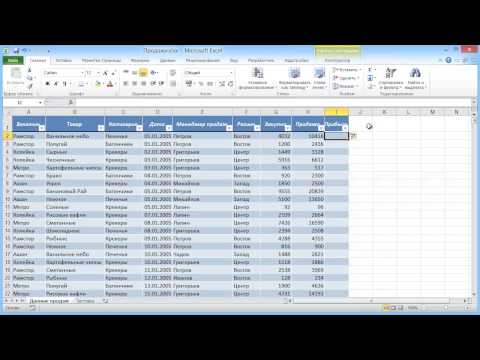
Умные таблицы в Microsoft Excel
Introduction to Formatting Ranges in Excel
In this video tutorial, the speaker introduces a convenient and underutilized feature in Microsoft Excel called "Formatting Ranges" or "Smart Tables." The speaker explains how using Smart Tables can help with dynamic range formatting and automatic updates.
Formatting Ranges as Smart Tables
- Smart Tables, also known as Formatting Ranges, are a powerful feature in Microsoft Excel that allows for dynamic range formatting and automatic updates.
- When the size of a range changes, such as adding or deleting rows or columns, formulas referencing that range need to be manually updated. Smart Tables eliminate this issue by automatically adjusting their size and updating formulas.
- Using Smart Tables also simplifies formatting tasks, such as copying formats to new rows or columns within the table.
- Another advantage of using Smart Tables is that they seamlessly integrate with pivot tables. Any changes made to the table will be reflected in pivot table reports without manual adjustments.
- To format a range as a Smart Table, select any cell within the table, go to the Home tab, click on Format as Table in the Styles group, and choose a desired table style from the options provided.
Benefits of Using Smart Tables
- One of the main benefits of using Smart Tables is their dynamic nature. They automatically adjust their size based on added or deleted rows/columns and maintain consistent formatting throughout.
- By selecting the option "My table has headers" when formatting a range as a Smart Table, the first row is treated as the header row. This eliminates the need for separate header rows and allows for easy filtering and sorting.
- Smart Tables also facilitate easy data entry. New rows added within the table are automatically included in calculations or formulas applied to the table.
- When new columns are added to a Smart Table, formulas can be easily extended to include the new column by simply entering the formula in the first cell of that column.
- Additionally, Smart Tables support calculated columns. Users can add new columns with formulas that reference other columns within the table, and these formulas will automatically extend to new rows.
- Another advantage of using Smart Tables is their integration with pivot tables. Any changes made to a Smart Table will be reflected in associated pivot table reports without manual adjustments.
Additional Features and Customization
- After converting a range into a Smart Table, users can further customize it by selecting different styles and enabling features such as banded rows or total rows from the Design tab under Table Tools.
- The Construction tab provides additional options for customizing Smart Tables, including adding calculated columns, renaming headers, and toggling features like filter buttons or total rows.
Conclusion
Smart Tables offer numerous benefits in terms of dynamic range formatting, automatic updates, simplified data entry, integration with pivot tables, and customization options. By utilizing this feature in Microsoft Excel, users can enhance their productivity and efficiency when working with large datasets.
The transcript provided was not in English. I have translated it into English while creating the notes.