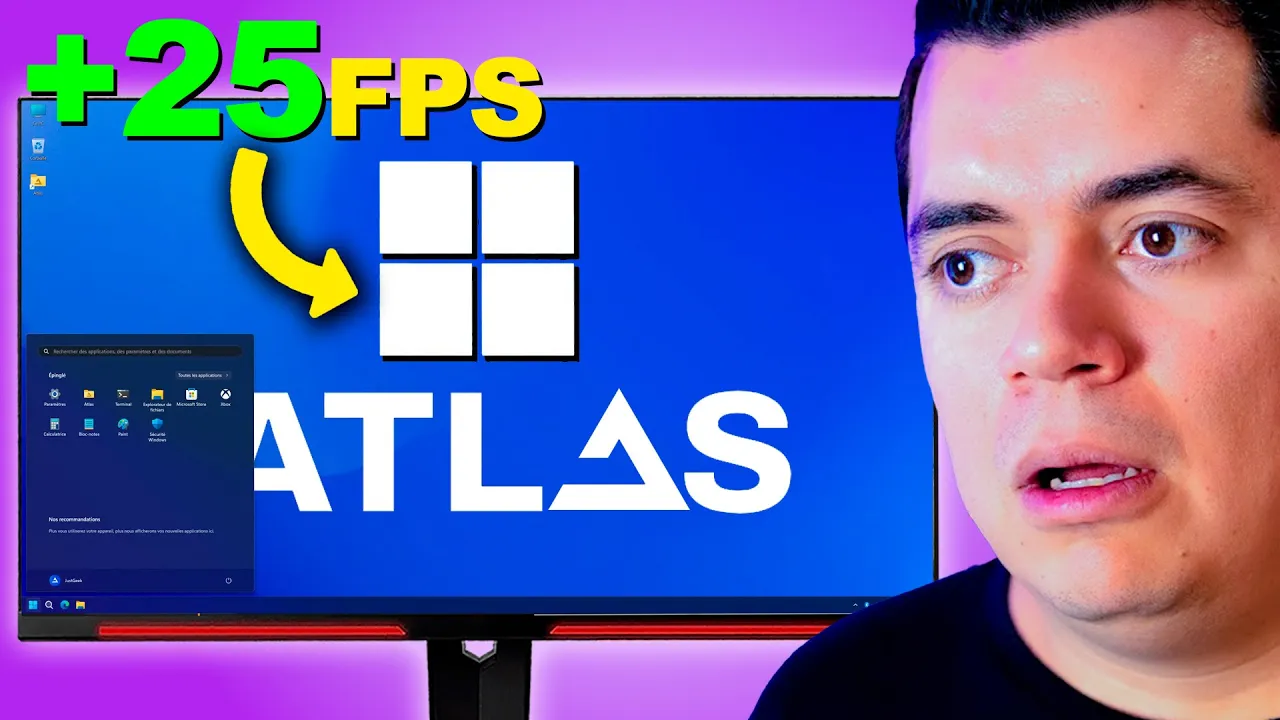
Windows ATLAS OS: PROMETE +100FPS pero.... ¡SI ES MUY RÁPIDO!
Installation Process Overview
In this section, the speaker introduces the process of installing Atlas OS on Windows, aiming to enhance gaming performance.
Installing Atlas OS
- The speaker directs viewers to download two necessary files for Atlas OS installation: Atlas playbook and wizard.
- Emphasizes the importance of a clean Windows installation and driver updates before proceeding with Atlas OS setup.
- Highlights the need for an activated Windows system for successful installation, guiding users on how to activate it using VIP RKCD.
- Demonstrates purchasing and activating Windows 10 with a discount code, ensuring a cost-effective approach compared to buying directly from Microsoft.
Activating Windows and Obtaining Key
- Walkthrough of purchasing Windows 10 activation key using a discount code, showcasing payment options via PayPal or credit/debit cards.
- Completing the purchase process and receiving confirmation of order creation, emphasizing ease of payment with digital cards for convenience.
Finalizing Activation and Setup
- Verifying successful order creation and payment before proceeding to activate Windows by entering the acquired key in system settings.
- Activating the new key through system settings, ensuring lifetime validity and full functionality of Windows operating system.
Atlas Playbook Installation
This part focuses on executing the Atlas playbook installation after completing Windows activation.
Executing Atlas Playbook Installation
- Running the Atlas playbook as an administrator after extracting files, emphasizing disabling Windows security measures for smooth operation.
- Proceeding with installation analysis to ensure compatibility and meeting necessary requirements for optimal performance.
Configuration Settings
Setting Up Windows 10 and Testing Performance
In this section, the speaker guides through setting up Windows 10, recommends using Windows Defender instead of third-party antivirus software, and explores tools for troubleshooting Bluetooth issues. The performance of the system is tested with games like PUBG and Dirt 5.
Configuring Windows Setup
- Disable all unnecessary features like hibernation and updates.
- Recommend using Windows Defender instead of third-party antivirus software for optimal performance.
- Access a folder containing essential tools for troubleshooting system conflicts, including Bluetooth detection issues.
Software Tools and Drivers
- Explore additional software installation options and driver management tools.
- Discuss the flexibility to install drivers from manufacturers' websites or utilize pre-installed drivers for Atlas OS setup.
Performance Testing with Games
This segment focuses on testing the performance of the system by playing games like PUBG and Dirt 5 to compare efficiency between Atlas OS, Tomex OS, and standard Windows installations.
Gaming Performance Analysis
- Configure game settings to low graphics for fair comparison across different operating systems.
- Compare FPS (frames per second) results between Atlas OS, Tomex OS, and standard Windows installations while playing PUBG.
Comparative Game Performance Continued
Continuing from the previous gaming performance analysis, this part delves into testing game performance with Dirt 5 to evaluate how well Atlas OS performs compared to other operating systems.
Evaluating Dirt 5 Performance
- Run Dirt 5 on low graphics settings to assess FPS rates in comparison with Tomex OS.
Good Performance Comparison of Different Games
The speaker discusses the performance of different games on a specific system, comparing them based on frames per second (fps) and graphical settings.
Performance with Counter-Strike
- Candela Bueno reports good performance with Dirt and overall success with various games.
- Counter-Strike is launched with settings configured to low, experiencing initial loading concerns but eventually running smoothly.
FPS Comparison and Observations
- Initial FPS observed at 100, noting similarities to previous experiences with Tomex.
- FPS fluctuates around 114-118, lower than expected compared to Tomex's performance.
Overwatch Performance Evaluation
The speaker transitions to testing Overwatch for performance comparison, focusing on fps consistency across different scenarios.
Overwatch Testing and Results
- Overwatch gameplay initiates smoothly, maintaining consistent fps levels similar to Tomex's performance.
- Minor lag during loading does not significantly impact the overall fps stability.
System Modification Impact
- Achieving 140 fps in Overwatch aligning closely with Tomex's results, indicating reliable system performance.
Atlas System Review and Recommendation
The speaker concludes by recommending the Atlas system based on its strong performance in game testing scenarios.
Final Assessment and Recommendation
- Positive feedback on Atlas' gaming performance compared to Tomex, highlighting its reliability and commendable results.
- Acknowledgment of Atlas' ability to deliver enhanced fps without compromising system integrity or requiring extensive modifications.
Closing Remarks and Viewer Engagement
The speaker encourages viewer interaction for feedback and opinions regarding the discussed systems' performances.
Viewer Interaction Prompt
- Encouragement for viewers to share their thoughts on the comparative analysis between Atlas and Tomex systems.