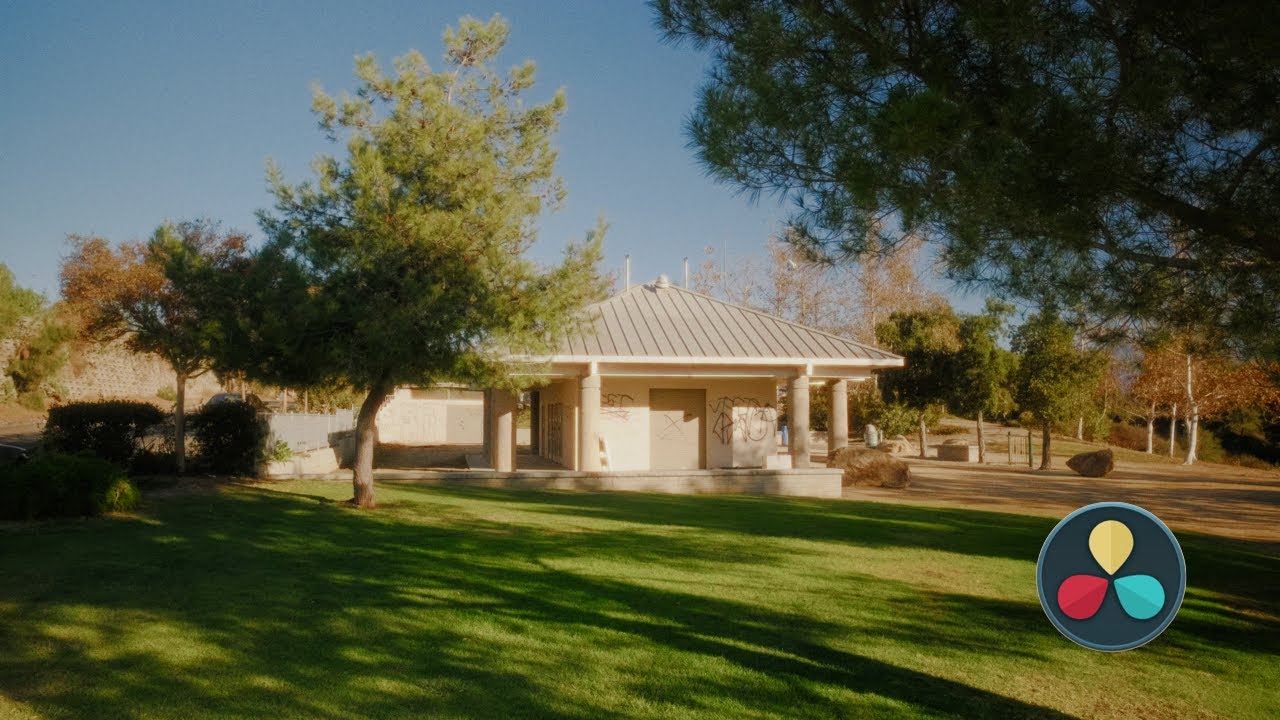
Emulating 16mm or 35mm Film // Color Grading Tutorial
Film Emulation Techniques
In this section, the speaker discusses various methods for replicating the look of 16mm or 35mm film using color grading techniques and tools like LUTs.
Custom Color Grading Method
- The speaker uses a custom LUT and color grading method to emulate the film look.
- This method involves purchasing and downloading power grade and LUTs, organizing them in DaVinci Resolve, applying grades, and adjusting color spaces.
- Specific steps include copying LUTs into DaVinci Resolve project settings, importing power grade from the gallery, applying grades, adjusting color space transform for REC709 input, and setting up camera profiles accordingly.
Film Characteristics Adjustment
- After setting up the initial color correction, users can choose film characteristics to add such as grain (16mm or 35mm), halation effects, promist node for softening footage, daylight balance warmth adjustment, color density enhancement.
- Additional film characteristics include vignette, dust gate weave, film breath for a cinematic effect.
- Saturation adjustment is recommended to enhance colors while maintaining a balanced look.
Advanced Color Space Transformation
This part delves into advanced color space transformation techniques to ensure proper conversion of footage for accurate emulation of film looks.
Power Grade Customization
- The speaker introduces a "looks" node with three pre-set color grades suitable for various lighting scenarios and skin tones adjustments.
- These looks are set at 50 key output intensity level which can be adjusted based on preference.
Footage Conversion Tips
- Users are encouraged to experiment with different LUTs while conforming footage to match specific requirements.
- Creating a personalized power grade with frequently used footage can streamline the editing process by eliminating repetitive lut application.
Color Space Correction
Color Grading Tutorial: Creating a Cinematic Look
In this section, the speaker discusses the use of LUTs (Look-Up Tables) to enhance footage and achieve a cinematic look in color grading.
Applying LUTs for Color Correction
- Utilize specific LUTs like GC Titans and D2X709 to enhance footage quality.
Implementing Film Print Emulation
- Create nodes in DaVinci Resolve for color correction.
- Add a film print emulation LUT from Davinci Resolve under "Film Looks."
Color Space Transformation and Calibration
- Use Color Space Transform node for proper color space adjustment based on camera profile.
- Set input as Rec 2020 and Fujifilm F Log, output as Rec 709 with Cineon Film Log.
Enhancing Footage with Node Structure
This segment focuses on refining footage through node structuring and addressing artifacts.
Addressing Artifacting Issues
- Resolve artifacting by selecting saturation compression under gamut mapping.
- Toggle nodes to observe balanced footage post-adjustment.
Optimizing Color Correction Nodes
The speaker delves into the significance of order in applying color correction nodes effectively.
Order of Operation for Nodes
- Arrange nodes strategically; prioritize exposure and white balance adjustments.
- Fine-tune exposure by adjusting offset, gamma, and contrast levels accordingly.
Adding Film Characteristics
Exploring techniques to introduce film characteristics like softness, grain, and halation for an authentic cinematic feel.
Softness Effect with Gaussian Blur
- Apply Gaussian blur node to achieve desired softness effect based on film type (e.g., 16mm, 35mm).
- Adjust blur intensity depending on the desired film aesthetic.
Incorporating Grain Texture
- Integrate grain effect using DaVinci Resolve's studio version or alternative free grain overlays for texture enhancement.
- Customize grain settings to suit the visual style of the project.
Creating Halation Effect
Demonstrating how to create a halation effect through compound nodes and color space transformation.
Crafting Halation Effect
- Establish halation effect by creating compound nodes with specific composite modes like "add."
- Configure color space transform nodes for input-output gamma calibration.
Color Grading Techniques for Film Emulation
In this section, the speaker demonstrates various color grading techniques for film emulation, focusing on creating a vintage film look using different effects and power grades.
Using Film Damage Effect
- Applying an effect called "film damage" to introduce dust damage to footage.
- Adjusting values to eliminate other effects and retain only dirt.
- Modifying parameters like color, density, size, and blur of the dirt effect.
Power Grade by Juan Millara
- Introducing a power grade created by Juan Millara for film print emulation.
- Exploring the Kodak 2383 power grade for color enhancement.
- Copying settings from previous methods to incorporate the power grade into the workflow.
Flexibility with Power Grade
- Utilizing the power grade for enhanced flexibility in adjusting film characteristics.
- Accessing features like contrast adjustment within the curve tool.
- Exploring options to customize the film print characteristics based on personal preferences.
Advanced Film Emulation Techniques
This segment delves into advanced film emulation techniques using a plugin called The Answer, offering a streamlined approach for achieving cinematic looks with minimal effort.
The Answer Plugin Overview
- Selecting camera profiles such as Fujifilm XC3 and F-log within The Answer plugin.
- Accessing various elements like film stock, grain, halation, vignette, and more for comprehensive film emulation.
Customization Challenges
- Noticing issues with black levels being crushed when using certain camera profiles.
- Experimenting with color space transformation to enhance footage appearance.
Unique Features of The Answer Plugin
- Highlighting the proprietary algorithm for applying film grain seamlessly into footage.
New Section
In this section, the speaker discusses the features and pricing of a film emulation program, highlighting its capabilities in enhancing footage.
Understanding the Film Emulation Program
- The plugin offers the ability to customize looks, providing decent inhalation around lights.
- Bloom feature adds a glow to highlights but may appear too strong in some cases.
- Despite the $400 price tag, it is considered one of the best film emulation programs available.
New Section
This segment delves into tips for utilizing the film emulation program effectively and optimizing footage export settings for platforms like YouTube.
Tips for Effective Usage
- While manual editing is preferred by many, this program can be beneficial for quick film look creation.
- A discount code "set" provides a 10% off on purchase.
Optimizing Footage Export
- Exporting in 4K resolution can help maintain grain quality on platforms like YouTube due to better compression handling.
- Setting export resolution at 4K and restricting quality to 100,000 ensures high-quality output post-compression.
Turn any video into a summary like this
YouTube links, meetings, lectures. With transcripts, search, and chat.