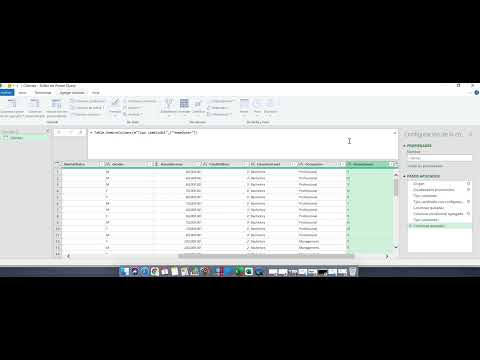
Video 1 ETL Clientes
Data Extraction and Transformation Process
Introduction to Data Processing
- The video begins with an overview of a data extraction process, focusing on CSV and Excel files.
- It highlights the use of Power BI for importing data directly from these file types.
Importing Data
- A demonstration is provided on how to import a client file, showcasing a preview of the data columns.
- The importance of identifying useful columns for modeling sales processes is emphasized.
Data Transformation Steps
- The speaker discusses three key steps in Power BI: loading the file, promoting headers, and determining data types.
- An explanation is given about M code used in Power BI for those interested in deeper specialization.
Managing Data Types
- The process of promoting headers from the first row to column names is explained.
- Automatic identification of data types (numeric, text, date, etc.) by Power BI is discussed.
Handling Date Formats
- Issues with date formats are addressed; specifically, how American formats differ from Mexican formats.
- Instructions are provided on changing regional settings to correctly interpret date formats within Power BI.
Column Management
- Options for transforming income data into a global format are mentioned as well as strategies for removing unnecessary columns.
- The method for selecting and deleting columns that do not contribute to sales analysis is demonstrated.
Data Transformation Techniques in Excel
Overview of Column Transformations
- The discussion begins with the importance of transforming columns in Excel, highlighting options like adding or modifying existing columns based on specific operations.
- It is noted that data can be manipulated by extracting information from text, changing formats (e.g., converting to lowercase), and performing statistical calculations such as multiplication and division.
- A recommendation is made to transform binary data (like yes/no responses) into a more usable format for analysis, suggesting the creation of conditional columns.
Creating Conditional Columns
- Instructions are provided on how to create a new column using conditions. Users can name this column and set specific criteria for its values.
- An example is given where if a condition (e.g., owning a house) is met, it returns a value of 1; otherwise, it returns 0. This binary representation simplifies data interpretation.
- The speaker suggests further transforming these binary values into true/false representations for better clarity in data analysis.
Managing Data Types and Column Renaming
- There’s an emphasis on managing different data types effectively. For instance, simplifying binary responses enhances readability and usability within datasets.
- Once transformations are complete, unnecessary original columns can be removed easily through right-click options or menu selections.
- The process of renaming transformed columns is explained as straightforward—double-clicking the column name allows users to edit it directly.
Advanced Conditional Logic
- Further examples illustrate creating additional conditional columns based on various statuses (e.g., marital status). This helps categorize data efficiently.
- The speaker discusses selecting comparison columns for conditions and how this impacts the resulting dataset's structure and clarity.
Finalizing Data Transformations
- After creating new conditional columns, users are guided on how to convert numerical outputs back into boolean formats (true/false).
- The effectiveness of automatic conversions without complex formulas is highlighted as beneficial when handling large datasets.
- Finally, once all transformations are satisfactory, users can close and load their updated tables into Excel. Changes made will automatically reflect in future updates from the source file.
Transformations and Data Management in Power BI
Understanding the Need for Transformations
- The necessity to change transformation steps arises from detecting unanticipated errors or missing data that were not initially considered.
- If users are satisfied with current transformations, they can simply update them, allowing for semi-automatic execution of changes.
Automation and Persistence in Processes
- The process of updating transformations contributes to the persistence of data management efforts within the context of Control (CTL) processes.
- Power BI aids in extracting information from external files, particularly CSV files, facilitating data transformation through various operations.
Editing and Analyzing Steps
- Users can easily edit transformation steps by hovering over options, enabling modifications directly within the interface.
Turn any video into a summary like this
YouTube links, meetings, lectures — with transcripts, search, and chat.