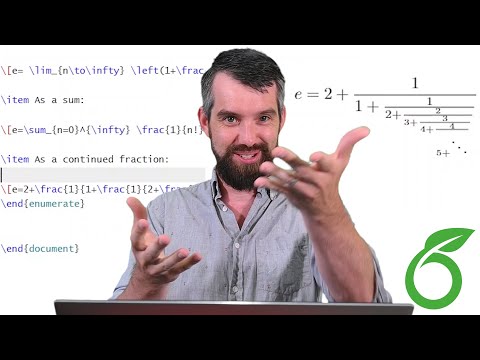
Intro to LaTeX **Full Tutorial** Part II (Equations, Tables, Figures, Theorems, Macros and more)
Introduction to LaTeX for Beautiful Mathematics
Overview of LaTeX
- LaTeX is a markup language ideal for writing mathematical documents, converting messy code into beautifully formatted equations.
- This video builds on a previous introduction to LaTeX, providing tips and tricks for creating homework or project documents.
Getting Started with Overleaf
- To write in LaTeX, you need software; Overleaf is recommended as the best web-based editor that operates in the cloud.
- The creator expresses pride in being officially sponsored by Overleaf to produce this educational series aimed at novices transitioning to mastery in LaTeX.
Basic Formatting Techniques
Emphasizing Mathematical Expressions
- The video demonstrates basic formatting techniques such as making text bold using
textbfwithin curly braces.
- Users can also utilize Overleaf's rich text features, like italics (
textit), through a contextual menu instead of memorizing commands.
Underlining Text
- Another formatting option shown is underlining text with
underline, which wraps the desired expression in curly braces.
Creating and Numbering Equations
Display Math Environment
- To create more complex equations, users can use the display math environment with
[ ... ]orbeginequation ... endequationfor automatic numbering.
Referencing Equations
Creating and Referencing Equations in LaTeX
Internal Label Creation
- The speaker discusses creating an internal label in LaTeX that is not displayed but can be referenced later. Instead of manually typing "1" for equation references, they use
refto reference the label named "limit".
Understanding Equation References
- The first equation is automatically numbered as "1" because it is the first equation in the document. This demonstrates how referencing works without manual input.
Constructing Limits with LaTeX
- The speaker explains how to create a limit expression using
lim, including formatting elements like braces and arrows to denote limits approaching zero.
Aligning Multiple Equations
- To manage multiple equations, the speaker shifts from an equation environment to an align environment, which allows for better alignment of equations across multiple lines.
Enhancing Equation Layout
- By using `` at the end of lines within the align environment, LaTeX recognizes line breaks. The speaker removes unnecessary labels since there are now two equations being presented together.
Aligning Equal Signs in Equations
Using Ampersands for Alignment
- An ampersand (
&) is introduced before equal signs in both equations to ensure they are aligned vertically, akin to columns in a table format.
Adding Text Within Equations
- The speaker shows how to insert text into equations using
text, ensuring that it appears correctly formatted rather than disrupting mathematical notation.
Combining Equations into One Reference
Transitioning Back to Equation Environment
- To treat two aligned expressions as one single equation, the speaker returns to using the equation environment combined with a split structure:
beginsplitandendsplit.
Maintaining Visual Consistency
- This method visually maintains the layout while allowing for a single reference number for what is conceptually one equation despite having multiple parts.
Utilizing Overleaf Features for Efficiency
Streamlined Typing with Overleaf
- The speaker highlights Overleaf's convenience features that auto-complete environments when typing commands like
beginequation, saving time and reducing errors during coding.
Compiling Complex Expressions
How to Format Long Equations and Create Tables in LaTeX
Formatting Long Equations
- When equations are too long, use
beginmultlineinstead ofbeginequationto allow for multiple lines.
- To indicate line breaks within the equation, use ``, which tells LaTeX where to end a line. This provides better control over the layout.
- The precision of LaTeX allows mathematicians to format their work effectively, despite the initial learning curve associated with its coding.
Creating Tables in LaTeX
- Start creating tables using
begintableand thenbegintabular, which sets up the table environment with standard formatting.
- The syntax
c | ccenters columns and adds vertical lines between them; use&to separate columns and `` to end rows.
- You can add more vertical bars by adjusting the column specifications (e.g., adding bars on both sides), and horizontal lines can be added using
hline.
Enhancing Table Appearance
- If there's a syntax error, Overleaf will highlight it; ensure that commands like
hlineare placed correctly after ending a row with ``.
- Adjust column alignment (left/right/center); for example, right-aligning numbers can improve readability.
Centering Tables and Adding Captions
- Wrap your table in a centering environment using
begincenterandendcenterfor better visual placement on the page.
- Use captions (
caption) for clarity about what each table represents; labels (label) allow you to reference tables easily throughout your document.
Managing Page Layout
- LaTeX automatically positions tables based on available space; if needed, you can manually force content onto new pages using commands like
newpage.
Adding Graphics and Custom Environments in LaTeX
Introduction to Including Graphics
- The speaker discusses adding graphics in LaTeX, specifically using the
includegraphicscommand within a figure environment.
- An image file named "100k.png" is uploaded for inclusion, but an error occurs due to a missing package requirement.
- The necessary package
graphicxis added to handle graphics, resolving the initial error upon recompilation.
Adjusting Image Size
- The issue of an "overfull horizontal box" arises because the image is too large; parameters can be adjusted within square brackets.
- Setting the width of the image to
textwidthensures it fits perfectly on the page, maintaining visual consistency.
Figure Environment Features
- The figure environment allows for captions and labels similar to tables, enhancing organization and reference capabilities in documents.
- The speaker transitions into discussing mathematical environments such as theorems and definitions, emphasizing their importance in academic writing.
Creating Custom Theorem Environments
- To create custom theorem environments, packages like
amsthmare introduced alongsideamsfonts, which are standard in mathematical typesetting.
- A new theorem environment is defined using
newtheorem, specifying how it will be referenced and displayed throughout the document.
Implementing Theorems
- By using
begintheorem, users can easily insert formatted statements that automatically number themselves (e.g., "Theorem 1").
- Each theorem's title appears bolded with its content italicized, ensuring consistent styling without manual formatting adjustments.
Additional Options for Theorems
- Users can add titles to theirorems by placing them in square brackets during definition; this enhances clarity when referencing multiple statements.
Understanding Theorem Numbering in LaTeX
Section and Theorem Numbering
- The speaker discusses the organization of theorems within sections, emphasizing that theorem numbering can be adjusted to reflect the current section.
- By specifying "section number," theorems are numbered according to their respective sections, resulting in formats like 2.1 and 2.2 for section two.
Corollaries and Their Numbering
- Corollaries are introduced as related results stemming from theorems; however, they typically follow a different numbering system based on their associated theorem rather than the section.
- An example is provided where a corollary is labeled as Corollary 2.2.1, indicating its connection to Theorem 2.2.
Proof Structure
- The speaker highlights that every theorem must be accompanied by a proof, which is presented in a standardized format with an italicized body followed by a QED symbol.
Creating Custom Commands in LaTeX
Simplifying Common Symbols
- A demonstration of creating custom commands begins with simplifying frequently used symbols like the real numbers represented by mathbbR.
- A new command R is created to replace mathbbR, allowing for quicker typing without losing clarity or meaning.
Advanced Command Creation
- The speaker explains how to create more complex commands that accept parameters, such as generating column vectors using a new command called cv.
- This command allows users to input values dynamically into a matrix format without needing to rewrite lengthy code each time.
Conclusion on Macros
LaTeX Tips and Tricks
Overview of Upcoming Content
- The series on LaTeX will feature several tips and tricks aimed at tackling more complex LaTeX tasks.
- Viewers are encouraged to check the description for links to Overleaf, a cloud-based software that simplifies writing in LaTeX.
- Additional documentation guides related to LaTeX are also provided in the description for further learning.
Turn any video into a summary like this
YouTube links, meetings, lectures — with transcripts, search, and chat.